Your Canon printer was ready to work. Then it flashed Error B200. Rude, right? This error is often linked to the printhead, ink flow, overheating, or a hardware problem. The good news is this: you can try several simple fixes before calling for repair.
TLDR: Canon Printer Error B200 usually means the printer has detected a problem with the printhead, ink system, or internal hardware. Start with a power reset, then check ink cartridges, clean the printhead, and inspect for blockages. If the error keeps coming back, the printhead or main board may need service. Try the safe steps below before replacing anything expensive.
What Does Canon Error B200 Mean?
Error B200 is one of those messages that sounds scary. It feels like your printer just shouted, “I quit!” But do not panic.
In many Canon inkjet printers, B200 points to a problem in the printhead system. The printhead is the part that sprays ink onto the page. It is like the tiny paintbrush inside your printer. If it gets clogged, overheated, or cannot communicate correctly, the printer may stop and show this error.
The error can happen for several reasons:
- Clogged printhead nozzles
- Empty or faulty ink cartridges
- Dried ink inside the printer
- Overheating printhead
- Dirty contacts
- Internal hardware failure
- Firmware or power glitch
So yes, the printer is upset. But it may only need a little spa day.
Before You Start: A Tiny Safety Talk
Printers look harmless. They sit there making cute noises. But they still have moving parts and electrical parts.
Before doing anything inside the printer:
- Turn the printer off.
- Unplug the power cable.
- Wait a few minutes.
- Do not force stuck parts.
- Do not touch gold contacts with wet hands.
- Use a soft cloth, not a sharp tool.
If your printer is still under warranty, check Canon support first. Opening too much or using harsh cleaning methods can void the warranty. Nobody wants that plot twist.
Fix 1: Do a Simple Power Reset
This is the “turn it off and on again” fix. It sounds too easy. But it works more often than people expect.
- Turn off the printer using the power button.
- Unplug the power cord from the wall.
- Unplug the USB cable, if connected.
- Wait for 10 to 15 minutes.
- Plug the power cord back in.
- Turn the printer on.
This clears temporary errors. It also lets hot parts cool down. If the B200 error was caused by a quick power glitch or overheating, this may fix it.
If the error disappears, do a happy dance. Then print a test page.
Fix 2: Check the Ink Cartridges
Ink cartridges are small. But they can cause big drama.
Error B200 may appear if a cartridge is empty, leaking, not seated correctly, or not recognized. Sometimes a cartridge looks fine, but the chip or contact is dirty.
Try this:
- Open the printer cover.
- Wait for the cartridge carriage to stop moving.
- Remove each ink cartridge carefully.
- Check for leaks, cracks, or dried ink.
- Look at the gold or copper contacts.
- Wipe contacts gently with a dry lint free cloth.
- Reinstall each cartridge firmly.
- Close the cover and restart the printer.
Make sure every cartridge clicks into place. A loose cartridge can confuse the printer. Printers are picky little robots.
If you recently installed a new cartridge, that cartridge may be the problem. Try using a genuine Canon cartridge or a known working one. Some third party cartridges work fine. Others cause errors. It is a printer lottery.
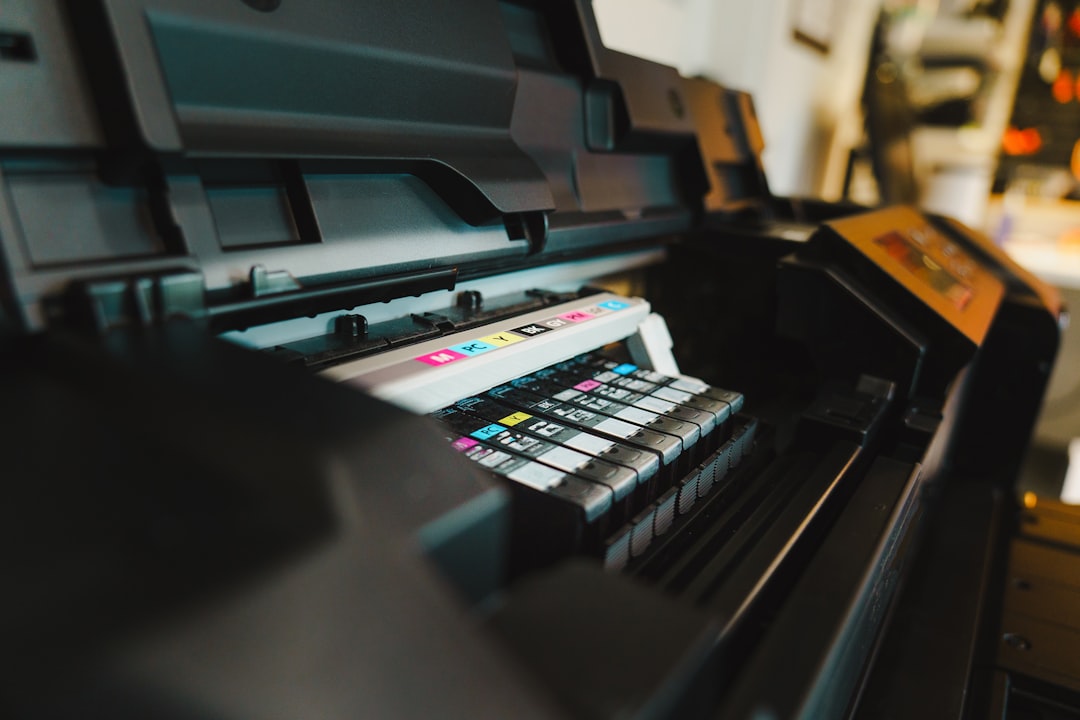
Fix 3: Remove and Reseat the Printhead
The printhead is often the main suspect. In many Canon models, you can remove it yourself. In some models, you cannot. Check your manual first.
If your printer has a removable printhead, follow these general steps:
- Turn off and unplug the printer.
- Open the cover.
- Remove all ink cartridges.
- Lift the printhead lock lever, if your model has one.
- Gently remove the printhead.
- Inspect it for dried ink or damage.
- Put it back carefully.
- Reinstall the cartridges.
- Close the cover and restart the printer.
Do not yank the printhead. Do not poke it with metal. Treat it like a tiny expensive sandwich.
Fix 4: Clean the Printhead
A clogged printhead can trigger B200. Dried ink blocks the nozzles. Then the printer struggles. Then it panics.
Start with the built in cleaning tool.
- Open your printer settings on the computer.
- Find Maintenance or Tools.
- Run Cleaning.
- Print a nozzle check page.
- If needed, run Deep Cleaning.
Do not run deep cleaning too many times in a row. It uses a lot of ink. It can also heat the printhead. Two attempts are usually enough.
If the error blocks access to settings, you can try a manual clean. Only do this if your printhead is removable.
Use warm distilled water. Not boiling water. Not soap. Not mystery kitchen liquid.
- Remove the printhead.
- Place it nozzle side down on a damp lint free cloth.
- Let dried ink soften for a few minutes.
- Gently blot the nozzles.
- Do not rub hard.
- Let it dry fully.
- Reinstall it.
Important: The electrical contacts must be dry before reinstalling. Water and electronics are not friends. They are not even polite neighbors.
Fix 5: Inspect Inside the Printer
Sometimes the problem is not the ink. It is a tiny paper scrap. Or dust. Or a rogue sticker. Printers collect weird things like dragons collect treasure.
Look inside the printer with a flashlight.
Check for:
- Paper jams
- Torn paper pieces
- Ink build up
- Loose cartridges
- Blocked carriage path
- Foreign objects
Move nothing by force. If the carriage is locked, do not drag it. That can break the belt or motor.
If you see dried ink near the printhead parking area, gently clean what you can reach. Use a soft cloth. Avoid soaking anything.
Fix 6: Try the Open Cover Restart Trick
This trick helps on some Canon models. It sounds odd. But it can reset the timing between the printer and the printhead carriage.
- Turn off the printer.
- Open the top cover.
- Turn the printer on while the cover is open.
- Wait for the carriage to start moving.
- Close the cover when the carriage reaches the center.
- Let the printer finish starting.
This does not work on every model. But it is easy and safe if done gently.
If the error clears, run a nozzle check. Then print one simple page. Start small. Do not ask the printer to print a 90 page report right after surgery.
Fix 7: Update or Reinstall the Printer Driver
Most B200 errors are hardware related. Still, software can sometimes make things worse. A bad driver may send strange commands. The printer may respond with an error.
Try this:
- Remove the printer from your computer.
- Restart the computer.
- Download the latest driver from Canon support.
- Install it fresh.
- Reconnect the printer.
If your printer uses Wi Fi, restart your router too. The router enjoys being included.
Fix 8: Reset the Printer Settings
Some Canon printers allow a settings reset from the menu. This can clear stored errors or confused settings.
Look for menu options like:
- Device Settings
- Reset Settings
- Reset All
- Restore Factory Defaults
Be aware that a reset may erase Wi Fi settings. You may need to reconnect the printer to your network.
If the printer will not let you access the menu because B200 appears instantly, use the power reset method instead.
Fix 9: Let the Printer Cool Down
A hot printhead can trigger B200. This may happen after heavy printing, repeated cleaning cycles, or a long photo print session.
Turn the printer off. Unplug it. Let it rest for at least 30 minutes. Yes, your printer gets a nap.
After it cools, plug it in and try again. If it works, avoid running many deep clean cycles in a row. Give the printer breaks during heavy jobs.

When It Is Probably a Hardware Problem
If you tried the reset, cartridge check, printhead cleaning, and inspection, but B200 still appears, the issue may be hardware.
Possible failed parts include:
- Printhead
- Carriage unit
- Logic board
- Power supply
- Sensor system
The printhead is the most common part to suspect. But do not rush to buy one. Printheads can be expensive. Sometimes they cost almost as much as a new printer.
If the printhead has visible burn marks, damaged contacts, or heavy ink leakage, replacement may be needed. If a new printhead does not fix it, the main board may be bad. That is when repair costs can climb fast.
Should You Repair or Replace the Printer?
This is the big question. It depends on the printer’s age, value, and ink supply.
Repair may be worth it if:
- The printer is high end.
- It is under warranty.
- You already own lots of matching ink.
- The repair cost is low.
Replacement may be smarter if:
- The printer is old.
- The printhead costs too much.
- The same error keeps returning.
- You need reliable daily printing.
Do a quick cost check. If repair is more than half the price of a new printer, replacement may be the better move.
How to Prevent Error B200 in the Future
You cannot prevent every printer problem. Printers are mysterious beasts. But you can reduce the risk.
- Print at least once a week.
- Use good quality ink.
- Do not ignore low ink warnings.
- Keep the printer covered when not used.
- Avoid dusty areas.
- Turn the printer off with its power button.
- Do not unplug it while it is working.
- Run cleaning only when needed.
Weekly printing keeps ink moving. This helps stop clogs. Even a small color test page can help.
Final Thoughts
Canon Printer Error B200 is annoying. But it is not always the end of the road. Start simple. Reset the printer. Check the cartridges. Clean the printhead. Look for jams and dried ink. Then try a settings or driver reset.
If the error stays, the printhead or hardware may need repair. At that point, compare repair cost with replacement cost. Be practical. Be calm. And remember: your printer is not haunted. It just has ink drama.
With a little patience, a soft cloth, and the steps above, you have a solid chance of bringing your Canon printer back to life. Now go forth and print boldly.