
Modern graphics cards are designed to dynamically adjust their clock speeds based on workload, temperature, and power limits. While this automatic behavior works well for most users, enthusiasts and performance-focused professionals often prefer tighter control over GPU behavior. One powerful feature available in MSI Afterburner is Boost Lock, which allows you to lock your GPU at a specific boost clock for consistent performance during gaming, benchmarking, or rendering workloads.
TLDR: Boost Lock in MSI Afterburner lets you force your GPU to operate at a consistent boost frequency instead of dynamically scaling up and down. To enable it, you must activate voltage control, open the curve editor, select your desired frequency and voltage point, and lock it using a simple keyboard shortcut. This improves performance consistency but may increase power consumption and heat output. Always monitor temperatures and stability after enabling Boost Lock.
What Is Boost Lock in MSI Afterburner?
Boost Lock is a feature that allows users to force their graphics card to run at a specific frequency on the voltage/frequency curve. Normally, NVIDIA GPUs (and some AMD GPUs) use GPU Boost technology to dynamically scale clock speeds based on power headroom, temperature, and workload. While adaptive boosting is efficient, it can introduce fluctuations in clock speeds and performance.
By enabling Boost Lock, you essentially override this behavior and instruct the GPU to stay at a fixed clock speed under load. This can be particularly beneficial for:
- Consistent benchmark results
- Stable frame pacing in competitive gaming
- Testing overclock stability
- Diagnosing power or throttling issues
However, locking boost clocks also reduces the GPU’s ability to manage thermals automatically, so it should be done carefully.
Before You Begin: Important Preparations
Before enabling Boost Lock, ensure you take the following preparatory steps:
- Install the latest version of MSI Afterburner.
- Update your GPU drivers.
- Ensure adequate case airflow and cooling.
- Understand your GPU’s safe voltage and temperature limits.
It is also highly recommended to enable monitoring in MSI Afterburner so you can track:
- GPU temperature
- Core clock speed
- Voltage
- Power draw
- Fan speed
This ensures you catch overheating or instability early.
Step 1: Enable Voltage Control in MSI Afterburner
Boost Lock requires access to your GPU’s voltage/frequency curve. By default, voltage control may be disabled.
To enable voltage control:
- Open MSI Afterburner.
- Click the Settings (gear icon).
- Navigate to the General tab.
- Check Unlock voltage control.
- Optionally enable Unlock voltage monitoring.
- Click OK and restart MSI Afterburner if prompted.
Once restarted, you should see voltage adjustments available on the main interface.
Step 2: Open the Voltage/Frequency Curve Editor
The Curve Editor is where Boost Lock is configured. It allows you to manipulate how your GPU behaves at specific voltage levels.
To open it:
- Press Ctrl + F inside MSI Afterburner
or - Click the small graph icon next to the Core Clock slider
This opens the Voltage/Frequency Curve Editor — a graph showing voltage (horizontal axis) and clock speed (vertical axis).
Each point on the curve represents a voltage level and its corresponding clock frequency.
Step 3: Choose Your Desired Boost Clock
Now comes the critical part: selecting the frequency you want to lock.
Follow these steps carefully:
- Identify a stable boost frequency your GPU can handle.
- Find the voltage point associated with that frequency.
- Click that specific node on the curve.
If you are unsure what frequency is stable, run a stress test first and observe your GPU’s typical boost clock under load. Use that as your starting point.
Important: Avoid choosing an unrealistically high frequency without proper stability testing. This can lead to crashes or driver resets.
Step 4: Lock the Boost Clock
Once you’ve selected your desired voltage/frequency point:
- Hold Ctrl
- Press the L key
This will activate Boost Lock at the selected node.
Visually, you will notice the selected point becomes highlighted, indicating that the GPU will now operate at that locked voltage and frequency under load.
Click the Apply checkmark in the main MSI Afterburner window to confirm the changes.
Your GPU is now configured to run at a fixed boost clock.
Step 5: Test Stability and Monitor Temperatures
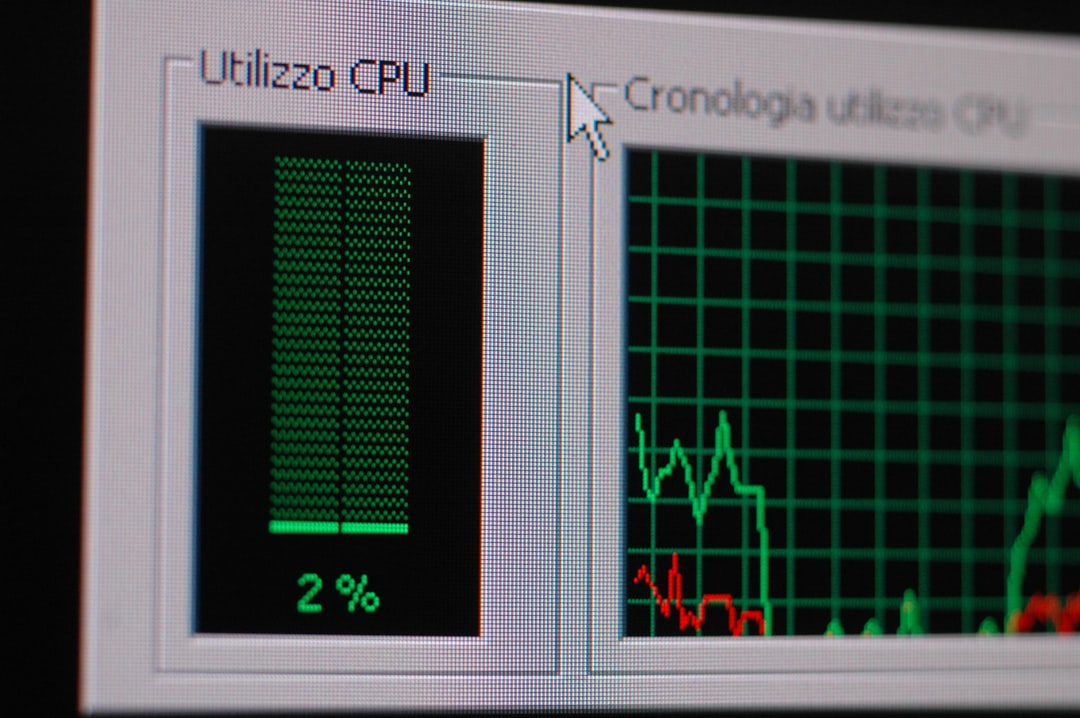
After enabling Boost Lock, you must validate system stability.
Run one or more of the following:
- 3DMark benchmark
- Unigine Heaven or Superposition
- A demanding game for 30–60 minutes
- FurMark (with caution)
Watch carefully for:
- Driver crashes
- Screen flickering
- Artifacting
- Sudden application closures
- Excessive temperatures (above 85–90°C depending on GPU)
If instability occurs, return to the curve editor and either:
- Select a lower frequency
or - Adjust to a slightly higher voltage node for stability
Advantages of Using Boost Lock
When configured correctly, Boost Lock offers measurable benefits.
Performance Consistency
The GPU no longer fluctuates between clock states, reducing micro-stutters caused by frequency ramping.
Improved Benchmark Accuracy
Consistent clocks provide more reliable performance comparisons.
Better Overclock Testing
It isolates stability variables, helping diagnose whether instability comes from frequency, voltage, or thermals.
Potential Risks and Downsides
Despite its benefits, Boost Lock is not risk-free.
Higher Power Consumption
The GPU will remain at a higher frequency even during lighter workloads.
Increased Heat Output
Thermal output rises because downclocking no longer occurs as aggressively.
Reduced Efficiency
Dynamic boosting optimizes efficiency; locking frequency sacrifices that advantage.
Possible Long-Term Wear
Operating at higher voltage for extended periods may slightly accelerate silicon degradation.
For daily use, some users create separate MSI Afterburner profiles:
- Profile 1: Default dynamic boost (normal use)
- Profile 2: Boost Lock for gaming
- Profile 3: Undervolted efficiency profile
How to Disable Boost Lock
If you want to return to default behavior:
- Open the Voltage/Frequency Curve Editor (Ctrl + F).
- Press Ctrl + L again on the locked node to release it.
- Click Reset in MSI Afterburner.
- Apply changes.
Your GPU will resume standard GPU Boost dynamic behavior.
Best Practices for Safe Boost Lock Usage
- Never ignore temperature limits.
- Increase fan curve aggressiveness when locking high boost clocks.
- Avoid maximum voltage unless necessary for testing.
- Test for at least 30–60 minutes before considering settings stable.
- Keep drivers updated for compatibility and bug fixes.
Is Boost Lock Right for You?
Boost Lock is ideal for:
- Competitive gamers wanting stable frame timing
- Hardware reviewers and benchmarkers
- Overclocking enthusiasts
- Users troubleshooting performance throttling
It may not be necessary for casual users who are satisfied with default GPU Boost behavior.
Final Thoughts
Enabling Boost Lock in MSI Afterburner gives you precise control over how your GPU behaves under load. By locking your graphics card to a fixed frequency and voltage point, you eliminate dynamic clock fluctuations and gain performance consistency. However, this control comes with responsibility: you must carefully monitor heat, power, and stability.
When implemented properly, Boost Lock can be an invaluable tool for extracting predictable, stable performance from modern GPUs. Follow the steps outlined in this guide, proceed methodically, and always prioritize safe operating limits. With the right configuration, you can achieve a balanced setup that delivers both performance and reliability.



)