Cut initial server response time first by fixing hosting, caching, database bloat, and slow PHP execution. If your WordPress site takes 900 ms or more before the first byte arrives, visitors are already waiting before images, CSS, or JavaScript even matter.
TLDR: Initial server response time, often called TTFB, improves fastest when you use strong hosting, full page caching, fewer heavy plugins, and a clean database. For example, a small WooCommerce store that moved from cheap shared hosting to managed cloud hosting, added server caching, and removed 7 unused plugins cut TTFB from 1.6 seconds to 310 ms. That helped reduce bounce rate by 18% over 30 days. Start with caching and hosting, then tune WordPress itself.
What Initial Server Response Time Really Means
Initial server response time is the delay between a browser asking for a page and the server sending the first byte back. Google often refers to it as server response time or TTFB. A low number means the server found the page, processed WordPress, queried the database, and started sending data quickly.
A good target is usually under 200 ms. Many WordPress sites sit between 600 ms and 2 seconds, which feels sluggish. The catch is that a beautiful homepage can still feel awful if the server takes too long to wake up.
Start With Better Hosting
Hosting is the base layer. If that layer is weak, every other fix works harder than it should. Cheap shared hosting can be fine for a tiny blog, but it often struggles with business sites, busy blogs, membership sites, and WooCommerce stores.
Look for hosting with:
- NVMe storage instead of older hard drives.
- Modern PHP support, preferably PHP 8.2 or newer.
- Built-in server caching such as NGINX, LiteSpeed, or Varnish.
- Enough CPU and RAM for your traffic and plugins.
- Data centers near your audience.
If most visitors are in London, but your server sits in Dallas, every request travels farther than needed. That delay adds up. A content delivery network helps, but your origin server still matters.
Turn On Full Page Caching
WordPress builds pages using PHP and database queries. Without caching, that process repeats for each visitor. Full page caching stores a ready-made HTML version of the page, then serves it fast.
This is one of the biggest wins for blogs, service sites, portfolios, and news sites. It may also help WooCommerce, although cart, checkout, and account pages need special rules.
Popular caching options include:
- LiteSpeed Cache if your host runs LiteSpeed.
- WP Rocket for simple setup and strong features.
- W3 Total Cache for advanced control.
- Cloudflare cache rules for edge caching.
Honestly, it feels silly how often sites use three optimization plugins at once, then wonder why things break. Use one main caching plugin. Configure it well. Test after each change.
Use Object Caching for Busy Sites
Page caching helps public pages. Object caching helps WordPress store database query results so it does not repeat the same work again and again.
This matters for WooCommerce, forums, learning platforms, and membership sites. These sites often show unique content to each user, so full page caching has limits.
Ask your host if they support:
- Redis
- Memcached
- Persistent object cache
Redis is common and effective. When paired with clean plugin code and solid hosting, it can shave hundreds of milliseconds from logged-in page requests.
Update PHP and Tune Server Software
Old PHP versions slow WordPress down. They can also create security risks. Check your hosting control panel and switch to a current PHP version if your plugins and theme support it.
You should also check these server settings:
- PHP memory limit: 256 MB is a safe baseline for many sites.
- OPcache: This stores compiled PHP code and speeds execution.
- HTTP/2 or HTTP/3: These improve how files are delivered.
- GZIP or Brotli compression: These reduce transfer size.
Expect to waste time on hosts that hide basic settings or force you into support tickets for simple changes. Good hosting gives you control without making every task feel like a negotiation.
Remove Heavy and Unused Plugins
Plugins are useful. They are also one of the top reasons WordPress slows down. Some load scripts on every page. Others run database queries even when the feature is not visible.
Audit your plugins every month or two. Ask three questions:
- Do we still use this?
- Does it load assets on pages where it is not needed?
- Could one lighter plugin replace two bulky ones?
Security plugins, page builders, sliders, analytics tools, popup plugins, and backup plugins can all affect response time. That does not mean they are bad. It means they need checks.
Use tools like Query Monitor or your host’s application monitoring to spot slow hooks, database calls, and admin requests. If a plugin adds 400 ms to every page load, it needs a strong reason to stay.
Clean the WordPress Database
Your database stores posts, pages, settings, orders, comments, revisions, transients, and plugin leftovers. Over time, it gets messy. A bloated database makes queries slower.
Clean up:
- Old post revisions.
- Spam comments and trashed comments.
- Expired transients.
- Unused plugin tables.
- Autoloaded options that should not load on every request.
Be careful with database cleanup. Always take a backup first. For larger sites, use a staging copy before touching live data.
Optimize Themes and Page Builders
A bloated theme can slow the server before the browser even begins rendering. Some themes pack in sliders, fonts, widgets, animation libraries, and shortcodes you never use.
Choose a lightweight theme. Keep templates simple. Avoid loading huge page builder layouts for basic pages like contact, privacy, or blog posts.
If you use a page builder, check how many add-ons are active. Many sites keep old builder extensions installed because one icon box used them two years ago. That tiny design choice can cost real milliseconds on every request.
Set Up a CDN, But Do Not Expect Magic
A CDN stores copies of static files such as images, CSS, JavaScript, and fonts on servers closer to visitors. This improves load time across regions. It can also reduce pressure on your origin server.
Cloudflare, Bunny.net, and similar services can help a lot. For even better results, cache full HTML pages at the edge where safe. This works well for content sites. It requires more care for carts, dashboards, and personalized pages.
A CDN will not fix slow PHP, bad hosting, or a plugin that hammers the database. Treat it as part of the stack, not the whole solution.
Measure Before and After
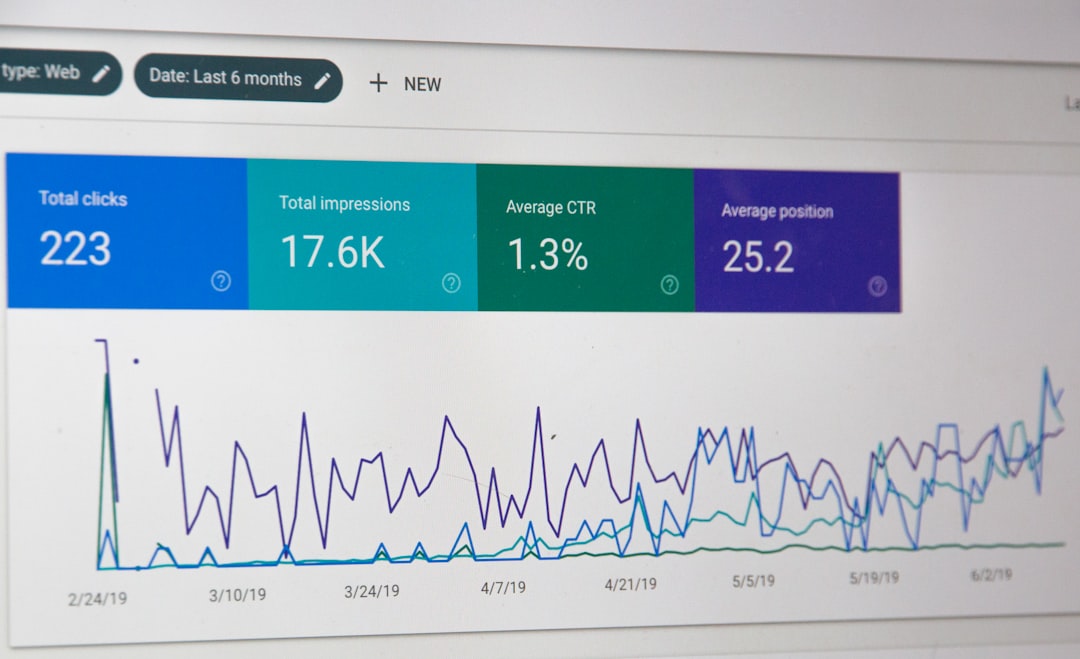
Do not guess. Test. Good performance work needs numbers.
Use these tools:
- GTmetrix for waterfall charts and timing details.
- WebPageTest for repeat tests and location checks.
- PageSpeed Insights for Core Web Vitals data.
- Query Monitor for WordPress database and PHP clues.
- New Relic or host monitoring for deeper server profiling.
Test more than the homepage. Check blog posts, product pages, category pages, search results, checkout, and logged-in pages. A homepage can look fast while the shop section crawls.
A Practical Fix Order
If you want the fastest path, follow this order:
- Benchmark TTFB from two or three locations.
- Check hosting quality and server location.
- Enable full page caching.
- Update PHP and confirm OPcache is active.
- Remove unused plugins and replace heavy ones.
- Clean the database after taking a backup.
- Add Redis object caching for logged-in or store traffic.
- Use a CDN for global delivery.
- Retest and compare numbers.
Server response time is rarely fixed by one switch. It improves through smart layers. Better hosting, proper caching, lean plugins, and a clean database work together. Once the server responds quickly, every other speed improvement has a much stronger effect.