The command line remains one of the most powerful and efficient interfaces for interacting with modern operating systems. For developers, system administrators, DevOps engineers, and security professionals, the terminal is more than a utility—it is a primary work environment. However, the default configurations of most terminals are minimal. To unlock their full potential, professionals increasingly rely on terminal enhancement tools that improve usability, automation, visibility, and speed.
TLDR: Terminal enhancement tools significantly improve productivity, visibility, and workflow efficiency. Modern shells, prompt customizations, multiplexers, fuzzy finders, and syntax highlighters turn the command line into a powerful development environment. These tools reduce context switching, prevent errors, and streamline repetitive tasks. Investing time in configuring them yields long-term operational and productivity gains.
Modern Shells: Building a Strong Foundation
The default shell on many systems—such as Bash—is capable but often limited in user-friendly features. Modern alternatives such as Zsh, Fish, and PowerShell Core introduce intelligent autocomplete, better scripting syntax, improved prompts, and extensibility.
Zsh, in particular, has become a preferred choice due to its rich plugin ecosystem and customization capabilities. Frameworks like Oh My Zsh and Prezto allow users to enable productivity-enhancing plugins in seconds.
Key benefits of modern shells include:
- Advanced tab completion with contextual suggestions
- Shared command history across sessions
- Improved globbing and pattern matching
- Custom aliases and functions for repetitive tasks
Fish shell stands out for its user-friendly out-of-the-box configuration. It features autosuggestions based on command history and syntax highlighting without additional setup.
Prompt Customization: Increasing Situational Awareness
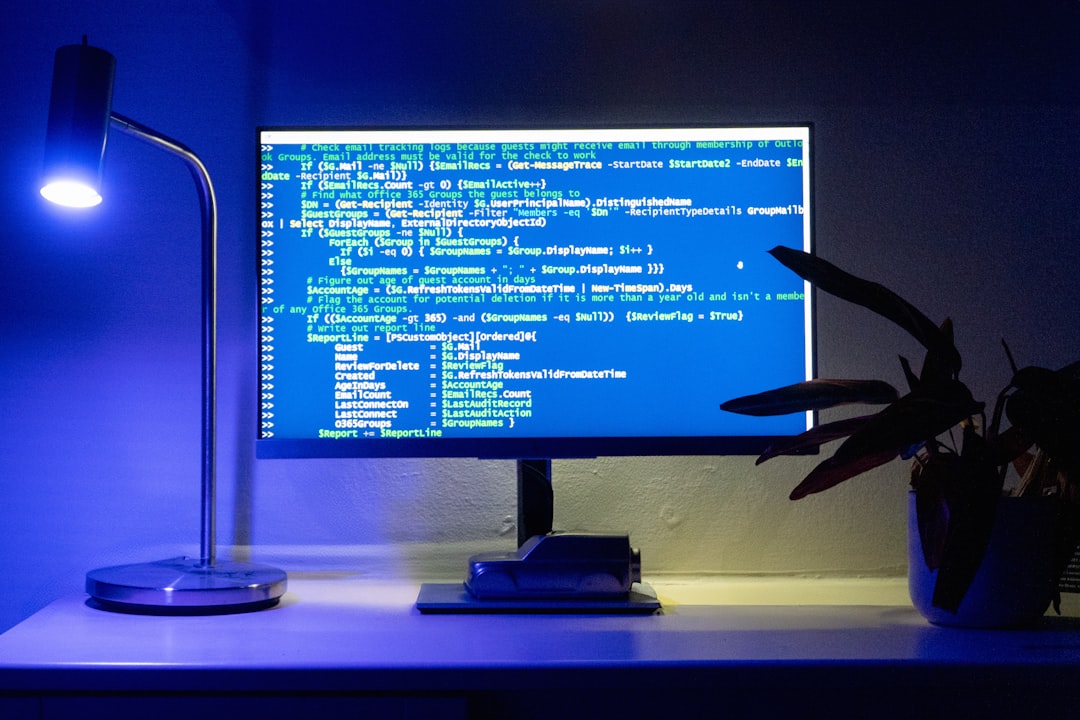
A well-designed prompt communicates vital context instantly—current directory, Git branch, exit codes, virtual environments, and system status. Without this information, users frequently execute additional commands to confirm state, slowing their workflow.
Tools such as Starship and Powerlevel10k provide high-performance, cross-shell prompts that display rich contextual information while remaining responsive.
Effective prompt configurations display:
- Current Git branch and status
- Execution time of previous command
- Python or Node virtual environments
- Exit code indicators
This situational awareness reduces mistakes—such as deploying from the wrong branch—and eliminates unnecessary commands like repeatedly checking git status.
Terminal Multiplexers: Working with Multiple Sessions Efficiently
Terminal multiplexers such as tmux and screen allow users to run multiple terminal sessions within a single window. They enable pane splitting, detachable sessions, and persistent workflows—even when network connections drop.
For remote server management, multiplexers are essential. A detached session can continue running long processes after disk syncing, build operations, or data migrations.
Major advantages include:
- Session persistence after SSH disconnections
- Pane management for monitoring logs, running servers, and editing files simultaneously
- Keyboard-driven navigation
- Improved resource monitoring workflows
With proper configuration, tmux becomes an operational cockpit for complex system management tasks.
Image not found in postmetaFuzzy Finders: Navigating at Speed
One of the most significant productivity enhancements in recent years is the introduction of fuzzy finding tools. fzf is among the most widely adopted. It allows users to search files, command history, processes, Git branches, and more using real-time fuzzy matching.
Instead of navigating nested directories manually, users can:
- Trigger fuzzy file search with a keyboard shortcut
- Search previous commands instantly
- Select Git branches interactively
- Filter large outputs dynamically
When integrated into the shell and combined with tools like ripgrep or fd, fuzzy finders significantly reduce time spent searching for files or recalling commands. This minimizes cognitive load and increases execution speed.
Syntax Highlighting and Autosuggestions
Command-line errors can be costly in production environments. Typographical mistakes, malformed commands, and incorrect flags can lead to downtime or data loss. Syntax highlighting plugins visually distinguish valid commands from malformed ones before execution.
Zsh Syntax Highlighting and Fish’s built-in highlighting help users catch errors in real time. Combined with autosuggestions, they provide:
- Color-coded command validation
- Real-time error detection
- Quick reuse of historical commands
This feedback loop enhances command accuracy and builds safer operational habits.
Directory Navigation Tools
Frequent directory traversal is common in software development and system administration. Tools such as zoxide or autojump learn usage patterns and allow users to jump to frequently visited directories instantly.
Instead of typing long paths, users can enter a short keyword and navigate directly. This approach reduces keystrokes and avoids errors in complex file structures.
For large-scale projects with deeply nested repositories, directory-jumping tools are particularly valuable.
Enhanced File Viewing and Search Utilities
Traditional Unix tools like cat, grep, and ls remain powerful. However, modern replacements improve readability and performance.
- bat: Adds syntax highlighting and Git integration to file viewing.
- ripgrep: Provides faster recursive search compared to traditional grep.
- exa or eza: Offers improved file listings with icons and Git awareness.
These tools maintain compatibility with traditional workflows while offering better defaults and clearer output formatting.
Clipboard Integration and Cross-Platform Compatibility
Modern workflows span local development machines, remote servers, and containerized environments. Clipboard integration tools such as xclip, pbcopy, or native Windows clipboard commands bridge the gap between graphical and terminal environments.
Cross-platform configurations using tools like Starship and portable dotfiles repositories ensure workflow consistency across machines. This consistency reduces onboarding time and cognitive overhead when switching systems.
Version Control Enhancements
Git integration directly into the terminal environment accelerates source control operations. Tools such as lazygit provide a lightweight, keyboard-driven Git interface accessible directly from the command line.
Benefits include:
- Interactive staging and commits
- Branch comparison visualization
- Conflict resolution assistance
While GUI applications exist, terminal-based Git tools maintain focus and reduce context switching.
Configuration Management with Dotfiles
Terminal enhancements require configuration. Maintaining these configurations in version-controlled dotfiles repositories ensures portability and reproducibility.
Professional practices include:
- Separating machine-specific settings
- Documenting dependencies
- Using bootstrap scripts for automated setup
This disciplined approach transforms terminal customization from ad hoc tinkering into a repeatable system architecture.
Performance and Minimalism Considerations
While enhancement tools offer substantial productivity gains, careful selection is important. Excessive plugins can degrade startup times and introduce maintenance complexity. A serious, professional approach involves:
- Benchmarking shell startup times
- Removing redundant plugins
- Favoring actively maintained tools
- Prioritizing stability over novelty
A lean yet powerful configuration typically delivers better long-term results than a heavily ornamented environment.
Security Implications
Terminal enhancements should be evaluated with security in mind. Installing third-party plugins from unverified sources introduces potential risk. Best practices include:
- Reviewing plugin source repositories
- Pinning versions where appropriate
- Auditing shell scripts for sensitive environments
Security-conscious professionals ensure that productivity improvements do not introduce vulnerabilities.
Conclusion
Terminal enhancement tools significantly elevate the command line from a basic interface to a comprehensive operational workspace. Modern shells, intelligent prompts, multiplexers, fuzzy finders, improved file utilities, and version control integrations collectively reduce friction across daily tasks.
For serious practitioners, optimization of the terminal environment is not cosmetic—it is strategic. Improved situational awareness, faster navigation, safer command execution, and persistent sessions translate into measurable productivity gains and reduced operational risk. By approaching customization with discipline and focus, professionals can create a resilient, high-performance command line workflow tailored to their exact needs.