Escape from Tarkov is one of the most demanding tactical shooters on PC, pushing both GPUs and CPUs to their limits with its detailed environments, realistic lighting, and complex AI systems. For players struggling with low frame rates, stuttering, or instability, optimizing MSI Afterburner can make a noticeable difference. With the right configuration, gamers can achieve smoother gameplay, better frame pacing, and improved overall stability without upgrading hardware.
TLDR: The best MSI Afterburner settings for Escape from Tarkov focus on safe GPU overclocking, optimized fan curves, and proper monitoring. Incrementally increasing core clock and memory clock while stress testing helps boost FPS without sacrificing stability. Custom fan curves reduce thermal throttling, and undervolting can improve consistency. Always test changes gradually to avoid crashes or overheating.
Why Use MSI Afterburner for Escape from Tarkov?
MSI Afterburner is a powerful GPU tuning utility that works with most graphics cards, not just MSI models. Since Escape from Tarkov relies heavily on GPU performance for rendering detailed maps and dynamic lighting, even small improvements in clock speeds and thermal management can yield smoother performance.
Key benefits include:
- Higher average FPS
- Reduced stuttering
- Improved thermal control
- Real-time hardware monitoring
- More stable frame pacing
Before applying any settings, it is essential that users update their GPU drivers and ensure their system cooling is adequate.
Understanding the Core MSI Afterburner Controls
To properly optimize performance, players must understand what each slider in MSI Afterburner controls.
- Core Voltage (mV) – Controls the voltage supplied to the GPU core. Higher voltage can stabilize higher overclocks but increases heat output.
- Power Limit (%) – Determines how much power the GPU can draw. Increasing this can prevent throttling.
- Temp Limit (°C) – Sets the maximum temperature threshold before throttling occurs.
- Core Clock (MHz) – Controls the main GPU processing speed.
- Memory Clock (MHz) – Adjusts VRAM speed, which affects texture loading and large map performance.
- Fan Speed (%) – Allows manual or custom fan curve configuration.
Best MSI Afterburner Settings for Boosting FPS
The following settings provide a balanced starting point for most modern GPUs. However, every card is different, so gradual adjustments and testing are critical.
1. Increase the Power Limit
Set the Power Limit to its maximum allowed value. This enables the GPU to draw more power when necessary, preventing performance throttling during intense firefights or when rendering large maps like Streets of Tarkov.
2. Adjust Core Clock
Increase the Core Clock in small increments of +20 to +30 MHz. After each adjustment:
- Launch Tarkov or use a stress test tool.
- Monitor temperatures.
- Check for crashes or graphical artifacts.
Most modern GPUs can handle a moderate boost of +100 to +150 MHz, though results vary.
3. Increase Memory Clock
Escape from Tarkov benefits from faster VRAM due to its high-resolution textures and large environments.
Increase the Memory Clock by +50 MHz increments. Many cards remain stable at +400 to +700 MHz, depending on model and cooling.
4. Custom Fan Curve for Thermal Stability
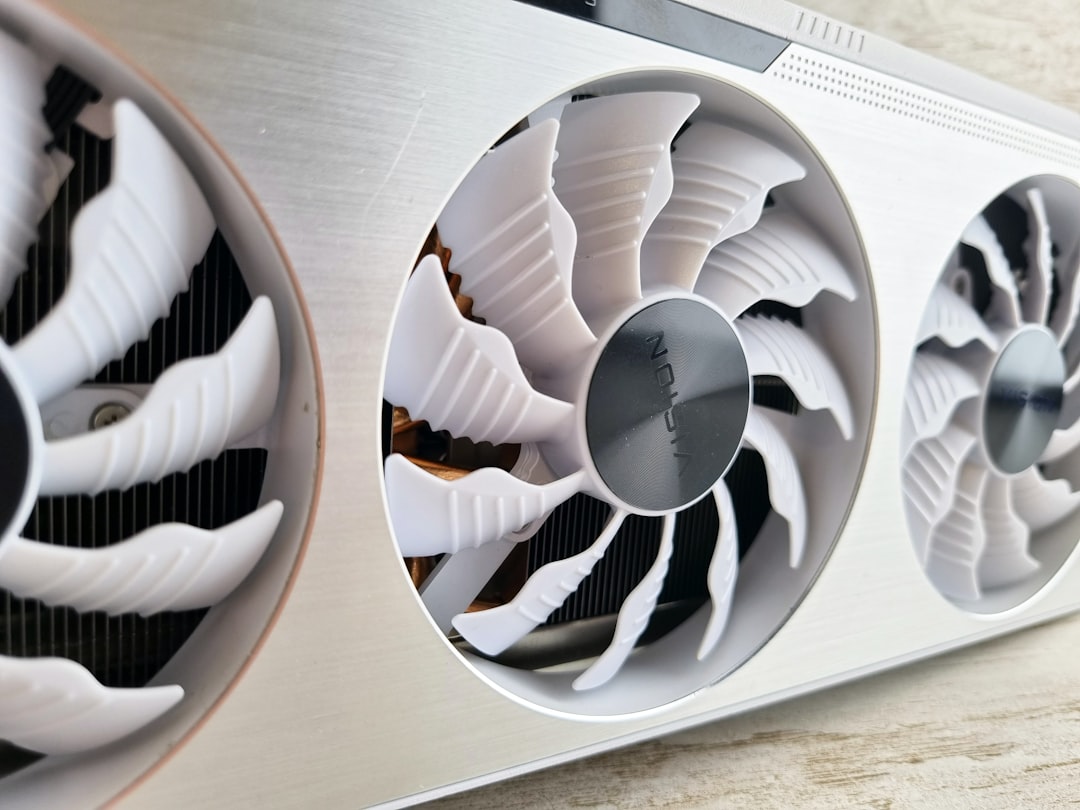
Thermal throttling can drastically reduce FPS during longer raid sessions. Creating a custom fan curve prevents overheating.
A recommended fan curve might look like this:
- 40°C – 30% fan speed
- 60°C – 55% fan speed
- 70°C – 70% fan speed
- 80°C – 85–100% fan speed
This keeps the GPU below thermal throttling thresholds and ensures more consistent performance.
5. Consider Undervolting for Stability
Undervolting reduces heat output while maintaining similar clock speeds. This is especially useful for players experiencing thermal throttling or unstable frame pacing.
Using MSI Afterburner’s voltage curve editor:
- Lock a stable frequency (e.g., 1900 MHz).
- Reduce voltage slightly (e.g., around 900–950 mV).
- Stress test for stability.
Undervolting often results in:
- Lower temperatures
- Quieter fans
- More stable sustained FPS
Monitoring Settings for Tarkov
MSI Afterburner’s On-Screen Display (OSD) is essential for fine-tuning.
Recommended metrics to enable:
- GPU Usage
- GPU Temperature
- Core Clock
- Memory Clock
- CPU Usage
- FPS and Frame Time
Stable gameplay in Tarkov depends not only on high FPS but also on consistent frame times. Spikes in frame time often indicate instability or thermal throttling.
Suggested Overclock Ranges Comparison
| Setting | Conservative | Moderate | Aggressive |
|---|---|---|---|
| Power Limit | +10% | Maximum | Maximum |
| Core Clock | +50 MHz | +100 MHz | +150+ MHz |
| Memory Clock | +200 MHz | +400 MHz | +600+ MHz |
| Voltage | Stock | Slight increase or undervolt | Fine tuned curve |
| Fan Curve | Auto | Custom balanced | Performance focused |
Most players should begin with Moderate settings and adjust based on stability and temperatures.
Additional Optimization Tips for Escape from Tarkov
MSI Afterburner works best when combined with in-game optimization:
- Lower Shadows to medium or low.
- Disable Anti-Aliasing or switch to a lighter method.
- Reduce Texture Quality if VRAM usage exceeds limits.
- Enable DLSS or FSR if supported.
- Use exclusive fullscreen mode.
Because Tarkov is also CPU-intensive, players should close background applications and ensure Windows power settings are set to High Performance.
Common Mistakes to Avoid
- Increasing voltage too quickly – Can cause overheating and long-term damage.
- Skipping stress tests – Always test changes before entering real raids.
- Ignoring temperatures – Anything sustained above 85°C may reduce lifespan.
- Applying someone else’s exact profile blindly – Silicon quality varies between GPUs.
Expected FPS Gains
While results vary, players can typically expect:
- 5–10% FPS improvement from safe overclocking.
- Improved 1% low FPS from better thermal control.
- Reduced stuttering from stable clock speeds.
On a mid-range GPU running at 70 FPS average, this may translate to 75–80 FPS with smoother frame pacing during combat encounters.
Frequently Asked Questions (FAQ)
1. Is MSI Afterburner safe to use?
Yes, when used responsibly. Incremental adjustments and proper monitoring are key. Avoid excessive voltage increases and always monitor temperatures.
2. Will overclocking damage my GPU?
Minor overclocks within safe voltage and temperature ranges are generally safe. Extreme voltage increases or prolonged overheating can reduce lifespan.
3. Should CPU be overclocked for Tarkov?
Escape from Tarkov is CPU-heavy. Light CPU overclocking can help, but it requires a capable cooler and motherboard. MSI Afterburner primarily handles GPU tuning.
4. What temperature is too high for GPUs?
Most GPUs are safe up to 83–85°C. Sustained temperatures above this can lead to throttling and potential hardware degradation.
5. Is undervolting better than overclocking?
Not necessarily better, but often more efficient. Undervolting can maintain similar performance while reducing heat and noise.
6. Why does Tarkov still stutter after overclocking?
Stuttering may be related to CPU bottlenecks, RAM limitations, server-side issues, or in-game settings rather than GPU performance alone.
7. How long should stress testing take?
At least 20–30 minutes for quick testing, and several hours for full stability validation.
By carefully configuring MSI Afterburner and combining it with sensible in-game optimizations, players can significantly improve their Escape from Tarkov experience. Stable overclocks, effective cooling, and proper monitoring ensure smoother raids, faster reaction times, and fewer performance-related setbacks in one of the most intense tactical shooters available.