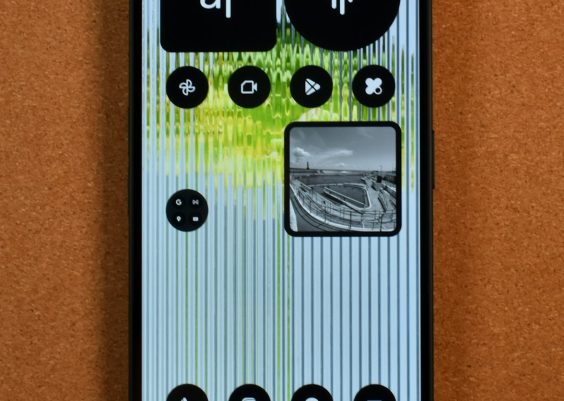
Your PC screen should look calm and normal. Text should be sharp. Colors should make sense. Windows should not wobble like jelly. So when your screen becomes stretched, fuzzy, tinted, flickering, or full of weird lines, it feels like your computer has joined a circus.
TLDR: A distorted PC screen is often caused by a loose cable, wrong display settings, bad graphics drivers, overheating, or failing hardware. Start with easy fixes first. Check cables, restart the PC, set the correct resolution, and update drivers. If the problem appears before Windows loads, the issue may be with the monitor, cable, or graphics card.
What Does “Screen Distorted” Mean?
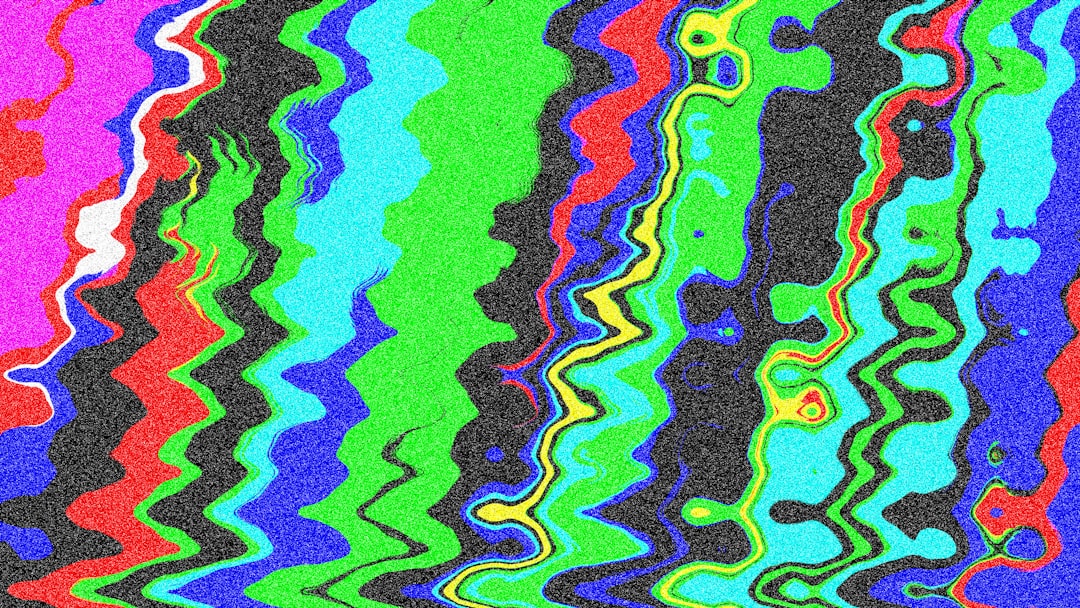
A distorted screen can look different from one PC to another. It may be annoying. It may be scary. It may look like your monitor is doing modern art.
Common signs include:
- Fuzzy text that is hard to read.
- Stretched images that look too wide or too tall.
- Random lines across the screen.
- Flickering or flashing.
- Wrong colors, like a blue or green tint.
- Duplicate images or ghosting.
- Black bars around the display.
- Pixel blocks or strange squares.
Some problems are tiny. Some mean your hardware is waving a little red flag. The trick is to test the simple stuff first.
First Rule: Do Not Panic
A weird screen does not always mean your PC is dying. Many display problems come from basic issues. A cable can be loose. A setting can be wrong. A driver can be grumpy. Even a simple restart can fix the problem.
So take a breath. Put down the hammer. Let us play detective.
Cause 1: Loose or Damaged Cables
This is the classic villain. It is boring. It is common. It is also easy to check.
Your monitor connects to your PC with a cable. This may be HDMI, DisplayPort, DVI, or VGA. If the cable is loose, bent, or damaged, the image can go wild.
Try this:
- Turn off the monitor and PC.
- Unplug the display cable from both ends.
- Check for bent pins or damaged tips.
- Plug it back in firmly.
- If possible, try another cable.
If a new cable fixes it, great. The old cable can retire. It had a good run.
Cause 2: Wrong Screen Resolution
Your monitor has a favorite resolution. This is called its native resolution. If your PC uses the wrong one, the screen may look stretched, blurry, or squished.
For example, a 1920 x 1080 monitor wants 1920 x 1080. If you set it to 1280 x 720, things may look soft and chunky.
On Windows, check it like this:
- Right click the desktop.
- Choose Display settings.
- Find Display resolution.
- Pick the option marked Recommended.
- Click Keep changes if it looks correct.
Also check Scale. If text and icons look too huge or too tiny, scaling may be the reason. Usually, Windows suggests the best option.
Cause 3: Bad Refresh Rate
The refresh rate is how often the screen updates each second. It is measured in hertz. A 60 Hz monitor updates 60 times per second. A 144 Hz monitor updates 144 times per second.
If the refresh rate is wrong, the screen may flicker. It may also feel strange to use.
To check it:
- Open Display settings.
- Click Advanced display.
- Look for Choose a refresh rate.
- Select the correct rate for your monitor.
If you are not sure, choose a safe value like 60 Hz. Then test higher rates if your monitor supports them.
Cause 4: Graphics Driver Problems
Your graphics driver is the translator between Windows and your graphics card. If the driver is old, broken, or confused, the screen can look strange.
Driver trouble can cause:
- Flickering.
- Low resolution.
- Color issues.
- Crashes.
- Random screen artifacts.
Try updating the driver. You can use Windows Update. You can also get the driver from the graphics card maker, like NVIDIA, AMD, or Intel.
If the problem started after a driver update, roll it back. Newer is not always better. Sometimes newer is just louder.
To roll back a driver:
- Right click the Start button.
- Open Device Manager.
- Open Display adapters.
- Right click your graphics device.
- Choose Properties.
- Go to the Driver tab.
- Click Roll Back Driver, if available.
Cause 5: Overheating
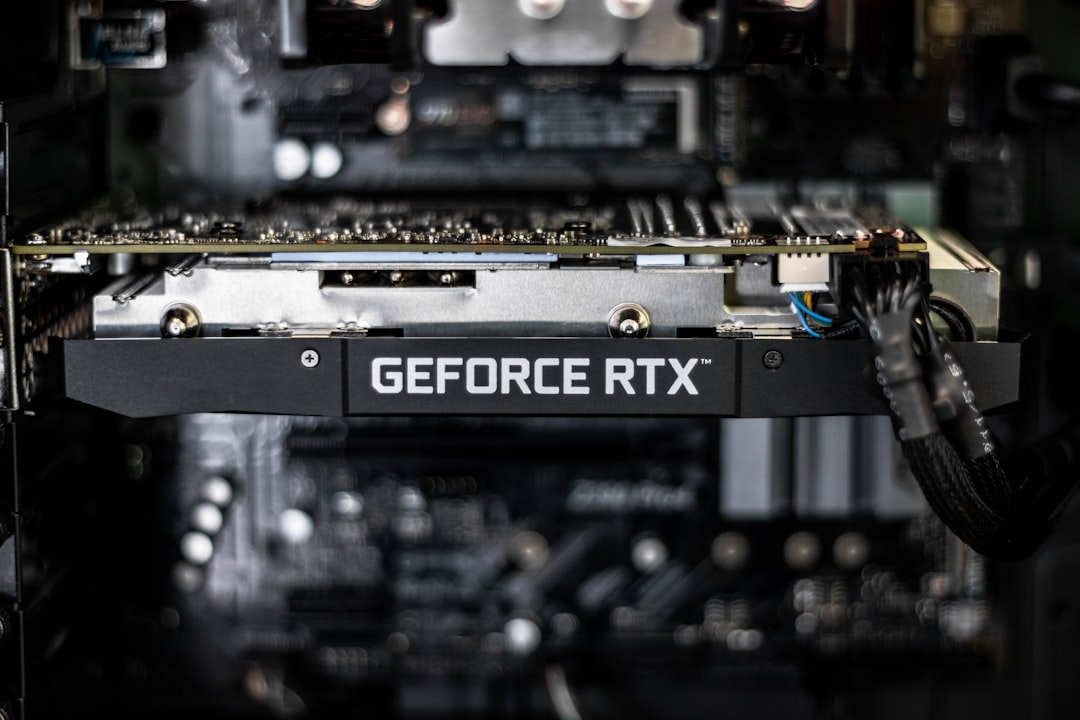
Heat is the enemy of happy electronics. If your graphics card gets too hot, the screen may show artifacts. These look like dots, blocks, color patches, or lines.
Overheating may happen when:
- Dust blocks the fans.
- The PC case has poor airflow.
- A fan has failed.
- The graphics card is working too hard.
- The room is very hot.
Listen to your PC. Are the fans roaring like a tiny jet? Is the case hot to the touch? Does the problem happen during games or heavy apps? If yes, heat may be the sneaky goblin.
Fix it by cleaning dust. Use compressed air. Hold fans still while cleaning so they do not spin too fast. Make sure vents are not blocked. Give the PC space to breathe.
You can also check temperatures with hardware monitoring software. A graphics card under heavy load can get warm. But constant extreme heat is bad news.
Cause 6: Monitor Problems
Sometimes the PC is innocent. The monitor is the one wearing the fake mustache.
A failing monitor may show:
- Lines even when no PC is connected.
- Flickering in its own menu.
- Dark patches.
- Color changes that do not go away.
- A distorted image with several devices.
Here is a simple test. Open the monitor’s built in menu using its buttons. If the menu itself looks distorted, the monitor may be the issue. The PC is probably not the problem.
Also try another device. Connect a laptop, console, or another PC to the same monitor. If the distortion stays, blame the monitor or cable.
Cause 7: Graphics Card Trouble
The graphics card, or GPU, creates the image you see. If it has a hardware fault, distortion can appear. This may include artifacts, crashes, and strange colors.
Warning signs include:
- Distortion appears during startup.
- Artifacts appear in the BIOS screen.
- The PC crashes during games.
- The screen goes black under load.
- Different cables and monitors do not help.
If your PC has both a graphics card and built in graphics, test the built in graphics. Turn off the PC. Move the monitor cable from the graphics card port to the motherboard display port. Then start the PC.
If the image becomes normal, your graphics card may be the troublemaker.
Cause 8: Bad Display Adapter or Dock
Adapters are useful. They are also tiny chaos bricks. HDMI to VGA adapters, USB display adapters, docking stations, and splitters can all cause weird display problems.
If you use an adapter, remove it for testing. Connect the monitor directly if possible. If the problem goes away, you found the gremlin.
Cheap adapters may not support high resolutions or refresh rates. They may work one day and act silly the next. It happens.
Cause 9: App or Game Settings
If distortion only happens in one game or app, the whole PC may be fine. The app may be using the wrong resolution, scaling, or graphics mode.
Check the app settings. Look for:
- Resolution
- Fullscreen mode
- Windowed mode
- V Sync
- Refresh rate
- Graphics quality
Try windowed mode. Try borderless fullscreen. Set the resolution to match your monitor. If the screen only breaks in one game, update that game too.
Quick Fix Checklist
Want the fast path? Try these steps in order. They move from easy to more serious.
- Restart the PC. Yes, really. It fixes more than it should.
- Turn the monitor off and on. Simple magic.
- Check both ends of the display cable.
- Try a different cable.
- Use the monitor’s recommended resolution.
- Set the correct refresh rate.
- Update or roll back graphics drivers.
- Test another monitor.
- Test the same monitor with another device.
- Check GPU temperatures.
- Remove adapters and docks.
- Reseat the graphics card if you are comfortable inside the PC.
How to Check Hardware Safely
If software fixes do not help, hardware checks are next. Be careful. Your PC is not a toaster. Do not poke things while it is powered on.
Before opening a desktop PC:
- Shut it down.
- Unplug the power cable.
- Press the power button once after unplugging.
- Touch metal on the case to reduce static.
- Work on a clean, dry surface.
Now check the inside. Look for loose cables. Look for heavy dust. Look for fans that do not spin. Look for a graphics card that is not fully seated.
If you know how, remove and reseat the graphics card. This means taking it out and putting it back in firmly. Make sure the power cables to the card are also secure.
If that sounds scary, stop. Ask a friend, technician, or local repair shop. There is no shame in calling backup.
When Distortion Happens Before Windows Loads
This is important. If the screen looks bad before Windows starts, the problem is probably not a Windows setting.
Look at the startup logo. Look at the BIOS or UEFI screen. If distortion appears there, suspect:
- The monitor.
- The display cable.
- The graphics card.
- The motherboard display output.
- The power supply, in rare cases.
Try another cable first. Then another monitor. Then another display port on the GPU. These tests help you narrow down the culprit.
When Distortion Happens Only After Windows Loads
If the startup screen looks fine, but Windows looks bad, the cause is often software. This is good news. Software problems are usually cheaper than hardware problems.
Focus on:
- Display resolution.
- Scaling.
- Refresh rate.
- Graphics drivers.
- Color settings.
- Recent updates.
You can also boot into Safe Mode. Safe Mode uses basic drivers. If the display looks normal there, your normal graphics driver may be the problem.
Color Looks Weird? Try These
If everything is purple, green, washed out, or too bright, check color settings.
Try this:
- Reset the monitor settings from its menu.
- Check Windows color filters.
- Turn off night light mode.
- Check HDR settings.
- Try another display cable.
Color filters can make a screen look strange on purpose. That is helpful for some users. It is confusing when turned on by accident.
Flickering? Check Power and Lighting Too
Screen flicker can come from the monitor, cable, GPU, or refresh rate. But outside causes can also play a part.
Try plugging the monitor into another outlet. Avoid overloaded power strips. Move strong speakers or old electrical devices away from the monitor. If you use a very old VGA connection, interference can be more common.
Also check brightness. Some monitors flicker at very low brightness. Raise it a little and see if the flicker stops.
When to Get Help
Call a repair technician if:
- You smell burning.
- The PC shuts off suddenly.
- The graphics card fans do not spin.
- Artifacts appear on several monitors.
- The problem gets worse over time.
- You are not comfortable opening the PC.
Also get help if the monitor is under warranty. Do not open the monitor yourself. Monitors can hold dangerous voltage inside. Let trained people handle that spicy rectangle.
Final Thoughts
A distorted PC screen looks dramatic. But the fix is often simple. Start with the cable. Check the resolution. Set the refresh rate. Update or roll back the graphics driver. Then test hardware only if needed.
Think of it like solving a tiny mystery. Your clues are when the distortion happens, what it looks like, and what fixes change it. Be patient. Test one thing at a time. Soon your screen should stop doing abstract art and return to being a normal, useful window into your digital world.