Clipchamp is the easiest video editor for most Windows users, especially if you want to trim clips, add captions, drop in music, and export a clean 1080p video without studying a manual first.
TLDR: If you want the simplest pick, use Microsoft Clipchamp; it is built for quick edits and works well for school projects, family videos, YouTube Shorts, and small business posts. If you need trend-style social videos, try CapCut; if you want more polish, try Filmora or PowerDirector. For example, a creator can turn a 12-minute phone recording into a 90-second Instagram Reel in about 15–25 minutes using templates, auto captions, and drag-and-drop trimming.
What Makes a Windows Video Editor “Easy”?
A beginner-friendly editor should not make you hunt for basic tools. You should be able to import a clip, cut mistakes, add text, adjust sound, and export in a few clicks. That sounds obvious. Yet some editors still bury simple actions inside menus with names that feel made for film school exams.
The best easy video editors for Windows usually include:
- Drag-and-drop timelines for arranging clips fast.
- Simple trimming tools that work with a mouse or keyboard shortcuts.
- Ready-made templates for intros, social posts, and slideshows.
- Auto captions for TikTok, YouTube Shorts, and Instagram videos.
- Music and stock assets so you are not searching five websites for one background track.
- Clear export settings, such as 720p, 1080p, and 4K.
It drives me crazy when an editor needs six clicks just to split a clip. Beginners do not need more buttons. They need the right buttons in the right place.

1. Microsoft Clipchamp: Best Overall for Beginners
Best for: everyday projects, family videos, school assignments, simple YouTube edits, business promos.
Clipchamp is now part of the Windows experience, which makes it the easiest first stop for many users. You can edit in a clean interface, add titles, use stock media, record your screen, and export without feeling buried. It is especially good for short videos and quick edits where speed matters more than advanced effects.
Why beginners like it:
- Very simple layout.
- Good templates for social videos.
- Built-in screen and webcam recording.
- Easy text, transitions, and audio tools.
- Works well for 1080p exports.
The annoying part: some stock assets and premium features sit behind a paid plan. Also, large files can feel slower than expected. A five-minute 4K phone clip may take a bit to process, so expect a pause before editing feels smooth.
2. CapCut for Windows: Best for Social Media Creators
Best for: TikTok, Instagram Reels, YouTube Shorts, reaction videos, creator content.
CapCut is popular for a reason. It makes trendy edits feel simple. Auto captions are strong, effects are easy to preview, and vertical video editing is front and center. If your main goal is short-form content, CapCut may save you a lot of time.
Its templates and effects can help you make a video that feels current without building every detail from scratch. You can cut silent parts, add animated captions, use filters, and resize for vertical platforms.
Best features:
- Fast auto captions.
- Strong vertical video workflow.
- Trendy text and effect presets.
- Good background removal tools.
- Simple audio syncing for social clips.
The catch is… CapCut can feel cluttered. There are so many effects, stickers, and templates that a simple edit can turn into a 30-minute scroll session. If you get distracted easily, start with your cuts first. Add effects last.
3. Wondershare Filmora: Best Easy Editor with a Polished Feel
Best for: YouTube videos, tutorials, hobby channels, presentations, travel edits.
Filmora sits between basic editors and advanced professional tools. It has more style than Clipchamp, but it is still much easier than DaVinci Resolve or Adobe Premiere Pro. The interface is friendly, with a clear timeline and lots of built-in effects.
Filmora is a good pick if you want videos to look more produced. It includes motion titles, transitions, color presets, noise reduction, screen recording, and AI tools. You can make a decent YouTube intro or product demo without building everything from an empty timeline.
Why it stands out:
- Great balance of easy and capable.
- Large library of titles, transitions, and effects.
- Useful audio cleanup options.
- Good for horizontal and vertical videos.
Watch out: the free version exports with a watermark. That is fine for testing, but not for finished work. If you plan to publish often, check the paid plan before you build a full workflow around it.
4. CyberLink PowerDirector: Best for Beginners Who Want Room to Grow
Best for: YouTube channels, event videos, real estate clips, sports edits, semi-serious creators.
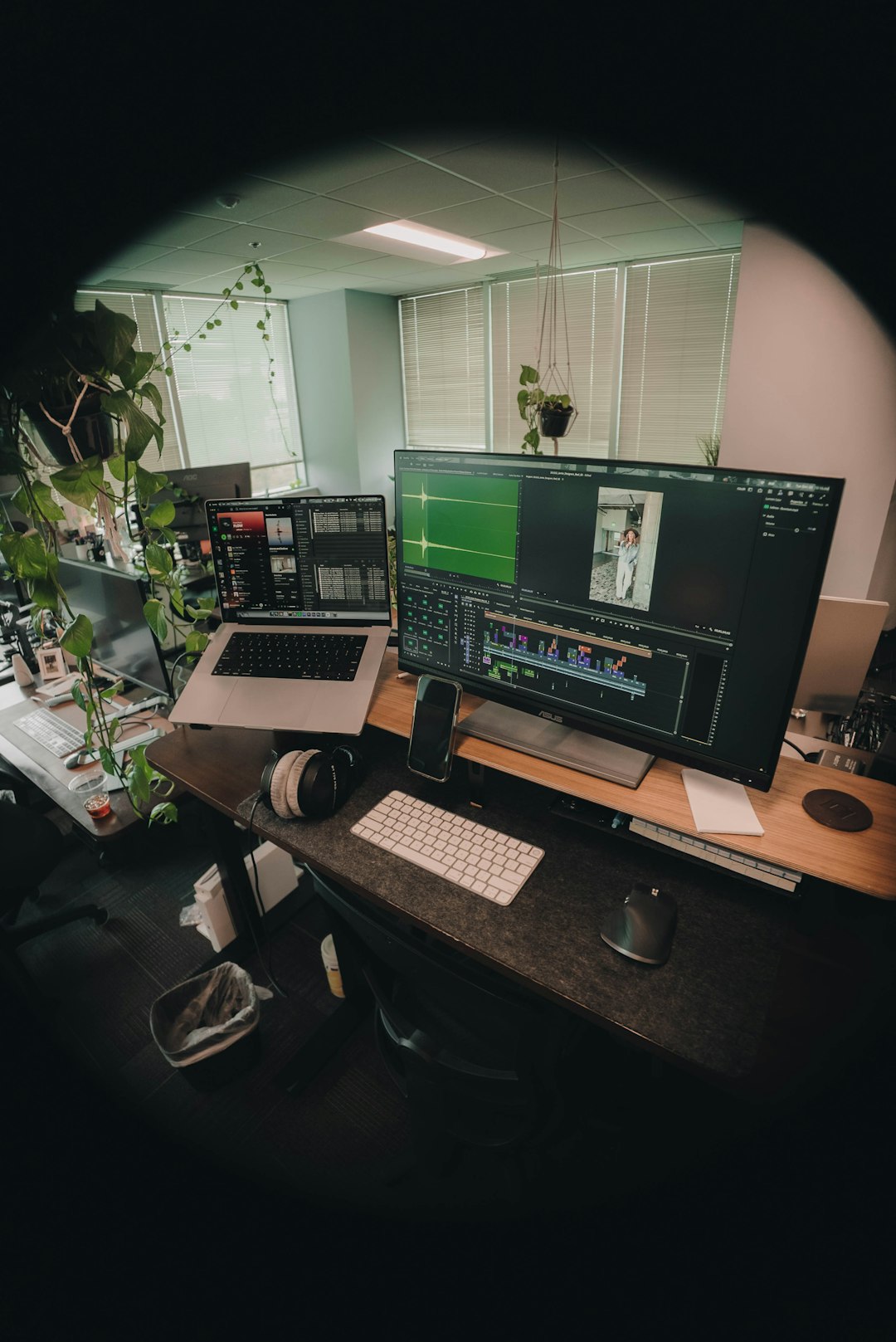
PowerDirector gives beginners enough guidance while keeping more advanced features close by. It includes templates, intro designers, motion graphics, screen recording, color tools, and multi-track editing. It feels more “serious” than Clipchamp, but not as intimidating as pro editing suites.
This is a strong choice if you make videos regularly and want to improve over time. You can begin with templates, then learn keyframes, masks, motion tracking, and audio mixing later.
Good reasons to pick it:
- Plenty of guided tools.
- Fast rendering on many Windows PCs.
- Solid effects and title options.
- Good fit for longer projects.
Possible downside: there are many panels and tools. New users may need an hour or two before it feels natural. Still, that time pays off if you plan to edit often.
5. DaVinci Resolve: Best Free Option for Ambitious Beginners
Best for: creators who want professional tools without paying upfront.
DaVinci Resolve is not the easiest editor on this list. But it deserves a place because the free version is shockingly powerful. You get excellent color correction, strong audio tools, multi-track editing, effects, and professional export control.
If you only want to trim a birthday video, skip it. If you want to learn editing properly and maybe grow into client work or serious YouTube production, Resolve is worth the effort.
Honest warning: the first launch can feel like opening an airplane cockpit. Start with the “Cut” page, not the full editing page. Learn trimming, text, music, and export first. Ignore the fancy parts until you need them.
6. Shotcut and OpenShot: Best Free Basic Editors
Best for: users who want free software with no watermark.
Shotcut and OpenShot are open-source video editors. They are not as slick as Clipchamp or Filmora, but they can handle basic cuts, titles, music, and exports. Shotcut is generally more stable and capable. OpenShot feels simpler, though it can lag with heavier projects.
These tools are good for people who want to avoid subscriptions. They are also useful on older PCs, though performance depends on your hardware and file size.
- Choose Shotcut if you want more control and better format support.
- Choose OpenShot if you want the simplest free timeline editor.
Quick Recommendations by Project Type
If you are still unsure, match the editor to the project. That is faster than comparing every feature.
- Family vacation video: Clipchamp or Filmora.
- Instagram Reel or TikTok: CapCut.
- YouTube tutorial: Filmora, PowerDirector, or Clipchamp.
- School project: Clipchamp or OpenShot.
- Gaming highlights: CapCut, PowerDirector, or DaVinci Resolve.
- Business promo: Filmora or PowerDirector.
- Learning serious editing: DaVinci Resolve.

What Specs Do You Need?
For simple 1080p editing, most modern Windows laptops are fine. Aim for at least 8 GB of RAM, though 16 GB feels much better. An SSD helps a lot. If your files are 4K, a stronger processor and dedicated graphics card can save real time.
For beginners, performance problems often come from huge phone files. If playback stutters, use 1080p export, close browser tabs, and keep your clips on an internal SSD. That alone can make editing feel less painful.
Final Pick
For most people, start with Clipchamp. It is simple, available on Windows, and good enough for everyday videos. If you create social clips every week, CapCut is the smarter choice. If you want better effects and a more polished result, Filmora is worth testing. If you want a long-term editor with serious power, try PowerDirector or DaVinci Resolve.
The best video editor is not the one with the longest feature list. It is the one that lets you finish the video without fighting the software. Start simple. Build skill. Upgrade only when your projects demand it.