The Nintendo Switch is known for its versatility and portability, but like any gaming system, it’s not immune to technical hiccups. One of the most frustrating errors players encounter is Error Code 2005-0003. This issue typically appears when the console is unable to access data from a microSD card, preventing games from launching or downloads from completing. Fortunately, in most cases, the problem can be fixed without professional repair.
TL;DR: Nintendo Switch Error Code 2005-0003 usually points to a problem with your microSD card or corrupted data. You can fix it by restarting the console, reseating or replacing the microSD card, formatting the card, updating the system, or redownloading corrupted software. In rare cases, the issue may stem from a faulty SD card reader. Follow the six detailed solutions below to get back to gaming quickly.
What Causes Nintendo Switch Error Code 2005-0003?
Error 2005-0003 most commonly appears when launching a game stored on a microSD card. The system may display a message stating that the software could not be accessed. The main causes include:
- Corrupted data on the microSD card
- Improperly inserted or loose SD card
- Faulty or unsupported microSD card
- Outdated system software
- Damaged SD card reader (less common)
Understanding the root cause helps determine the right fix. Below are six proven solutions to resolve the issue.
1. Restart Your Nintendo Switch
Before diving into advanced troubleshooting, try a simple restart. Minor system glitches can trigger Error Code 2005-0003 even when your hardware is fine.
How to Restart Properly
- Hold down the Power Button for three seconds.
- Select Power Options.
- Choose Restart.
A fresh reboot clears temporary cache and resets hardware communication. If the error persists after restarting, proceed to the next solution.
2. Remove and Reinsert the microSD Card
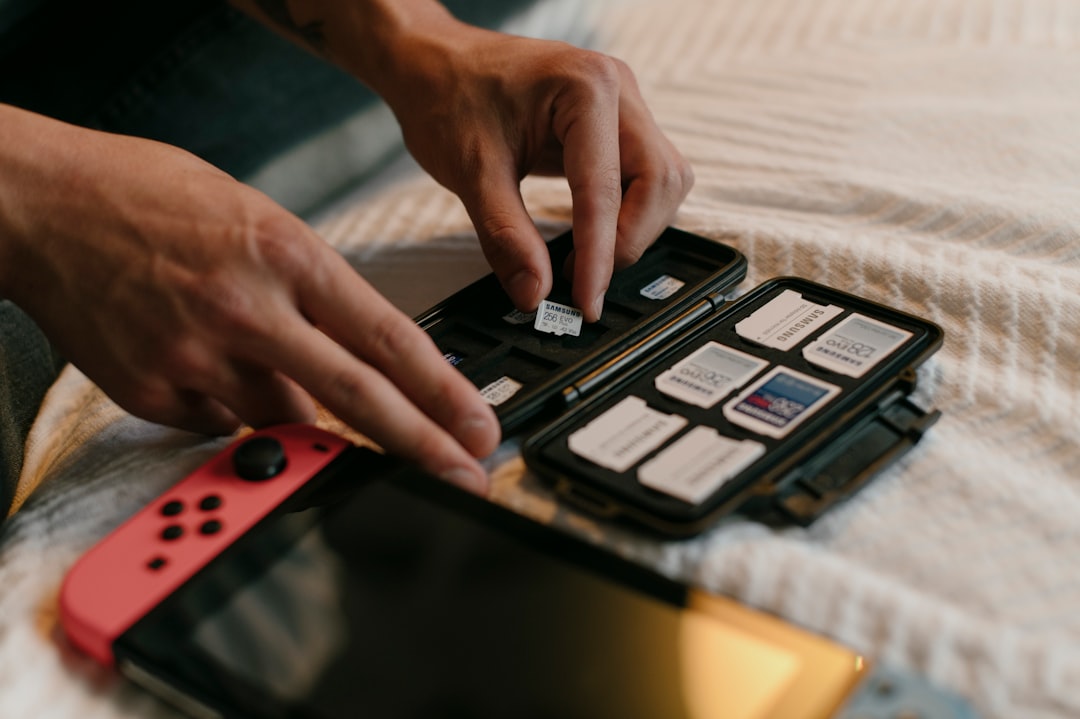
Since this error is usually microSD-related, reseating the card is a logical next step. Sometimes, the card becomes slightly unseated due to movement or dust.
Steps to Reinsert the microSD Card
- Power off the console completely.
- Open the kickstand (on standard Switch models) or the microSD slot cover.
- Remove the microSD card gently.
- Check for dust or debris and clean it with a soft, dry cloth.
- Reinsert it firmly until it clicks.
- Turn the console back on.
If the card wasn’t fully seated, this alone may resolve Error 2005-0003.
3. Check for Corrupted Data
The Nintendo Switch has a built-in tool to scan for corrupted data. This method is especially useful if the error only occurs with a specific game.
How to Scan for Corrupted Data
- Go to System Settings.
- Select Data Management.
- Choose Manage Software.
- Select the affected game.
- Click Check for Corrupt Data.
If corruption is detected, you’ll be prompted to redownload affected files. Don’t worry—your save data is stored separately and should remain intact.

4. Redownload the Game Software
If corruption is confirmed—or even suspected—deleting and reinstalling the game can fix the issue.
Steps to Redownload
- From the Home Menu, select the problematic game.
- Press the + button.
- Choose Manage Software.
- Select Delete Software.
- Re-download the game from the Nintendo eShop.
This ensures you get a fresh, clean copy of the software. If the issue stems from damaged installation files, this method usually solves it.
5. Format the microSD Card
If multiple games trigger Error Code 2005-0003, your microSD card might be failing or heavily corrupted. Formatting the card can eliminate deep corruption issues.
Important:
Formatting will erase all data on the microSD card. Make sure your save data is backed up via Nintendo Switch Online cloud saves if applicable.
How to Format microSD Card
- Go to System Settings.
- Scroll to System.
- Select Formatting Options.
- Choose Format microSD Card.
- Confirm your selection.
After formatting, reinstall your games and check if the error reappears. If it does, your microSD card might be physically defective.
6. Replace the microSD Card or Inspect the Card Reader
If none of the previous steps work, the issue may lie in faulty hardware.
Test With Another microSD Card
- Use a supported microSD card (microSDXC recommended).
- Insert the new card into the console.
- Download a game and test performance.
If the error disappears, your old card was likely defective.
When to Suspect the SD Card Reader
- Multiple microSD cards fail
- The system doesn’t detect any card
- Error appears immediately upon insertion
In this case, you may need professional repair through Nintendo Support.
Comparison Chart: 6 Solutions at a Glance
| Solution | Difficulty | Time Required | Data Loss Risk | Best For |
|---|---|---|---|---|
| Restart Console | Very Easy | 1–2 minutes | None | Minor glitches |
| Reseat microSD Card | Easy | 5 minutes | None | Connection issues |
| Check for Corruption | Easy | 5–10 minutes | Low | Single game errors |
| Redownload Software | Moderate | 15–60 minutes | Very Low | Corrupted installations |
| Format microSD Card | Moderate | 20–60 minutes | High | Multiple software issues |
| Replace Card / Repair Reader | Advanced | Varies | Medium | Hardware failure |
Preventing Error Code 2005-0003 in the Future
Once you’ve resolved the issue, it’s wise to take preventative steps:
- Use officially supported microSD cards from trusted brands.
- Avoid removing the card while the system is on.
- Keep system software updated.
- Periodically check for corrupted data.
- Store your console in a clean, dust-free environment.
MicroSD cards have limited write cycles and lifespan. If you’ve been using the same card for years, upgrading to a new high-speed card may prevent recurring problems.
Final Thoughts
Nintendo Switch Error Code 2005-0003 can look intimidating at first, especially when it prevents your favorite game from launching. However, in most cases, the fix is straightforward and involves resolving a microSD card-related issue. By following the six solutions outlined above—from simple restarts to hardware replacement—you can systematically eliminate the root cause.
The key is to start with the least invasive method and work your way up. Most players resolve the problem within the first three steps, without needing repairs or replacements. With a little troubleshooting, you’ll be back to exploring new worlds, battling bosses, and enjoying multiplayer sessions in no time.