When iPhone screen mirroring stops working, the cause is usually not a single mysterious failure. In most cases, the problem comes from AirPlay compatibility, Bluetooth discovery, WiFi network conditions, software glitches, or device settings. Because screen mirroring depends on several technologies working together, a careful step-by-step approach is the safest way to fix it without wasting time or changing settings unnecessarily.
TLDR: If iPhone screen mirroring is not working, first make sure both devices support AirPlay and are connected to the same WiFi network. Restart your iPhone, TV, Apple TV, Mac, or receiver, then check AirPlay permissions, Bluetooth, VPN settings, and software updates. If the screen still will not mirror, reset network settings on the iPhone and review router, firewall, or guest network restrictions.
What Screen Mirroring Needs to Work Properly
Apple’s screen mirroring feature uses AirPlay to send your iPhone display to a compatible TV, Apple TV, Mac, or wireless receiver. Although many people think of it as a simple wireless connection, AirPlay depends on several separate pieces: WiFi for data transfer, Bluetooth for discovery in some cases, device compatibility, local network access, and permission settings on the receiving device.
If any one of these parts fails, you may see symptoms such as:
- The TV or Mac does not appear in the Screen Mirroring list.
- The iPhone connects but the screen stays black.
- Audio plays, but video does not appear.
- The connection drops repeatedly.
- AirPlay asks for a code but does not accept it.
- Mirroring works on one app but not another.
The good news is that most of these issues can be fixed without professional repair. Start with the simple checks, then move to network and device-level troubleshooting.
1. Confirm That Both Devices Support AirPlay
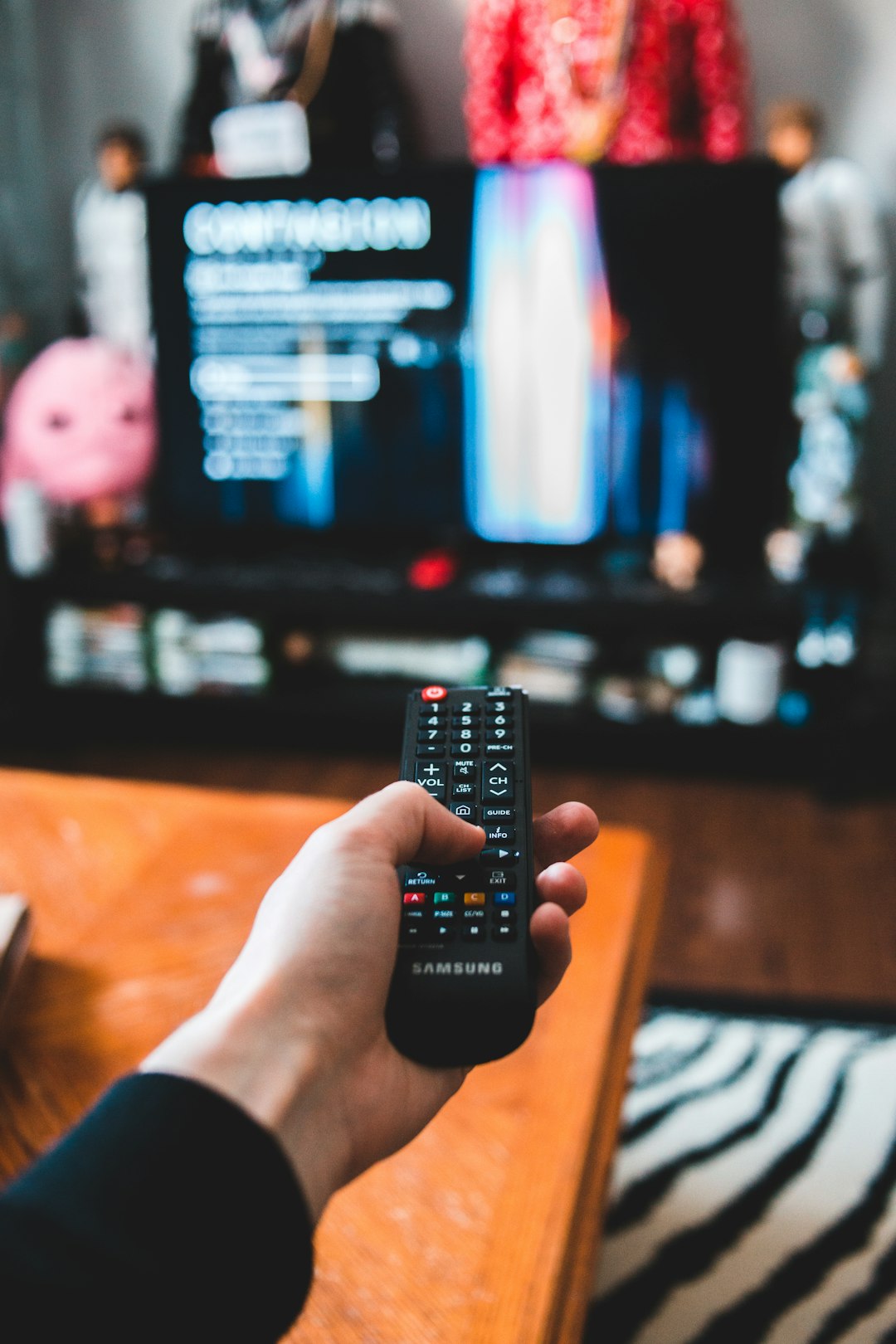
Before changing settings, verify that the receiving device actually supports AirPlay. Most Apple TVs support AirPlay, and many recent smart TVs from brands such as Samsung, LG, Sony, Vizio, and Roku include AirPlay 2. However, not every smart TV supports it, and older models may require a firmware update.
On a compatible smart TV, AirPlay is often found in settings under names such as Apple AirPlay and HomeKit, AirPlay Settings, or External Device Manager. Make sure AirPlay is turned on. If you are using a Mac as the receiving device, open System Settings, go to General, then AirDrop & Handoff, and confirm that AirPlay Receiver is enabled if supported by your macOS version and Mac model.
If your TV does not support AirPlay directly, you will need an external device such as an Apple TV or another AirPlay-compatible receiver. Generic “screen casting” support does not always mean AirPlay support.
2. Make Sure Both Devices Are on the Same WiFi Network
One of the most common reasons iPhone screen mirroring fails is that the iPhone and the receiving device are not on the same local network. This can happen even when both devices appear to be connected to WiFi.
Check the following carefully:
- Your iPhone and TV or Apple TV should be connected to the same WiFi network name.
- Avoid using a guest network, because guest networks often block device-to-device communication.
- If your router has separate 2.4 GHz and 5 GHz networks, try placing both devices on the same band.
- Disable mobile hotspot connections unless you specifically know your setup supports them.
- Make sure the receiving device is not connected by Ethernet to a network segment that is isolated from WiFi devices.
Even if internet access works, AirPlay may fail if local network discovery is blocked. Screen mirroring does not only need internet access; it needs the devices to see each other on the local network.
3. Restart the iPhone and the Receiving Device
Restarting sounds basic, but it is one of the most reliable fixes for temporary AirPlay, Bluetooth, and WiFi problems. Network services can get stuck, and a restart forces the devices to rebuild their connections.
Restart your iPhone first. Then restart the receiving device, such as your Apple TV, smart TV, Mac, or AirPlay receiver. If you are using a smart TV, do not only press the remote’s power button if it places the TV into standby. Instead, unplug the TV from power for about 30 seconds, plug it back in, and wait for it to reconnect to WiFi.
You should also restart your router if multiple devices are having trouble with AirPlay or if the mirroring device appears and disappears randomly. Router memory, DHCP conflicts, or multicast discovery problems can interfere with AirPlay.
4. Check Bluetooth and WiFi on the iPhone
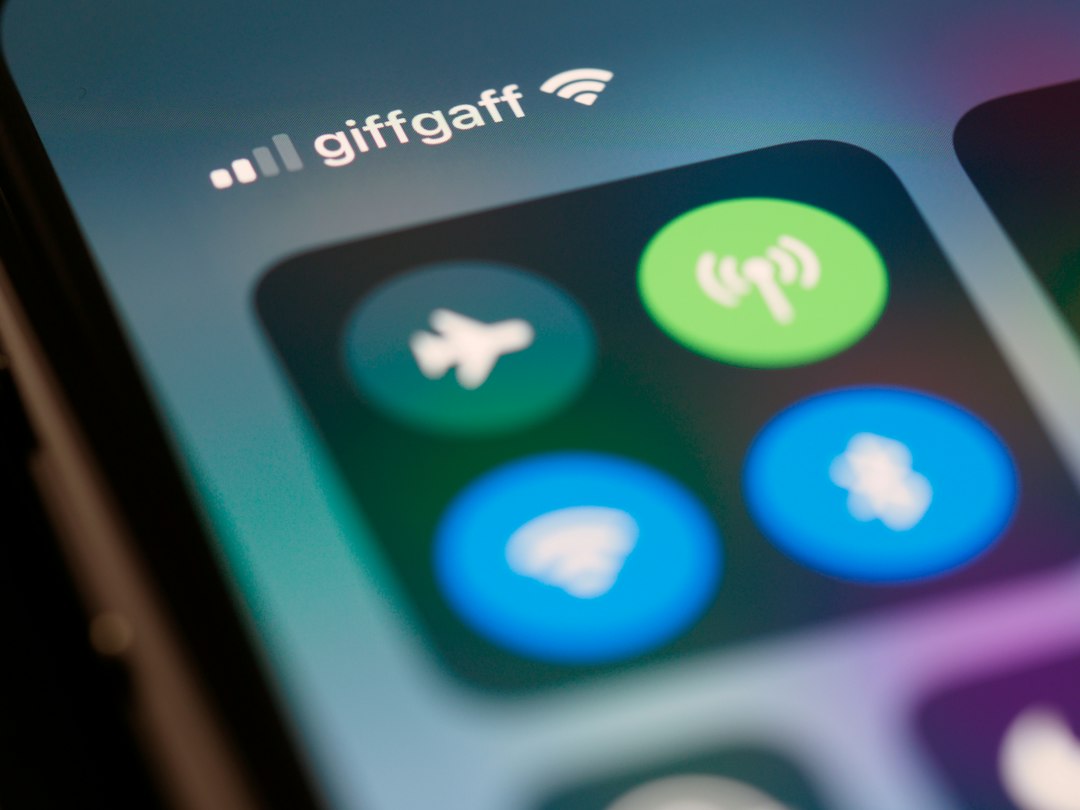
AirPlay primarily uses WiFi for mirroring, but Bluetooth can help with discovery and device handoff. For best results, keep both WiFi and Bluetooth enabled on your iPhone.
Open Settings > WiFi and confirm the iPhone is connected to the correct network. Then open Settings > Bluetooth and make sure Bluetooth is turned on. If Bluetooth appears stuck, turn it off, wait 10 seconds, and turn it back on.
It is also worth toggling WiFi off and back on. Avoid doing this only from Control Center if you want a full disconnect; instead, use the Settings app. Control Center may temporarily disconnect from networks without fully disabling WiFi services.
5. Look for the Screen Mirroring Option Correctly
On newer iPhones, open Control Center by swiping down from the top-right corner of the screen. Tap Screen Mirroring, then choose your Apple TV, Mac, or AirPlay-compatible TV. On iPhones with a Home button, swipe up from the bottom of the screen to open Control Center.
If you are trying to stream from a video app, you may see a separate AirPlay icon inside the app. That is not always the same as full screen mirroring. App-based AirPlay sends media content, while screen mirroring duplicates your whole iPhone display.
If one method fails, try the other. For example, if full mirroring shows a black screen when playing copyrighted video, app-based AirPlay may work better. Some apps restrict full mirroring for licensing reasons, especially streaming services and paid video platforms.
6. Check AirPlay Permissions on the Receiving Device
AirPlay may be blocked by permission settings. On Apple TV, go to Settings > AirPlay and HomeKit. Confirm that AirPlay is on, then review who is allowed to connect. Options may include everyone, anyone on the same network, or only people sharing the same Home.
If a passcode appears on the TV, enter it exactly on the iPhone. If the code does not work, turn AirPlay off and on again on the receiving device, then try reconnecting. You can also reset paired AirPlay permissions if your TV or Apple TV provides that option.
On a Mac, confirm that AirPlay Receiver is enabled and that the setting is not limited to a different Apple ID or contact group. For workplace or school Macs, administrator profiles may restrict AirPlay Receiver access.
7. Disable VPN, Security Apps, and Network Filters Temporarily
VPN apps can interfere with AirPlay because they change routing and sometimes block local network traffic. If your iPhone uses a VPN, open the VPN app or go to Settings > VPN and disconnect it temporarily. Then try screen mirroring again.
Security apps, DNS filters, parental control profiles, and mobile device management settings can also interfere with discovery. This is especially common on company phones, school devices, and networks with strict security rules. If your iPhone is managed by an organization, some AirPlay features may be disabled intentionally.
If AirPlay works after turning off the VPN, look for a setting such as Allow LAN traffic, Local network access, or Bypass VPN for local devices in the VPN app.
8. Update iOS, tvOS, macOS, and TV Firmware
Software updates often include fixes for WiFi stability, AirPlay performance, and device compatibility. On your iPhone, go to Settings > General > Software Update. Install any available iOS update after backing up important data.
For Apple TV, check Settings > System > Software Updates. For a Mac, use System Settings > General > Software Update. If you are using a smart TV, check the TV’s support or software update section. Some TVs require updates before AirPlay works reliably.
After updating, restart both devices. Updates may not fully apply network changes until the device has restarted and reconnected to the network.
9. Fix Router and WiFi Configuration Problems
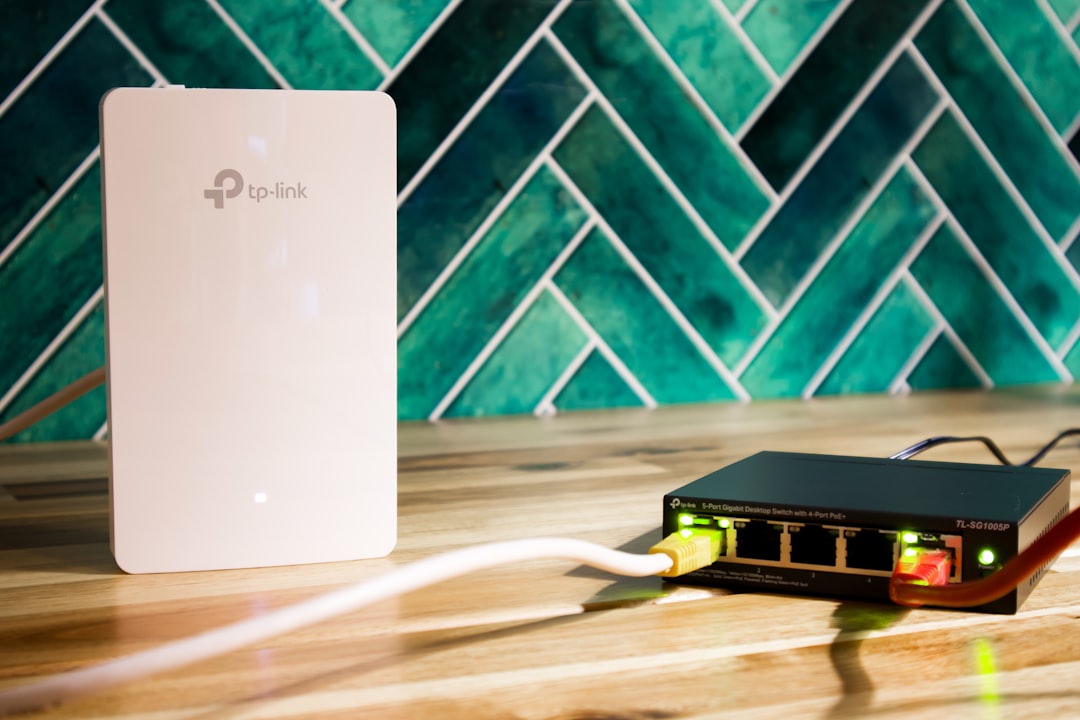
If the Screen Mirroring list is empty or the connection drops frequently, your router may be blocking the discovery traffic used by AirPlay. AirPlay relies on local network protocols such as Bonjour, also known as mDNS. Some routers, mesh systems, and access points block this traffic between bands or between nodes.
Review these router settings if you are comfortable doing so:
- Disable AP isolation or client isolation.
- Avoid guest WiFi for AirPlay devices.
- Enable multicast or mDNS support if your router offers the option.
- Keep both devices on the same VLAN or subnet.
- Update router firmware.
- Move the iPhone and receiving device closer to the router to test signal strength.
Mesh WiFi systems can occasionally place devices on different nodes in a way that prevents discovery. If possible, restart the mesh system or test with both devices near the same access point.
10. Reset Network Settings on the iPhone
If other fixes do not work, resetting network settings can clear corrupted WiFi, Bluetooth, VPN, and cellular networking configurations. This does not erase your photos, apps, or personal files, but it will remove saved WiFi passwords, paired Bluetooth devices, and VPN settings.
To reset network settings, go to Settings > General > Transfer or Reset iPhone > Reset > Reset Network Settings. Enter your passcode and confirm. After the iPhone restarts, reconnect to WiFi and try screen mirroring again.
This step is especially useful if AirPlay used to work but stopped after a network change, iOS update, router replacement, or VPN installation.
11. Understand Black Screen, Lag, and Audio Problems
If mirroring connects but the screen is black, the problem may not be the connection itself. Some video apps block screen mirroring due to copyright protection. Try mirroring the iPhone Home Screen or Photos app. If those work, but one streaming app does not, the app is likely restricting playback.
If the picture lags or freezes, check WiFi signal quality. Screen mirroring needs a stable connection, not just a fast internet plan. Move closer to the router, reduce network congestion, or disconnect unnecessary devices. For Apple TV, using Ethernet can improve stability, as long as the wired and wireless devices remain on the same local network.
If video works but audio does not, check the TV volume, mute status, and audio output settings. On iPhone, open Control Center and review the AirPlay audio destination. Sometimes audio is routed to AirPods, a Bluetooth speaker, or another AirPlay device instead of the TV.
When to Suspect Hardware or Service Issues
Hardware failure is less common, but it is possible. If your iPhone cannot maintain WiFi or Bluetooth connections with any device, the issue may involve the iPhone’s wireless hardware. If only one TV fails while other AirPlay devices work, the TV firmware, network adapter, or AirPlay implementation may be at fault.
Test with another iPhone if possible. Also test your iPhone with another AirPlay receiver. This simple comparison helps identify whether the problem follows the iPhone, the TV, or the network.
Final Checklist
- Confirm the TV, Mac, or receiver supports AirPlay.
- Use the same WiFi network for both devices.
- Turn on WiFi and Bluetooth on the iPhone.
- Restart the iPhone, receiving device, and router.
- Check AirPlay permissions and passcode settings.
- Disable VPN or security filtering temporarily.
- Install iOS, tvOS, macOS, and TV firmware updates.
- Check router isolation, guest network, and multicast settings.
- Reset iPhone network settings if the problem continues.
iPhone screen mirroring is reliable when AirPlay, Bluetooth, WiFi, and device permissions are aligned. By working through the problem in a structured order, you can usually restore mirroring without replacing equipment or guessing. Start with compatibility and network basics, then move toward permissions, updates, and router settings if needed.