Spotify is usually a musical best friend. You tap a song. It plays. You nod like a tiny concert is happening in your kitchen. But sometimes Spotify just sits there. No sound. No progress bar. No joy. Do not panic. Most Spotify playback problems are easy to fix.
TLDR: If Spotify is not playing songs, first check if Offline Mode is turned on by accident. Then restart the app, check your internet, and clear the cache. If songs still refuse to play, update Spotify, log out and back in, or reinstall the app. Most issues come from a bad connection, a stuck cache, or a setting that needs a tiny nudge.
Why Spotify Stops Playing Songs
Spotify can stop playing for many reasons. Some are silly. Some are sneaky. Some are caused by your phone being dramatic.
Common causes include:
- Offline Mode is turned on.
- Your internet connection is weak.
- The Spotify cache is full or broken.
- The app needs an update.
- Your device has low storage.
- Spotify is playing on another device.
- A VPN, firewall, or network setting is blocking it.
- Spotify servers are having a bad day.
The good news? You do not need to be a tech wizard. You just need to try a few simple fixes.
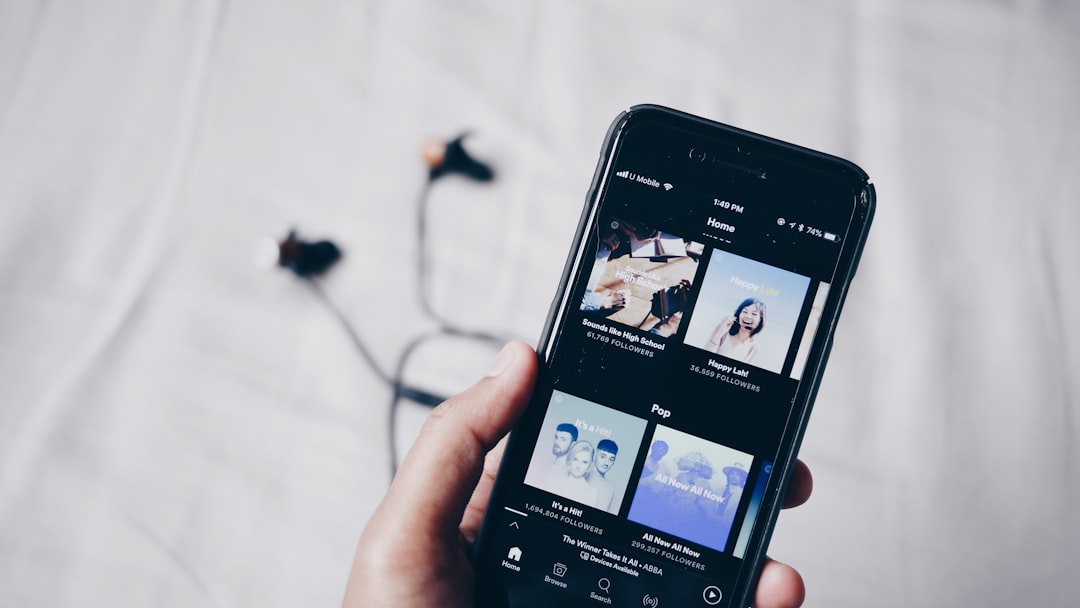
First, Check Offline Mode
Offline Mode is great when you want to save data. It lets Spotify play only downloaded songs. But if it is turned on and you try to play a song you did not download, Spotify may act like the song does not exist.
It is like asking a vending machine for a snack it does not have. Sad. Crunchless.
How to Turn Off Offline Mode on Mobile
- Open the Spotify app.
- Tap your profile picture or the settings icon.
- Go to Settings and privacy.
- Tap Playback.
- Find Offline Mode.
- Turn it off.
How to Turn Off Offline Mode on Desktop
- Open Spotify on your computer.
- Click the three dots or menu at the top.
- Go to File.
- Make sure Offline Mode is not checked.
Now try playing a song again. Pick something cheerful. You deserve a victory beat.
Check Your Internet Connection
Spotify needs the internet to stream songs that are not downloaded. If your Wi Fi is weak, Spotify may pause, skip, or refuse to start.
Try these quick checks:
- Open a website in your browser.
- Try another app, like YouTube or a news app.
- Switch from Wi Fi to mobile data.
- Move closer to your router.
- Restart your router if everything feels slow.
If the internet is the problem, Spotify is not being rude. It is just hungry for signal.
Tip: If you are on public Wi Fi, like at a school, hotel, airport, or office, Spotify may be blocked. Some networks block streaming to save bandwidth. Rude, but common.
Restart Spotify
This sounds too simple. But it works a lot. Apps get stuck. They trip over their own shoelaces. Restarting gives them a fresh brain.
Close Spotify completely. Do not just swipe away from it if it is still running in the background. Force close it if needed. Then open it again.
On a computer, quit Spotify fully. Then reopen it. If you are on Windows, you can also check Task Manager. On Mac, check Activity Monitor. Make sure Spotify is not secretly still running.
Restart Your Device
If restarting Spotify does not help, restart your phone, tablet, or computer. Yes, the classic “turn it off and on again” move. It is famous for a reason.
A restart can fix memory issues, connection bugs, and frozen app processes. It is like giving your device a tiny nap.
Clear the Spotify Cache
The cache is a storage area where Spotify keeps temporary files. It helps songs load faster. Nice idea. But sometimes the cache gets messy. Then Spotify may skip songs, freeze, or refuse to play.
Think of cache like a music junk drawer. Handy at first. Chaos later.
How to Clear Spotify Cache on Android
- Open Spotify.
- Tap your profile picture.
- Go to Settings and privacy.
- Tap Storage.
- Tap Clear cache.
- Confirm your choice.
How to Clear Spotify Cache on iPhone
- Open Spotify.
- Tap your profile picture.
- Go to Settings and privacy.
- Tap Storage.
- Tap Clear cache.
How to Clear Spotify Cache on Desktop
- Open Spotify.
- Go to Settings.
- Scroll to Storage.
- Click Clear cache.
Clearing the cache will not delete your account. It will not delete your playlists. It may remove some temporary files. Your downloaded songs may stay, depending on your device and settings.
If you use Spotify Premium and downloads vanish, you can download them again. Annoying? Yes. The end of the world? No.
Make Sure the Song Is Available
Sometimes one song will not play, but others work fine. In that case, the song may not be available in your region anymore. Music rights are weird. They move around like cats in a cardboard box.
Try playing a different song. Then try another album. If only one track is broken, the issue may be with that song.
If many songs are gray or unplayable, check your country settings, account status, or internet connection.
Check If Spotify Is Playing on Another Device
Spotify Connect lets you control music on many devices. This is useful. It is also confusing when your song is playing on a speaker in another room. Or worse, on your roommate’s laptop.
Look at the bottom of the Spotify app. Tap the device icon. It looks like a screen and speaker. Make sure the correct device is selected.
If Spotify is playing somewhere else, change it back to This phone, This computer, or your preferred speaker.
Bonus drama: If you think someone else is using your account, change your password. Then go to your Spotify account page and choose Sign out everywhere.
Update the Spotify App
Old apps can be buggy. Spotify updates often fix playback issues. They also improve performance and add features.
On iPhone, open the App Store. Search for Spotify. Tap Update if you see it.
On Android, open the Google Play Store. Search for Spotify. Tap Update.
On desktop, Spotify often updates itself. You may see a blue dot near your profile icon. Click it, then choose to restart and update.
After updating, close and reopen Spotify. Then test a song.
Check Your Storage Space
If your phone is almost full, Spotify may struggle. Low storage can break downloads, cache files, and app performance.
Check your device storage. If it is packed tighter than a suitcase before vacation, free up space.
Easy ways to make room:
- Delete apps you do not use.
- Remove old videos.
- Clear photo duplicates.
- Delete old downloads.
- Remove Spotify downloads you no longer need.
Try to keep at least a few gigabytes free. Your phone will breathe better. Spotify will too.
Turn Off Data Saver
Spotify has a Data Saver mode. Your phone may also have one. These settings reduce data use. But sometimes they make streaming less smooth.
In Spotify, go to Settings and privacy. Look for Data Saver. Turn it off and test playback.
On your phone, check battery saver or data saver settings. If Spotify is restricted in the background, it may stop playing when the screen turns off.
Check Streaming Quality
If your internet is slow, high audio quality can cause trouble. Spotify may buffer or freeze. Lowering the quality can help.
Go to Settings and privacy. Find Audio quality. Try setting streaming quality to Automatic or Low.
This is not forever. You can raise it again later. Think of it as putting Spotify in “please just play” mode.
Log Out and Log Back In
Account sessions can get stuck. Logging out refreshes things.
- Open Spotify.
- Go to Settings and privacy.
- Scroll down.
- Tap or click Log out.
- Close the app.
- Open Spotify again.
- Log back in.
Now try playing music. If the gremlins were in your login session, they should be gone.
Disable VPN or Proxy
A VPN can protect privacy. But it can also confuse Spotify. Spotify may think you are in another country. Or the connection may become too slow.
Turn off your VPN or proxy. Then restart Spotify and test a song.
If Spotify works without the VPN, try a different VPN server. Choose a server near your real location. Also make sure your Spotify account country matches where you are.
Check Firewall or Antivirus Settings
This is mostly for desktop users. Sometimes a firewall or antivirus app blocks Spotify. It means well. But it can be overprotective. Like a guard dog barking at a sandwich.
Check your firewall settings. Make sure Spotify is allowed to access the internet.
On Windows, search for Allow an app through Windows Firewall. Find Spotify. Allow it on private networks. If you trust your network, you can allow it there too.
On Mac, check System Settings, then Network or Firewall. Make sure Spotify is not blocked.
Reinstall Spotify
If nothing works, reinstall Spotify. This is the big reset button. It removes broken files and gives you a clean app.
Before you do this, remember that downloaded songs may be removed. Your playlists, liked songs, and account data will stay safe in your Spotify account.
Reinstall on Mobile
- Delete the Spotify app.
- Restart your phone.
- Install Spotify again from the app store.
- Log in.
- Test playback.
Reinstall on Desktop
- Uninstall Spotify.
- Restart your computer.
- Download Spotify again from the official Spotify site or app store.
- Install it.
- Log in and try a song.

Check If Spotify Is Down
Sometimes the problem is not you. It is Spotify. Servers can have outages. When this happens, many people have the same issue at the same time.
Search online for “Spotify down.” You can also check social media or outage tracking sites. If Spotify is down, you may need to wait.
Waiting is not fun. But at least you do not have to keep poking your settings like a confused raccoon.
Quick Fix Checklist
If you want the fast path, try this order:
- Turn off Offline Mode.
- Check Wi Fi or mobile data.
- Restart Spotify.
- Restart your device.
- Clear the Spotify cache.
- Check the selected playback device.
- Update Spotify.
- Free up storage.
- Turn off VPN or proxy.
- Reinstall Spotify.
Final Thoughts
Spotify not playing songs is annoying. But it is usually fixable. Start with the easy stuff. Check Offline Mode. Test your connection. Clear the cache. Then move to updates, storage, and reinstalling if needed.
Most of the time, your music will come back quickly. Then you can return to the important work. Dancing badly. Singing loudly. Pretending your walk to the fridge is a music video.
Now press play again. The next song might be the one that saves the day.