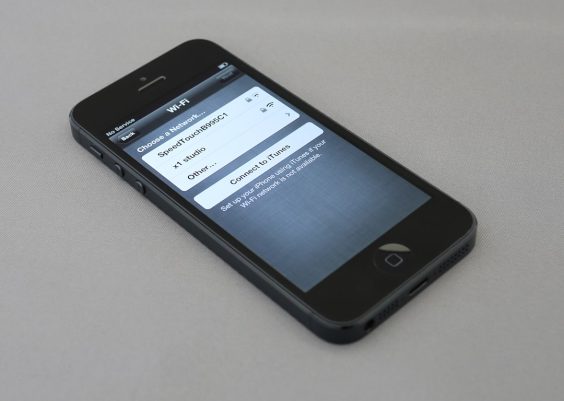
“Update Requested” on iPhone means your device has asked Apple’s servers for the iOS update, but the download has not started yet. In most cases, it is a temporary waiting state, not a serious error. The iPhone may be waiting for server capacity, a stable Wi Fi connection, enough storage, or the right power conditions before it begins downloading.
TLDR: If your iPhone says Update Requested, wait 15 to 30 minutes first, especially on the first day of a major iOS release. For example, if iOS 18 appears at 10:00 a.m., millions of users may request it in the same hour, and your phone can sit in a queue. If it is still stuck after about an hour, check Wi Fi, storage, battery level, VPN settings, and restart the iPhone. If needed, delete the partial update file and try again.
What “Update Requested” Actually Means
The message appears in Settings > General > Software Update after you tap Download and Install. Your iPhone has not failed yet. It has simply sent a request to Apple and is waiting for the next step.
This is different from Downloading, where you see a progress bar and file size progress. It is also different from Preparing Update, where the file is already on your phone and iOS is getting it ready for installation.
Think of Update Requested as the waiting room. Your phone is eligible for the update, but Apple’s servers, your network, or your device conditions have not allowed the download to begin.

iOS Update Status Messages Explained
iOS update wording can be confusing. Honestly, it feels like Apple could explain these stages better on the screen instead of leaving users staring at the same line for 40 minutes.
- Checking for Update: The iPhone is contacting Apple to see which iOS version is available.
- Update Requested: The phone has asked to start the download but is waiting.
- Downloading: The update file is actively being downloaded.
- Preparing Update: The downloaded file is being unpacked and checked on the device.
- Verifying Update: Apple is confirming the update before installation.
- Install Now: The update is ready and waiting for your approval, unless automatic installation is enabled.
Update Requested is usually the least risky stage. Your phone has not yet started applying system files. That means troubleshooting is safer than during installation.
Why Your iPhone Gets Stuck on Update Requested
Several common issues can hold the update at this stage. Some are on Apple’s side. Others are on your iPhone.
- Apple’s servers are busy: This is common when a major iOS version launches.
- Weak Wi Fi: iOS updates usually require a stable Wi Fi connection.
- Low storage: Your iPhone may need several gigabytes free, even if the update looks smaller.
- Low battery: If the battery is under 50%, plug it in.
- VPN or security app interference: Some network filters slow or block Apple update traffic.
- Partial update file: A damaged or incomplete file may stop progress.
- Apple ID or profile issues: Beta profiles, device management, or account restrictions can affect updates.
How Long Should Update Requested Take?
On a normal day, Update Requested may last only a few seconds to 10 minutes. On release day, 15 to 30 minutes is not unusual. If it takes more than an hour with no change, treat it as stuck.
Expect to waste time on this if you update right after Apple releases a new iOS version. A delay of 20 minutes may not mean anything is wrong. A delay of two hours usually deserves action.
First Checks Before You Troubleshoot
Start with the basics. They solve more update problems than most advanced fixes.
- Connect to strong Wi Fi. Avoid public hotel, airport, or school networks if possible.
- Plug into power. Keep the iPhone charging during the update.
- Check storage. Go to Settings > General > iPhone Storage.
- Turn off Low Power Mode. Go to Settings > Battery.
- Disable VPN temporarily. Go to Settings > VPN or your VPN app.
For storage, aim for at least 8 GB to 10 GB free for major updates. Smaller updates may need less, but free space gives iOS room to unpack and verify files.
Fix 1: Restart the iPhone
A restart clears stuck network sessions and background update tasks. It is simple, but it often works.
On newer iPhones, press and hold the Side button and either Volume button. Slide to power off. Wait 30 seconds. Turn the iPhone back on. Then return to Settings > General > Software Update.
If the update starts downloading after the restart, leave the phone alone. Lock the screen if needed, but keep it on Wi Fi and power.
Fix 2: Switch Wi Fi Networks
If possible, try another trusted Wi Fi network. Some routers block or slow large downloads. Corporate and school networks may inspect traffic, require certificates, or restrict Apple services.
You can also restart your router. Unplug it for 30 seconds, then plug it back in. Wait until the connection is stable before trying the update again.
A quick check: open Safari and load a few websites. If pages pause, fail, or take more than a few seconds, fix the connection first.
Fix 3: Delete the Partial Update File
If iOS started a file but failed to continue, deleting the update can help.
- Open Settings.
- Tap General.
- Tap iPhone Storage.
- Look for the iOS update file, such as iOS 18.
- Tap it, then choose Delete Update.
- Restart the iPhone.
- Go back to Software Update and try again.
This does not erase your photos, apps, or personal data. It only removes the downloaded update package.
Fix 4: Check Date, Time, and Apple Services
Incorrect date and time settings can break secure connections to Apple’s servers. Go to Settings > General > Date & Time and turn on Set Automatically.
You should also check Apple’s System Status page. If Apple shows an issue with software updates or activation services, your best option is to wait. Trying the same update ten times will not fix a server outage.
Fix 5: Update With a Computer
If the iPhone still refuses to move past Update Requested, use a Mac or Windows PC.
- On macOS Catalina or later, use Finder.
- On Windows, or older macOS versions, use iTunes or the Apple Devices app.
- Connect the iPhone with a cable, select the device, then choose Check for Update.
This method can bypass some Wi Fi and storage related download problems. It is also useful when the iPhone update screen keeps looping.

What Not to Do
Do not force restart the iPhone once it has moved to the Apple logo with a progress bar unless it has clearly frozen for a long time. Interrupting installation is riskier than interrupting the request or download stage.
Do not install random “iOS repair” tools from unknown companies. Many make big promises and ask for broad device access. Use Apple’s built in options first.
Also avoid updating on a nearly full iPhone. It may start, fail, and leave you cleaning up storage anyway.
When to Contact Apple Support
Contact Apple if the issue continues after restarting, changing Wi Fi, freeing storage, deleting the update file, and trying a computer update. Also get help if your iPhone shows repeated verification errors, activation errors, or gets stuck after rebooting.
Update Requested is usually a waiting state, not a disaster. Give it a reasonable amount of time, check the obvious blockers, then reset the update process if needed. The safest fix is often boring: stable Wi Fi, enough storage, charging cable, restart, and patience.