Missing a WhatsApp notification can mean missing an important client message, a family update, or a time-sensitive opportunity. When your phone stays silent and you only discover messages hours later, it’s not just frustrating—it can disrupt your day. If WhatsApp notifications are not showing on your Android or iPhone, don’t worry. In most cases, the issue is caused by simple settings that are easy to fix.
TLDR: If WhatsApp notifications are not showing, the issue usually relates to notification settings, battery optimization, background app restrictions, or internet connectivity. Start by checking system notification permissions and WhatsApp’s in-app notification settings. Then review battery saver, data usage, and “Do Not Disturb” modes. Most problems can be resolved in less than 10 minutes with the right tweaks.
Why WhatsApp Notifications Stop Working
Before jumping into fixes, it helps to understand what might be going wrong. Notifications rely on a chain of system permissions, background processes, and internet connectivity. If one link in that chain breaks, your alerts silently fail.
Common causes include:
- Notifications disabled in device settings
- Muted chats or archived conversations
- Battery optimization restrictions
- Background app refresh turned off
- Poor or unstable internet connection
- Outdated WhatsApp version
- Do Not Disturb or Focus mode enabled
The good news? Every one of these issues has a straightforward solution.
Step 1: Check System Notification Settings
The most overlooked cause is simple: notifications are turned off at the system level.
On Android:
- Open Settings
- Tap Apps or Apps & Notifications
- Select WhatsApp
- Tap Notifications
- Ensure All WhatsApp notifications are enabled
On iPhone:
- Open Settings
- Tap Notifications
- Select WhatsApp
- Turn on Allow Notifications
- Enable Lock Screen, Notification Center, and Banners

If notifications were off here, turning them on may instantly solve the issue.
Step 2: Review WhatsApp’s In-App Notification Settings
Even if your phone allows notifications, WhatsApp itself may have them disabled.
Inside WhatsApp:
- Open WhatsApp
- Go to Settings
- Select Notifications
- Check Message, Group, and Call notifications
- Ensure tones and pop-ups are enabled
If specific chats are muted, you won’t receive alerts for them.
To Check for Muted Chats:
- Open the chat
- Tap the contact or group name
- See if Mute is enabled
- Disable mute if necessary
Also, check your Archived Chats. If you’ve enabled “Keep chats archived,” new messages won’t trigger notifications.
Step 3: Turn Off Battery Optimization
Modern smartphones aggressively manage battery usage. Unfortunately, this often interferes with apps like WhatsApp that rely on background activity.
On Android:
- Go to Settings
- Tap Battery
- Select Battery Optimization
- Find WhatsApp
- Choose Don’t Optimize
On iPhone:
- Disable Low Power Mode
- Go to Settings > General > Background App Refresh
- Ensure WhatsApp is enabled
Battery-saving features can delay or block push notifications entirely. Disabling them for WhatsApp ensures real-time alerts.
Step 4: Check Internet Connection
WhatsApp notifications depend entirely on data connectivity. If your Wi-Fi drops or mobile data is restricted, messages won’t arrive until connection is restored.
Make sure:
- Wi-Fi is stable
- Mobile data is enabled
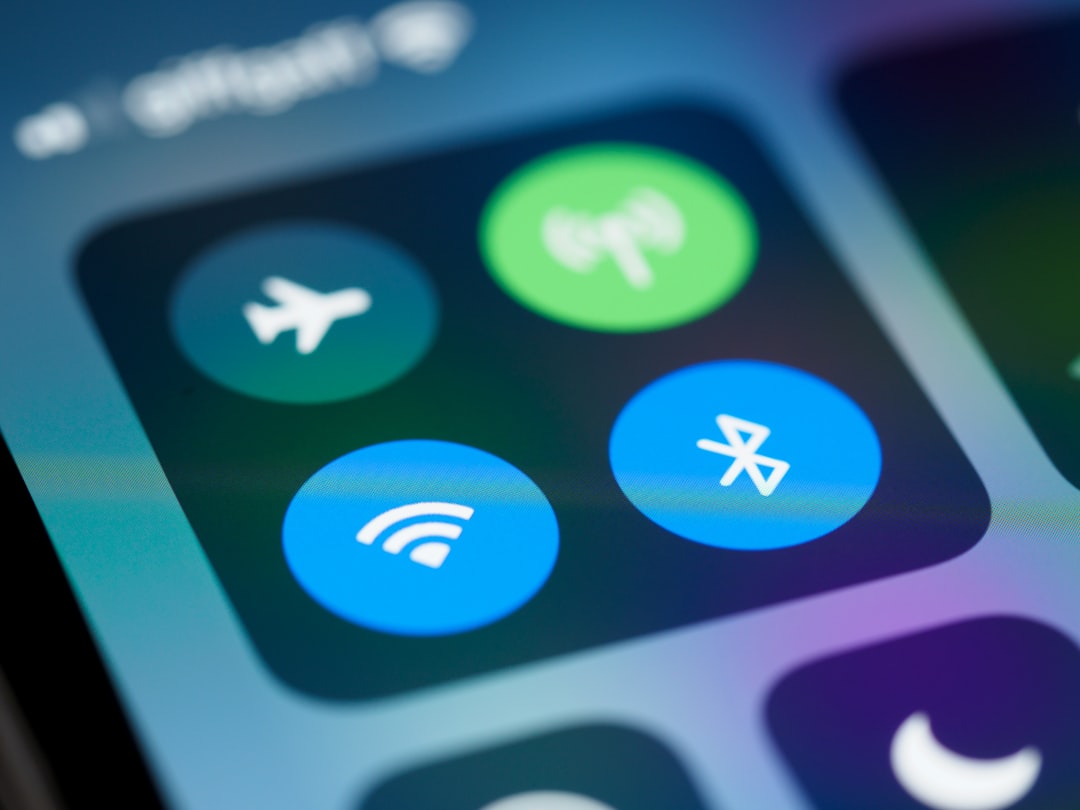
- Airplane mode is off
- Data saver is disabled for WhatsApp
If unsure, toggle Airplane mode on for 10 seconds and turn it off again. This resets network connections quickly.
Step 5: Disable Do Not Disturb or Focus Mode
“Do Not Disturb” (DND) or “Focus Mode” silences notifications—even if they’re technically delivered.
Check for:
- Do Not Disturb enabled
- Sleep mode active
- Work profile restrictions
- Focus filters blocking WhatsApp
On iPhone:
- Go to Settings > Focus
- Check if WhatsApp is allowed
On Android:
- Go to Settings > Sound > Do Not Disturb
- Review app exceptions
Sometimes DND is scheduled automatically, so double-check timing settings.
Step 6: Update WhatsApp
An outdated version of WhatsApp can cause notification glitches due to compatibility issues with recent system updates.
To update:
- Open Google Play Store or App Store
- Search for WhatsApp
- Tap Update if available
Keeping apps updated ensures performance improvements and bug fixes are applied.
Step 7: Clear Cache (Android Only)
If you’re using Android, clearing WhatsApp’s cache can resolve persistent notification issues without deleting chat data.
- Go to Settings
- Tap Apps
- Select WhatsApp
- Tap Storage
- Choose Clear Cache
Note: Avoid tapping “Clear Data” unless absolutely necessary, as that may log you out.
Step 8: Restart Your Phone
It sounds simple—but restarting your device can fix background process conflicts instantly. A reboot refreshes system services and reconnects notification channels.
Try a full power-off (not just screen lock) and wait 30 seconds before turning it back on.
Quick Troubleshooting Comparison
| Issue | Most Likely Cause | Quick Fix | Time Required |
|---|---|---|---|
| No notifications at all | System notifications disabled | Enable notifications in phone settings | 2 minutes |
| Messages delayed | Battery optimization | Disable optimization for WhatsApp | 3 minutes |
| Specific chats silent | Muted conversation | Unmute chat in WhatsApp | 1 minute |
| Notifications only appear when app opens | Background refresh blocked | Enable background app refresh | 3 minutes |
| No sound but notifications appear | Do Not Disturb or sound disabled | Turn off DND or raise volume | 1 minute |
When to Reinstall WhatsApp
If all else fails, reinstalling WhatsApp can fix corrupted installation files.
Before uninstalling:
- Back up chats via Settings > Chats > Chat Backup
Then:
- Uninstall WhatsApp
- Restart your phone
- Reinstall from official app store
- Restore chat backup
This should be your last resort—but it’s highly effective.
How to Prevent Notification Problems in the Future
Once everything works again, take a few preventative steps:
- Keep WhatsApp updated
- Avoid aggressive battery saver apps
- Don’t restrict background data
- Review notification settings after system updates
- Restart your phone occasionally
Smartphone updates sometimes reset permissions silently, so reviewing notification settings after major updates is a good habit.
Final Thoughts
When WhatsApp notifications stop showing, it rarely means something serious is wrong. In most cases, a simple setting—like battery optimization, muted chats, or disabled notification permissions—is blocking alerts behind the scenes.
By working through the fixes step by step, you can usually restore notifications in under 10 minutes. Start with system settings, then check in-app notifications, battery permissions, and connectivity. With everything correctly configured, your WhatsApp alerts should return instantly—keeping you informed, responsive, and connected when it matters most.
Pro tip: If you rely on WhatsApp for business or urgent communication, consider enabling LED notifications or custom tones so important messages never get overlooked again.