VSCO has become one of the most aesthetically driven social platforms for photographers, travelers, influencers, and visual storytellers. While it’s known for its minimalist design and powerful editing tools, many users still wonder how to make their content more discoverable and context-rich. One simple but effective way to do that is by adding a location tag to your VSCO posts. Location tags can give your photos meaning, help viewers connect with your journey, and enhance the overall storytelling experience.
TLDR: Adding a location tag to VSCO posts helps give your content context and can improve discoverability. While VSCO does not offer traditional public geotag stickers like some other platforms, you can add location details through captions, journals, and profile adjustments. Third-party tools and creative formatting can further enhance how your location appears. This guide walks you through every practical method available.
Why Add a Location Tag on VSCO?
Before diving into the “how,” it’s helpful to understand the why. Location tagging isn’t just a trendy feature — it serves real purposes for both creators and audiences.
- Context: It tells viewers where your image was captured.
- Storytelling: It adds depth to travel, event, and lifestyle posts.
- Personal Branding: It helps position you within a geographic niche.
- Memories: It makes it easier for you to revisit past experiences.
Unlike Instagram or Facebook, VSCO operates with a more subtle, artistic approach. That means location tagging is more understated — but still entirely possible.
Does VSCO Have a Built-In Location Tag Feature?
Here’s where things get interesting.
VSCO does not currently offer a public, clickable geotag feature like Instagram’s location sticker. You won’t see a built-in “Add Location” button that generates searchable location hubs.
However, that doesn’t mean you can’t add a location. Instead, VSCO allows users to incorporate location details through:
- Captions
- Journals
- Image text overlays (via editing)
- Profile bio updates
This fits VSCO’s intentional and minimalist vibe. Rather than focusing on discoverability algorithms, the platform emphasizes organic exploration and aesthetic presentation.
Method 1: Adding Location in the Caption
The simplest way to add a location tag on VSCO is by placing it directly in your caption.
Step-by-Step Guide:
- Open the VSCO app.
- Tap the “+” icon to upload your photo.
- Edit your image as desired.
- Tap “Next.”
- In the caption field, type your location.
You can format it creatively to make it stand out:
- 📍 Paris, France
- New York City
- Golden Gate Bridge | San Francisco
Because VSCO captions are minimal by design, keeping your location clean and simple works best.

Pro Tip: Place your location on its own line at the top or bottom of the caption to make it visually distinct.
Method 2: Using VSCO Journals for Rich Location Stories
VSCO Journals allow you to create blog-style entries combining photos and text. This is ideal if you want to deeply integrate location details.
How to Add Location in a Journal:
- Go to your profile.
- Tap the Journal section.
- Create a new Journal entry.
- Add a title that includes your location.
- Write a description including where and why the photo was taken.
Example Journal title:
“A Weekend in Kyoto, Japan”
Because Journals allow long-form storytelling, you can describe neighborhoods, landmarks, cafes, or hidden spots you visited.
This method works especially well for:
- Travel bloggers
- Photographers documenting shoots
- Event recaps
- Creative portfolios

Method 3: Embedding Location in the Image Itself
Many VSCO creators prefer embedding the location into the image using text overlays before uploading.
You can use:
- Photo editing apps
- Typography tools
- Minimal watermark-style text
Add subtle text like:
- Rome 2026
- Brooklyn, NY
- Iceland Highlands
This technique works beautifully with VSCO’s cinematic aesthetic.
Tips for Clean Location Text:
- Use thin sans-serif fonts.
- Keep text small and aligned near the bottom.
- Choose muted colors like white, beige, or light gray.
- Avoid overpowering your image.
Adding text directly ensures your location is always visible — even if someone shares or screenshots your image.
Method 4: Updating Your Profile Location
Another subtle but effective method is adding your primary location to your bio.
How to Update Your VSCO Bio:
- Go to your profile.
- Tap “Edit Profile.”
- Add your city or country in the bio section.
Example bios:
- Photographer based in Berlin
- Capturing light in Los Angeles
- Tokyo street moments
This won’t tag individual posts, but it consistently informs viewers where much of your work originates.
Creative Ways to Make Location Stand Out
Because VSCO doesn’t emphasize algorithms or clickable tags, presentation becomes your advantage.
1. Use Symbols
- 📍 Location pin emoji
- 🌍 Globe emoji
- ✈ Travel symbol
2. Match Location to Aesthetic
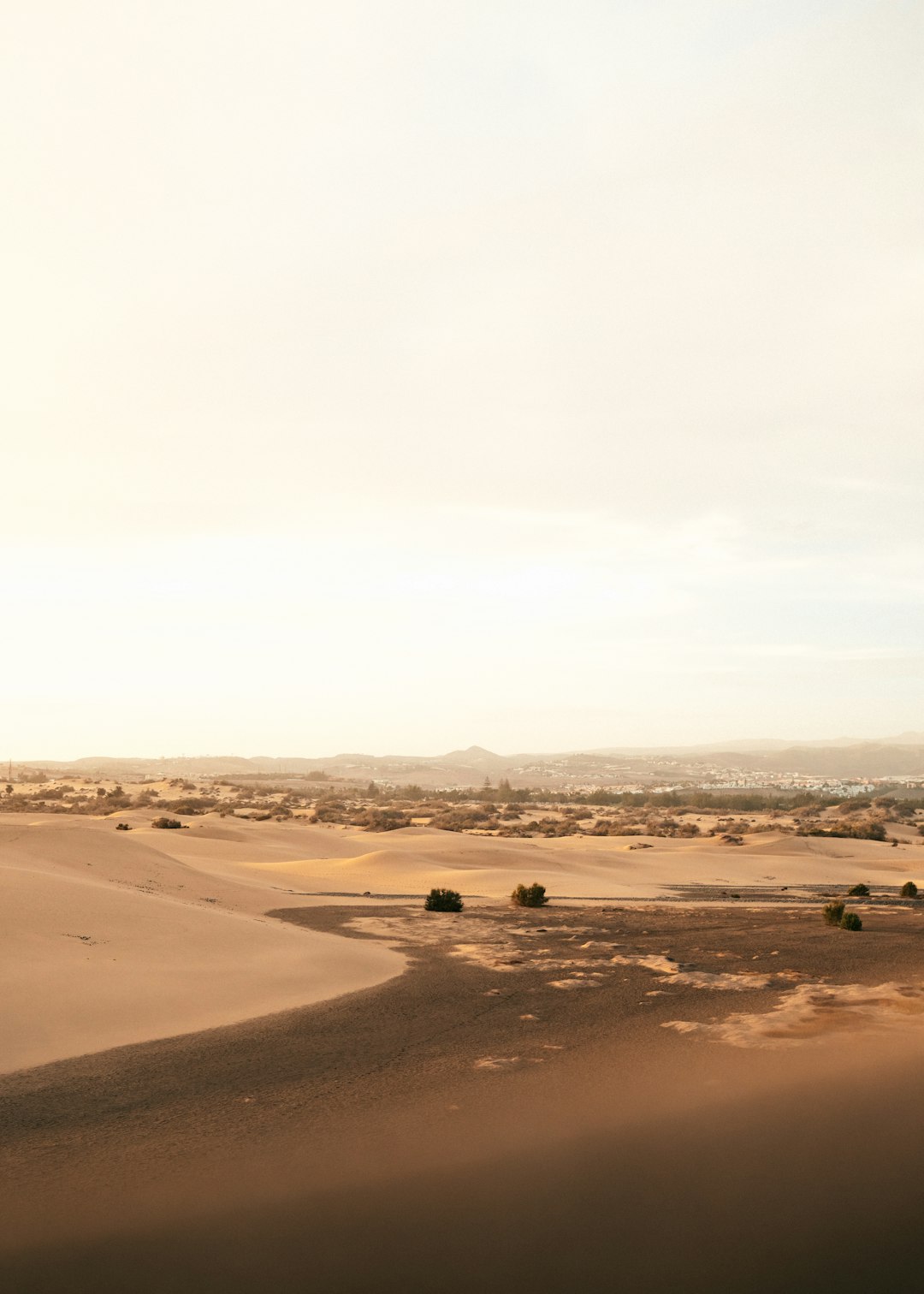
If you’re posting desert photography, a caption like:
📍 Joshua Tree, California
pairs beautifully with warm-toned edits.
3. Create a Themed Series
For example:
- Italy Series I — Rome
- Italy Series II — Florence
- Italy Series III — Venice
This builds anticipation and visual cohesion.
Privacy Considerations When Tagging Locations
While location tags are helpful, privacy should always come first.
Avoid tagging:
- Your exact home address
- Your current real-time location
- Private residences
- Frequently visited spots in real time
Instead, consider tagging:
- The city instead of the street
- A landmark rather than a precise coordinate
- The location after you’ve already left
VSCO’s quiet and less algorithm-driven nature makes it safer than many platforms, but caution is still wise.
How Location Tagging Impacts Engagement on VSCO
VSCO differs from major social media platforms because engagement is less about likes and more about appreciation and community.
Still, adding a location can:
- Encourage meaningful comments
- Attract followers from similar regions
- Help brands identify local creators
- Improve portfolio credibility
For example, if a fashion brand searches for “Paris photographer VSCO,” and your work consistently mentions Paris, you increase your visibility.
Common Mistakes to Avoid
- Overcrowding the caption: Keep it clean and minimalist.
- Inconsistent formatting: Choose one style and stick to it.
- Too much detail: Avoid long coordinate strings.
- Ignoring brand alignment: Make sure the location matches your aesthetic identity.
Best Practices for Professional Creators
If you’re using VSCO as a portfolio platform, location tagging becomes even more important.
For photographers:
- Include shoot locations.
- Mention studio names.
- Tag destination weddings by city.
For influencers:
- Feature partner hotels or venues.
- Mention cities during press trips.
For travelers:
- Organize content chronologically by destination.
- Create seasonal location highlights.
Final Thoughts
Adding a location tag on VSCO posts may not be as straightforward as tapping a geotag sticker, but it offers something arguably better: creative freedom. Instead of relying on automated location features, you have the opportunity to present your setting in a way that aligns with your aesthetic and storytelling style.
Whether you choose caption placement, journal storytelling, profile updates, or subtle text overlays, each method can elevate your content. In a platform built on intentional visuals and minimal design, the way you add your location says just as much as the place itself.
Done thoughtfully, location tagging doesn’t just show where a photo was taken — it transforms your VSCO feed into a visual map of your experiences.