Few computer problems are as instantly frustrating as a black screen that appears the moment you start watching YouTube. One minute you are clicking a video, the next your monitor goes dark, your audio may keep playing, and you are left wondering whether your browser, graphics card, display cable, or Windows itself has betrayed you. The good news is that this issue is usually fixable, and in many cases, it comes down to video acceleration, drivers, browser settings, or power management rather than a dying PC.
TLDR: If your PC black screens while watching YouTube, start by disabling hardware acceleration in your browser and updating your graphics drivers. Then test another browser, clear cache, check display cables, and review Windows power settings. If the black screen happens across other video apps or during games, investigate overheating, GPU instability, or hardware failure.
Why YouTube Can Trigger a Black Screen
YouTube playback looks simple, but behind the scenes your PC is juggling a browser, video codecs, GPU acceleration, memory, display output, audio processing, and sometimes HDR or multi-monitor configurations. A black screen can happen when one of those pieces fails to communicate properly with the others.
In many cases, the computer does not fully crash. You might still hear sound, move the mouse, or use keyboard shortcuts. Other times, the entire system freezes or restarts. Understanding the difference matters because a browser-only black screen points to software settings, while a full system blackout may suggest drivers, overheating, power issues, or failing hardware.
Before replacing parts or reinstalling Windows, work through the fixes below from easiest to most advanced.
1. Disable Hardware Acceleration in Your Browser
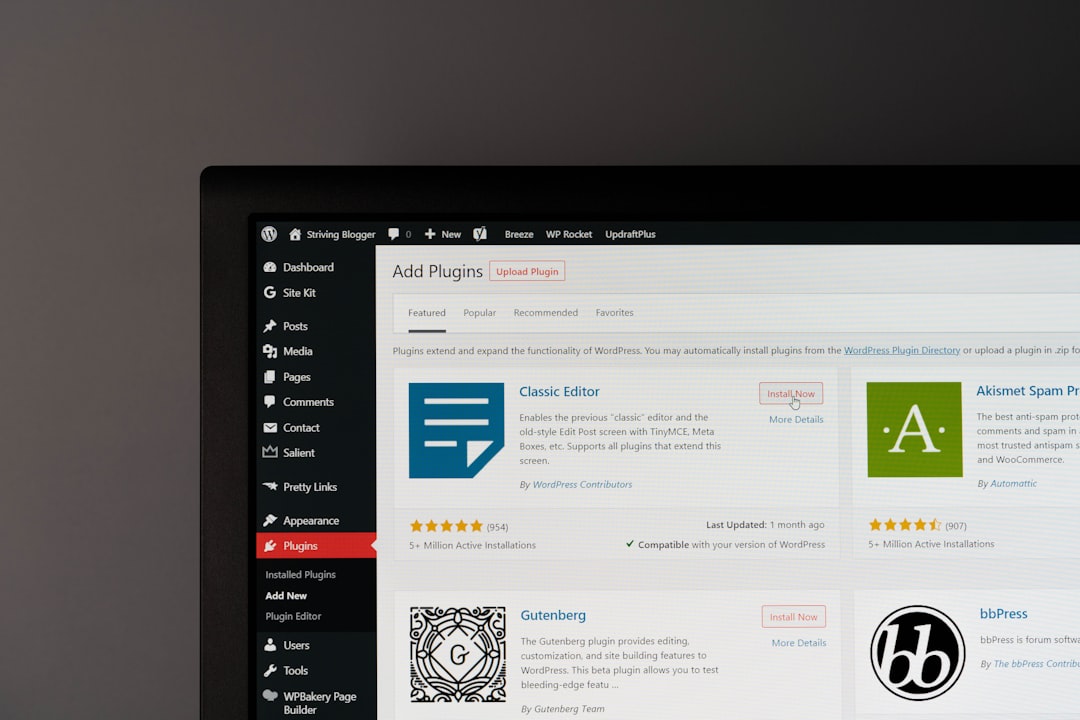
Hardware acceleration allows your browser to use the graphics card to decode and render video more efficiently. In theory, this improves performance. In practice, if your GPU driver has a bug or your graphics card struggles with a certain video codec, YouTube may turn into a black screen machine.
To disable hardware acceleration in Google Chrome:
- Open Chrome and click the three-dot menu in the top-right corner.
- Go to Settings.
- Select System.
- Turn off Use graphics acceleration when available.
- Restart Chrome.
In Microsoft Edge:
- Open Edge settings.
- Go to System and performance.
- Disable Use graphics acceleration when available.
- Restart Edge.
In Firefox:
- Open Settings.
- Scroll to Performance.
- Uncheck Use recommended performance settings.
- Uncheck Use hardware acceleration when available.
- Restart Firefox.
If the problem disappears after this change, you have found a likely cause. You can keep acceleration disabled, or later try updating your GPU drivers and turning it back on.
2. Update or Reinstall Your Graphics Driver
Graphics drivers are one of the most common reasons for black screens during video playback. YouTube often uses modern codecs such as VP9 or AV1, and your graphics driver must correctly support hardware decoding for smooth playback.
For NVIDIA, AMD, or Intel graphics, visit the official driver website and download the latest stable driver for your GPU. If you use a laptop, you may also want to check the manufacturer’s support page, especially for systems with hybrid graphics.
For a cleaner repair, you can reinstall the driver:
- Download the latest driver first.
- Uninstall the current graphics driver from Apps or Device Manager.
- Restart the PC.
- Install the freshly downloaded driver.
- Restart again before testing YouTube.
If the issue started after a recent driver update, the opposite may help: roll back to an older stable driver. In Windows, open Device Manager, expand Display adapters, right-click your GPU, choose Properties, and look for the Roll Back Driver option.
3. Try a Different Browser
If YouTube black screens in Chrome, test Edge or Firefox. If it happens only in one browser, the issue is likely related to that browser’s settings, extensions, cache, or video decoding behavior.
This test is quick and useful because browsers do not handle YouTube in exactly the same way. Chrome and Edge are Chromium-based, while Firefox uses its own engine. If Firefox works perfectly but Chrome fails, you can focus on Chrome settings instead of blaming your entire PC.
Also test YouTube in a private or incognito window. If it works there, one of your extensions may be interfering.
4. Disable Browser Extensions
Ad blockers, video enhancers, download managers, dark mode extensions, privacy tools, and script blockers can all interfere with YouTube playback. Even if an extension worked fine yesterday, a browser update or YouTube interface change can suddenly make it unstable.
Disable extensions temporarily and test again. If the black screen stops, re-enable them one by one until the problem returns. Pay special attention to extensions that modify video playback, block scripts, force resolutions, or alter page appearance.
Tip: If you use multiple YouTube-related extensions, remove the ones you no longer need. A cleaner browser is often a more stable browser.
5. Clear Browser Cache and Cookies
Corrupted cached files can cause strange playback problems, including black video windows or pages that load incorrectly. Clearing cache forces your browser to download fresh YouTube data.
In most browsers, you can press Ctrl + Shift + Delete to open the clear browsing data menu. Choose cached images and files, and if necessary, cookies and site data. Be aware that clearing cookies may sign you out of websites.
After clearing the cache, fully close the browser and reopen it before testing YouTube again.
6. Check Your Display Cable, Monitor, and Refresh Rate
Sometimes the problem is not YouTube itself, but the moment video playback changes how your display behaves. This is especially true with high refresh rate monitors, HDR displays, older HDMI cables, DisplayPort adapters, or multi-monitor setups.
Try these checks:
- Reseat the HDMI or DisplayPort cable at both ends.
- Try a different cable, preferably a certified high-quality one.
- Switch to another port on the graphics card or monitor.
- Temporarily lower your refresh rate from 144Hz or 240Hz to 60Hz.
- Disable HDR in Windows display settings and test again.
- If using multiple monitors, test with only one connected.
If the black screen happens only on one monitor or only with a certain cable, you may have found the weak link.
7. Change YouTube Video Quality
Higher resolutions require more decoding power. A PC that handles 1080p fine may struggle with 4K, 8K, 60fps, HDR, AV1, or VP9 playback depending on its GPU and driver support.
Open a YouTube video, click the gear icon, choose Quality, and manually select a lower resolution such as 1080p or 720p. If the black screen only appears at high resolutions, your system may be hitting a decoding issue.
You can also try disabling AV1 playback in YouTube settings:
- Open YouTube in your browser.
- Go to Settings or search for YouTube playback settings.
- Find AV1 settings.
- Select an option such as Auto or Prefer AV1 for SD instead of forcing AV1 all the time.
This is particularly helpful for older computers that do not have hardware AV1 decoding.
8. Review Windows Power and Sleep Settings
If your screen goes black after a few minutes of watching, your PC may be entering sleep mode, turning off the display, or using an aggressive power-saving profile. This is more common on laptops, but desktops can be affected too.
In Windows, go to Settings > System > Power and check when the screen is set to turn off. Set it to a longer time or choose Never temporarily while testing.
You should also open Control Panel > Power Options and select a balanced or high-performance plan. If you are using a laptop, test while plugged into power. Some systems reduce GPU performance dramatically on battery, which can cause video playback instability.
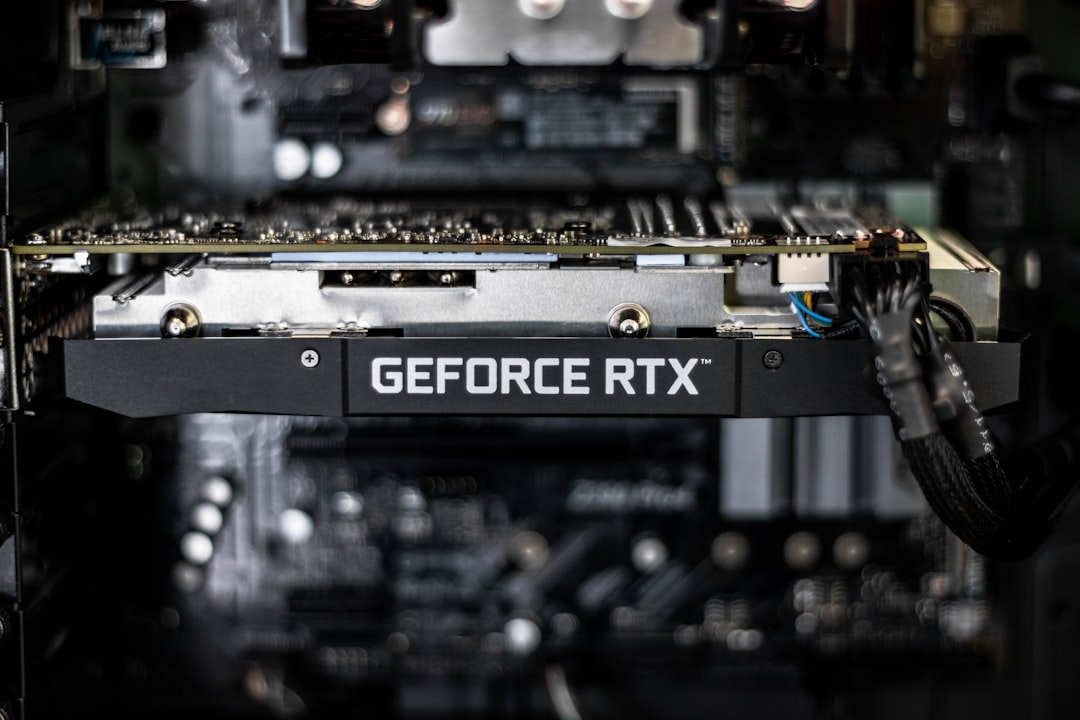
9. Watch for Overheating or GPU Instability
If the whole PC black screens, fans ramp up, or the system restarts, the issue may be deeper than YouTube. Video playback can still load the GPU, especially at high resolutions, but it should not normally crash a healthy system.
Use a hardware monitoring tool to check temperatures while playing YouTube. If your CPU or GPU temperatures climb unusually high, clean dust from vents and fans, improve airflow, and make sure the laptop or desktop is not trapped in a hot space.
Also consider whether your GPU is overclocked. Even a mild overclock can be stable in some tasks but unstable during browser video acceleration. Return GPU settings to default and test again.
10. Check Windows Event Viewer
For recurring black screens, Windows may leave useful clues. Open Event Viewer and check Windows Logs > System around the time the black screen happened.
Look for warnings or errors mentioning:
- Display driver stopped responding
- Kernel Power
- nvlddmkm for NVIDIA systems
- amdkmdag for AMD systems
- igfx for Intel graphics
These logs will not always give you a simple answer, but they can confirm whether the display driver is crashing. If you see repeated driver errors, focus on driver cleanup, GPU stability, Windows updates, and hardware testing.
11. Update Windows and Your Browser
It sounds basic, but outdated software can create compatibility problems with modern video playback. Run Windows Update, install available browser updates, and restart the PC. Browsers frequently update their media engines, security features, and GPU handling, so an update can genuinely fix YouTube black screen problems.
Also update chipset drivers if you are on a desktop motherboard or gaming laptop. Chipset and integrated graphics drivers can affect power management and display behavior, especially on systems with both integrated and dedicated GPUs.
12. Test for a Wider Hardware Problem
If YouTube is not the only trigger, broaden your testing. Try Netflix, Twitch, local video files, games, or a GPU benchmark. If black screens happen in several graphically accelerated situations, your browser is probably not the main culprit.
Possible hardware-related causes include:
- A failing graphics card
- An unstable power supply
- Faulty RAM
- Overheating components
- A damaged display cable or monitor
- Motherboard or PCIe slot issues
At this stage, it may be worth running memory diagnostics, stress testing the GPU, or asking a technician to inspect the machine. If your PC is under warranty, contact the manufacturer before opening the case or replacing parts.
Quick Fix Checklist
If you want the fastest path through the problem, follow this order:
- Restart the browser and PC.
- Disable browser hardware acceleration.
- Update or reinstall the graphics driver.
- Test YouTube in another browser.
- Disable extensions.
- Clear cache and cookies.
- Try a lower YouTube resolution.
- Check cables, HDR, refresh rate, and multi-monitor settings.
- Review power settings and overheating.
- Check Event Viewer for driver crashes.
Final Thoughts
A PC black screening while watching YouTube can feel alarming, but it is often caused by a fixable conflict between the browser, graphics driver, and video acceleration. Start with the simple software fixes first, especially disabling hardware acceleration and updating your GPU driver. Then move outward to cables, display settings, heat, and hardware health if the issue continues.
The key is to test one change at a time. If you change ten settings at once, you may solve the problem without knowing what worked. With a calm, methodical approach, you can usually turn YouTube from a black-screen trigger back into what it should be: a simple place to watch videos without your PC acting like it has seen a ghost.