Canceling a ChatGPT subscription online is usually straightforward, but the correct method depends on where you originally subscribed. If you signed up through the ChatGPT website, you will normally cancel through your ChatGPT account billing settings. If you subscribed through Apple’s App Store or Google Play, you must cancel through those platforms instead.
TLDR: To cancel a ChatGPT subscription, sign in to the same account you used to subscribe, open your account or billing settings, and select the option to manage or cancel your plan. If you subscribed through Apple or Google, cancel it in your Apple ID or Google Play subscription settings, not through ChatGPT directly. Canceling usually stops future billing while allowing access until the end of the current billing period. Always save or screenshot the confirmation for your records.
Understanding How ChatGPT Subscriptions Are Billed
Before you cancel, it is important to understand that ChatGPT subscriptions can be billed in different ways. Many users subscribe directly through the ChatGPT website, while others subscribe through a mobile app marketplace such as Apple’s App Store or Google Play. The cancellation route is determined by the billing provider, not simply by where you use ChatGPT most often.
For example, if you use ChatGPT on your phone every day but originally subscribed on the web, your cancellation will typically be handled through the ChatGPT website. On the other hand, if you subscribed using an iPhone and payment is handled by Apple, ChatGPT’s billing page may not show the same cancellation controls. This distinction is one of the most common reasons people become confused when trying to stop their subscription.
In general, you should cancel through the same service that charges your payment method. Checking your bank statement, email receipts, or app store subscription list can help confirm where the subscription originated.
Canceling a ChatGPT Subscription Purchased on the Web
If you purchased your ChatGPT subscription directly through the ChatGPT website, follow these steps carefully:
- Go to the ChatGPT website. Open your browser and visit the official ChatGPT site.
- Sign in to the correct account. Use the email address or login method associated with the subscription.
- Open your account menu. This is usually accessible from your profile name, initials, or account icon.
- Go to Settings. Look for a settings option in the account menu.
- Find your plan or billing section. This may be labeled as “Plan,” “Subscription,” “Billing,” or “Manage plan.”
- Select the option to manage your subscription. You may be redirected to a secure billing portal.
- Choose Cancel Plan or Cancel Subscription. Follow the on-screen prompts to confirm.
- Save the confirmation. Keep the cancellation confirmation email or take a screenshot of the final confirmation page.
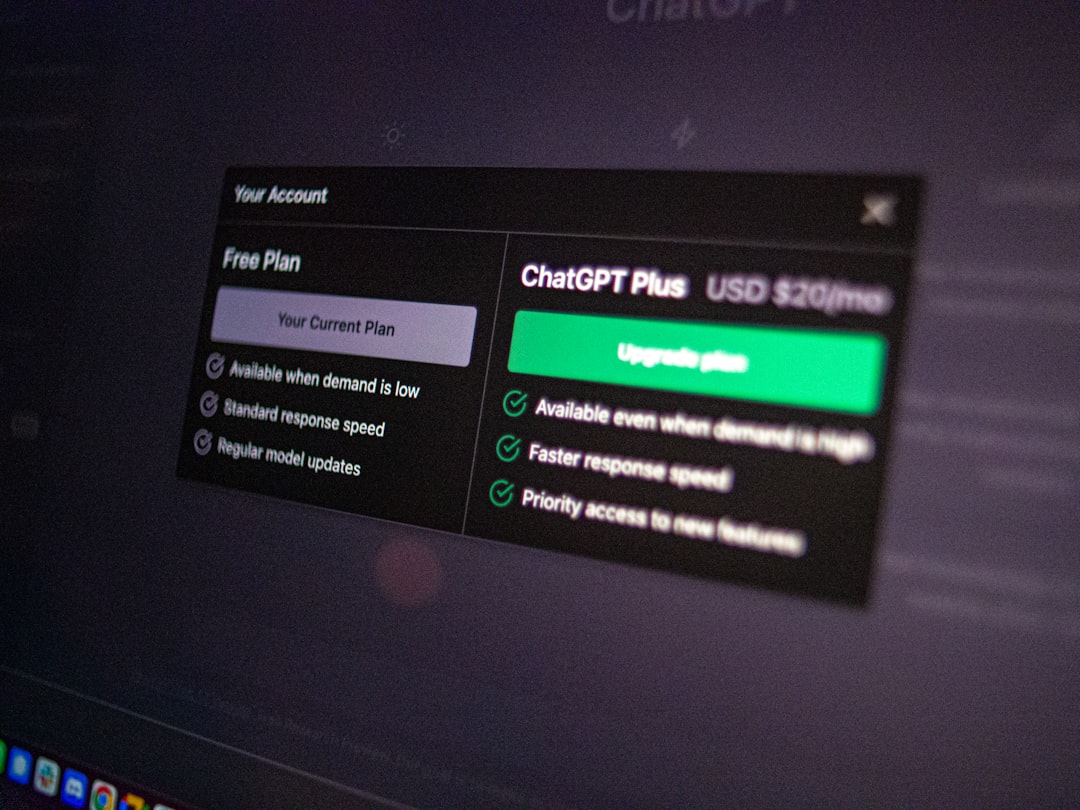
Once the cancellation is complete, your paid access will normally remain active until the end of the billing period you have already paid for. For instance, if your plan renews on the 20th and you cancel on the 5th, you may still have access to paid features until the 20th. After that, your account should revert to the free version, unless you start another subscription.
Canceling a Subscription Purchased Through Apple
If you subscribed through the ChatGPT iOS app and Apple handles the billing, you need to cancel through your Apple ID subscription settings. OpenAI generally cannot directly cancel Apple-managed subscriptions from the web billing portal.
To cancel on an iPhone or iPad:
- Open the Settings app on your device.
- Tap your name at the top of the screen.
- Select Subscriptions.
- Find and tap your ChatGPT subscription.
- Tap Cancel Subscription.
- Confirm the cancellation when prompted.
If you do not see ChatGPT listed, verify that you are signed in with the same Apple ID used to purchase the subscription. Some people have multiple Apple IDs, especially if they use one for personal purchases and another for work or family sharing.
You can also manage Apple subscriptions from a Mac or through Apple’s account management options. The key point is that Apple subscriptions must be canceled through Apple’s system because Apple controls the billing relationship.
Canceling a Subscription Purchased Through Google Play
If you subscribed through the ChatGPT Android app and the charge appears through Google Play, you must cancel through your Google account’s subscriptions page.
To cancel on Android:
- Open the Google Play Store app.
- Tap your profile icon.
- Select Payments and subscriptions.
- Tap Subscriptions.
- Choose your ChatGPT subscription.
- Tap Cancel subscription.
- Follow the prompts to confirm.
If the subscription does not appear, check whether you are using the correct Google account. Android devices can have multiple Google accounts, and only the account that made the purchase will show the active subscription.
Canceling ChatGPT Team or Business Plans
Business-oriented plans may have additional billing controls, especially if they are connected to a workspace. If you are using a team subscription, cancellation may require access as the workspace owner or billing administrator. Ordinary members may not have permission to cancel the plan.
To cancel a team-style subscription, sign in as the workspace owner or administrator, open the workspace settings, and look for the billing or plan management section. If you cannot find cancellation controls, contact the person in your organization who manages software purchases. For companies with centralized billing, the subscription may be tied to a business payment method, invoice, or administrative account rather than your individual login.
Organizations should be careful before canceling. Cancellation may affect multiple users, shared workspaces, usage limits, and administrative access. It is advisable to export or preserve any important records, confirm internal approval, and review the renewal date before making changes.
Important Things to Know Before You Cancel
- Canceling does not always mean immediate loss of access. You will usually keep paid features until the current billing period ends.
- Deleting the app does not cancel the subscription. You must cancel through the billing provider.
- Deleting your account is not the same as canceling billing. Cancel the subscription first to avoid confusion.
- You must use the correct account. If you log into a different ChatGPT, Apple, or Google account, you may not see the active subscription.
- Refunds are separate from cancellation. Canceling stops future renewals, but it does not automatically guarantee a refund for past charges.
These points matter because subscription systems are designed to continue billing until an explicit cancellation is confirmed. If you only uninstall the app, stop using ChatGPT, or log out of your account, the subscription can remain active.
How to Confirm Your Subscription Is Canceled
After canceling, take a few minutes to verify that the cancellation was successful. The account or app store page should show that the subscription is either canceled, expiring on a specific date, or no longer scheduled for renewal. You may also receive a confirmation email from the billing provider.
It is wise to keep a record of the cancellation. Save the email, download the receipt, or take a screenshot showing the cancellation date. This documentation can be useful if you later see an unexpected charge and need to contact support, Apple, Google, your bank, or your card issuer.
If your plan still appears active with a future renewal date after you attempted to cancel, repeat the cancellation steps and ensure you completed all confirmation prompts. Some services ask for a reason for cancellation before showing the final confirmation button. Do not close the page until you see a clear confirmation message.
What to Do If You Cannot Find the Cancel Button
If you cannot find a cancellation option, the most likely explanation is that you are looking in the wrong billing location. Start by checking where the charge appears. If your receipt comes from Apple, go to Apple subscriptions. If it comes from Google, go to Google Play subscriptions. If it comes directly from OpenAI or a card processor associated with the ChatGPT website, use the web account billing settings.
Also check whether you have more than one ChatGPT account. Some users accidentally create separate accounts by signing in once with email and password, another time with Google, and another time with Apple. The subscription will only appear under the account that purchased it.
If you still cannot locate the subscription, gather the following information before contacting support:
- The email address you believe is linked to the account
- The billing date and amount of the charge
- The last four digits of the payment card, if applicable
- Any receipt numbers from Apple, Google, or email confirmations
- Screenshots showing the subscription status, if available
Providing accurate details can help support teams identify the subscription more quickly and reduce back-and-forth communication.
Can You Get a Refund After Canceling?
Cancellation and refunds are usually handled as separate matters. Canceling a subscription generally prevents future renewals, but it does not necessarily reverse a recent payment. Refund eligibility may depend on where you subscribed, your location, the timing of the request, and the applicable terms of service.
If you subscribed through Apple, refund requests are usually handled through Apple’s refund process. If you subscribed through Google Play, Google’s refund policies apply. If you subscribed directly through the ChatGPT website, you may need to use OpenAI’s support or billing help options to ask whether a refund is available.
Do not assume that canceling automatically generates a refund. If a refund is important, submit the request promptly and keep your cancellation confirmation and payment receipt.
Final Checklist for Canceling ChatGPT Online
- Confirm where you originally subscribed: web, Apple, or Google.
- Sign in with the correct account or billing profile.
- Use the official subscription management page for that provider.
- Complete all confirmation steps until cancellation is clearly shown.
- Save proof of cancellation.
- Check your next bank or card statement to ensure no renewal occurred.
Canceling your ChatGPT subscription online should take only a few minutes when you use the correct billing path. The most important steps are identifying the provider that manages the subscription, confirming the cancellation fully, and keeping proof for your records. By following these steps carefully, you can stop future billing with confidence and avoid unnecessary confusion or unwanted charges.