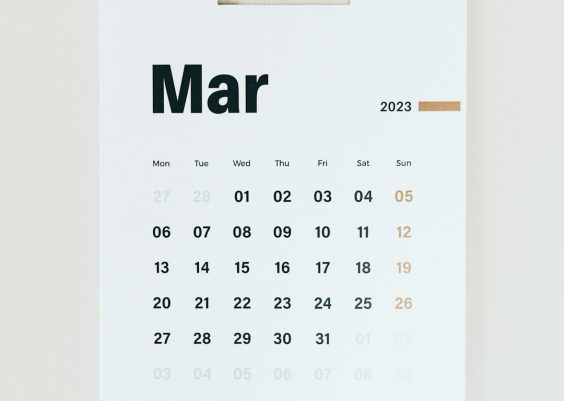
Designing a calendar may sound like a simple task, but creating one that’s both functional and beautiful takes a bit of thoughtful creativity. Whether you’re designing for yourself, a loved one, or a small business, using Canva to make a print calendar combines ease of use with powerful tools and templates that can take your project to the next level.
TLDR:
If you’re looking to design a stunning print calendar using Canva, focus on choosing the right layout, keeping your fonts and colors consistent, and using high-quality images. Pay attention to alignment and spacing, and personalize your calendars with meaningful content like birthdays or special dates. Finally, always export your calendar correctly for print. Keep reading for a deep dive into each of these essential tips!
1. Choose the Right Calendar Layout
Before you begin designing, identify the purpose of your calendar. Are you creating a wall calendar, a desk calendar, or a one-page planner? Canva offers a variety of free and premium templates designed specifically for different types of calendars.
- Monthly Grid Layout: Great for tracking events, birthdays, and appointments.
- Weekly Spread: Ideal if your calendar is focused on productivity or task management.
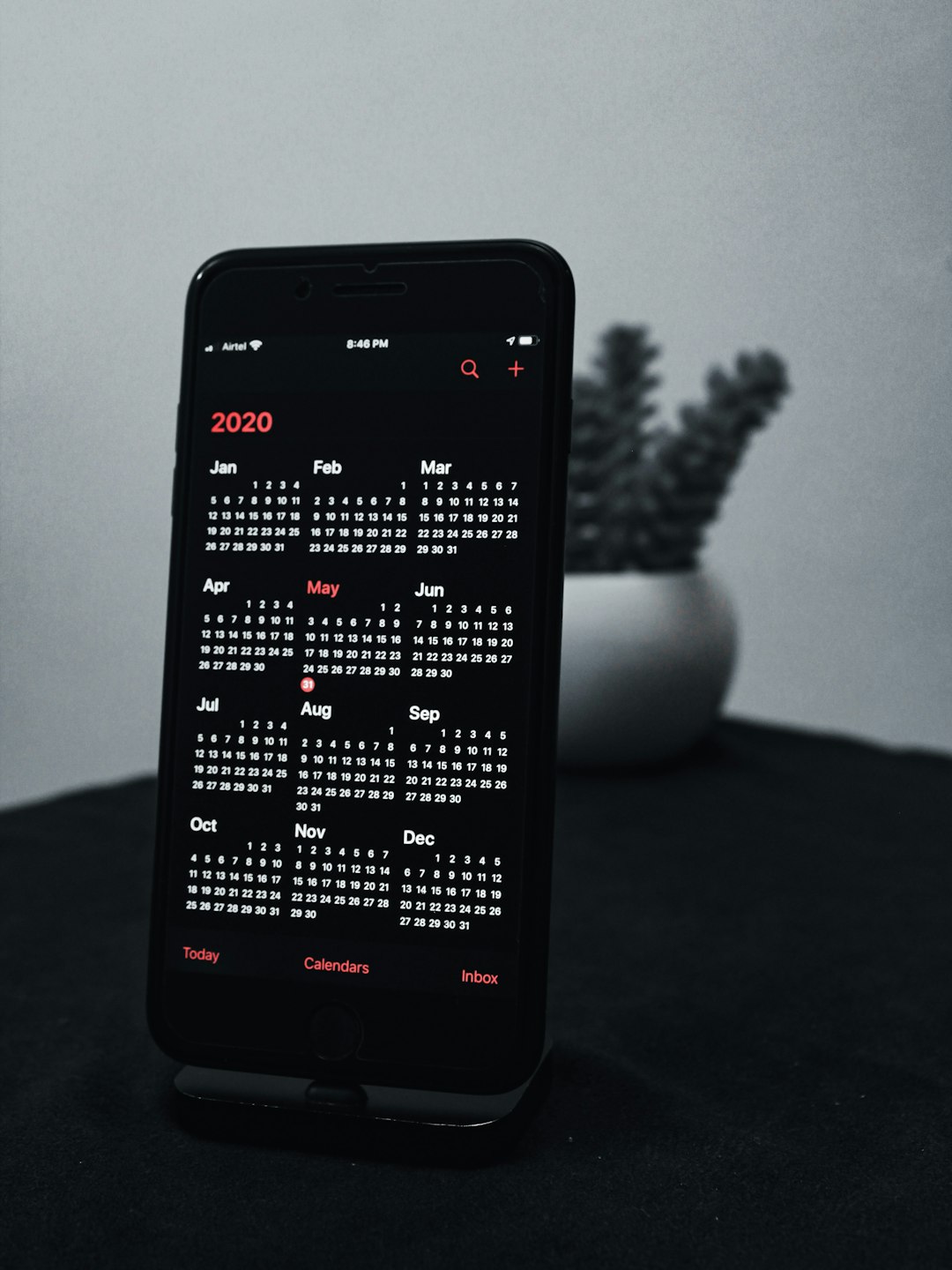
- Year-at-a-Glance: Perfect for business or promotional use.
Start with a template that’s close to your vision—you’ll cut your design time in half and ensure professional visual balance.
2. Stick to a Cohesive Theme
Your calendar should have a unified look and feel across all its pages. Pick a specific design theme—such as minimalist, floral, retro, or modern—and stick to it throughout the calendar. Canva makes it easy to apply consistent colors, fonts, and design elements by setting up a Brand Kit or using the “Styles” tab.
A cohesive design not only looks aesthetically pleasing but also enhances readability and user satisfaction over time.
3. Use High-Quality Images
Nothing brings a calendar to life like beautiful and sharp images. One common mistake is using low-resolution photos, which can look pixelated when printed. Canva provides access to a massive library of free and paid images, or you can upload your own high-quality photos.
Consider curating a theme for each month. For example:
- January: Snowy landscapes or New Year celebrations
- April: Flowers and springtime imagery
- December: Holiday scenes or cozy winter home interiors
Just make sure all photos are crisp and appropriately licensed for print media.
4. Keep Fonts Readable and Professional
Readability is crucial in calendar design. Avoid overcrowding your layouts with fancy or hard-to-read fonts. Instead, choose a maximum of two complementary fonts—one for headers (like the month name) and another for the days or small notes.
Good font pairings might include:
- Montserrat + Open Sans
- Lato + Playfair Display
- Roboto + Raleway
Also, maintain font consistency across all pages to create a seamless and polished design.
5. Add Personalized Dates and Touches
A calendar becomes far more meaningful when it includes personal notes. Add birthdays, anniversaries, special plans, or even motivational quotes. You can also color-code your calendar if you’re designing one for family activities, work deadlines, or fitness goals.
Want to get creative? Use Canva’s sticker elements, icons, and illustrations to include fun reminders or seasonal decorations.
6. Be Mindful of Grids and Spacing
Alignment and spacing can make or break your design. Canva’s guides and grid feature will help you maintain symmetry and proper spacing. Always ensure your dates are centered within their boxes and that margins are balanced around the page.
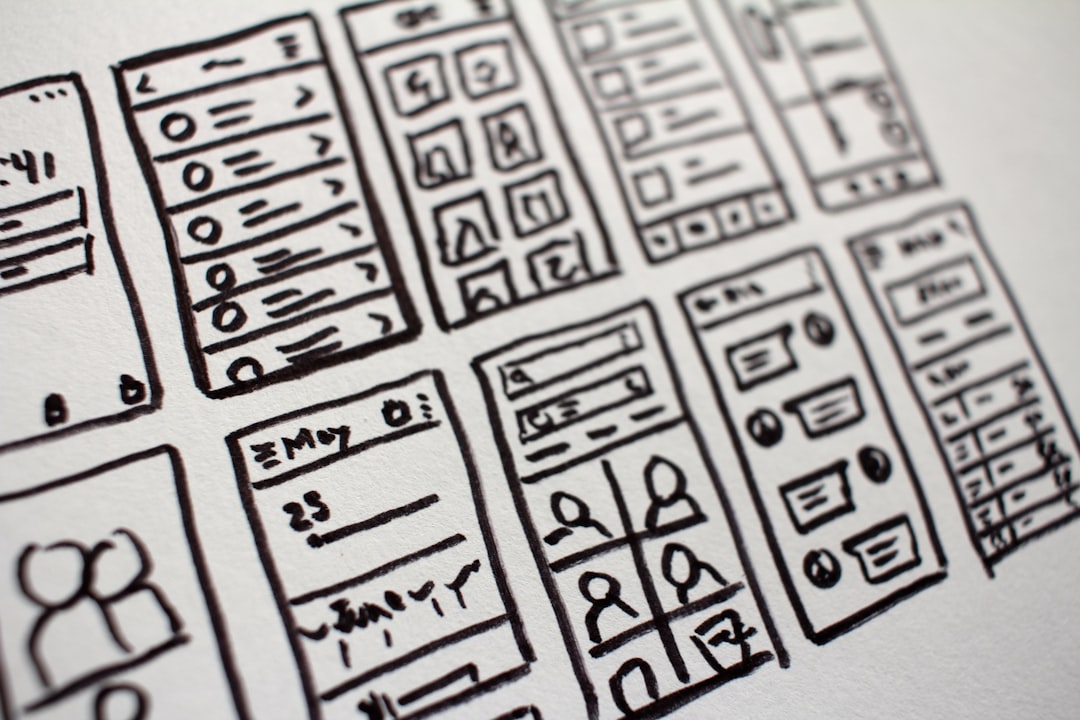
Overcrowding your design not only looks cluttered but also reduces legibility. White space is your friend—use it wisely.
7. Use the Right Color Palette
Selecting the right colors can create emotional resonance. For example, pastel shades might give your calendar a soft and serene vibe, while bold and vibrant colors can energize and inspire.
Try using:
- Analogous Color Schemes: Colors that are next to each other on the color wheel for a harmonious look.
- Complementary Colors: Colors opposite on the wheel for vibrant contrast.
- Monochrome Palettes: Variations of a single hue for a stylish minimalist appearance.
Be sure to account for printing differences. Some strong digital colors may not look the same when printed. A test print is always a smart move!
8. Include a Cover Page and Back Page
Don’t overlook the beginning and end of your calendar. A beautiful cover page sets the tone and gives the calendar a premium feel. Use a full-page image or graphic, the title of the calendar, and the year. On the back page, consider adding contact information, a website, or a favorite quote to wrap things up nicely.
9. Preview and Proofread Everything
Before finalizing, preview every single page. Ensure dates, holidays, and text are accurate. Look out for typos, incorrect spacing, or overlapping elements. Canva has a handy “Presentation Mode” to simulate flipping through your calendar pages, which helps catch errors before printing.
Ask someone else to review your calendar if possible—a fresh set of eyes can catch small mistakes you might overlook.
10. Export for High-Quality Printing
Once your calendar is complete, it’s time to export it properly for print. Canva offers various file type options, but for most calendars you’ll want to select:
- PDF Print: Best for professional-quality printing; includes crop marks and bleed settings.
- CMYK Color Mode: Ensures your colors are optimized for physical printing.
Check with your print provider for specific format requirements, such as margin or bleed parameters, and apply them accordingly in Canva’s export settings.
Bonus Tip: Plan for Binding
Consider how your calendar will be bound—spiral, staple, hole-punched? This can affect your layout. For example, leave extra margin space near the edge for spiral-bound calendars so no important info gets clipped in the binding process.
Final Thoughts
Creating a print calendar on Canva is a rewarding project that’s well within reach—even if you’re not a graphic designer. With a bit of planning, creative flair, and attention to detail, you can produce something that’s both functional and visually stunning. From layout and fonts to colors and images, every design choice contributes to a calendar you’ll love to display or gift.
So jump into Canva, let your creativity flow, and enjoy bringing your perfect calendar design to life!