When PowerSaves Amiibo files fail to show up, it can be frustrating—especially after spending time downloading or creating backups. Many users encounter this issue due to software glitches, incorrect file placement, outdated drivers, or corrupted data. Fortunately, most problems can be resolved with a few systematic troubleshooting steps. Understanding why files are not appearing is the first step toward restoring full functionality.
TL;DR: If PowerSaves Amiibo files aren’t showing, the issue is usually caused by incorrect folder placement, incompatible file formats, outdated software, or driver problems. Users should verify file locations, update PowerSaves software, reinstall drivers, and confirm file compatibility. In some cases, reinstalling the program or checking antivirus settings resolves the problem. Following structured troubleshooting steps often restores missing files quickly.
Understanding Why PowerSaves Amiibo Files Don’t Appear
PowerSaves for Amiibo is designed to read, modify, and back up Amiibo data through compatible hardware and software. When files do not appear in the application, the cause typically falls into one of several categories:
- Incorrect folder paths
- Unsupported or corrupted file formats
- Outdated PowerSaves software
- Driver installation issues
- Antivirus or firewall interference
- Hardware connection problems
Identifying which of these factors is responsible helps users apply the correct fix instead of guessing.
Check If Files Are in the Correct Folder
One of the most common mistakes involves placing Amiibo backup files in the wrong directory. PowerSaves only recognizes files stored in its designated backup folder.
How to Verify the Correct Folder
- Open the PowerSaves software.
- Navigate to Settings or Backup Manager.
- Locate the default backup directory path.
- Confirm your Amiibo files (.bin format) are stored there.
If files were downloaded from third-party sources, they may have been saved to the Downloads folder instead. Moving them into the official PowerSaves backup directory often resolves the issue immediately.
Image not found in postmetaConfirm File Format Compatibility
PowerSaves Amiibo typically supports .bin file format. If files have been renamed or saved in another format, they will not appear.
Users should ensure:
- The file extension is .bin
- The file size matches expected Amiibo backup sizes
- The file is not compressed inside ZIP or RAR archives
If the file is still inside a compressed folder, it must be extracted before PowerSaves can detect it.
Checking File Extensions on Windows
- Open File Explorer.
- Click View.
- Enable File Name Extensions.
This ensures the file truly ends in .bin and isn’t something like “amiibo.bin.txt.”
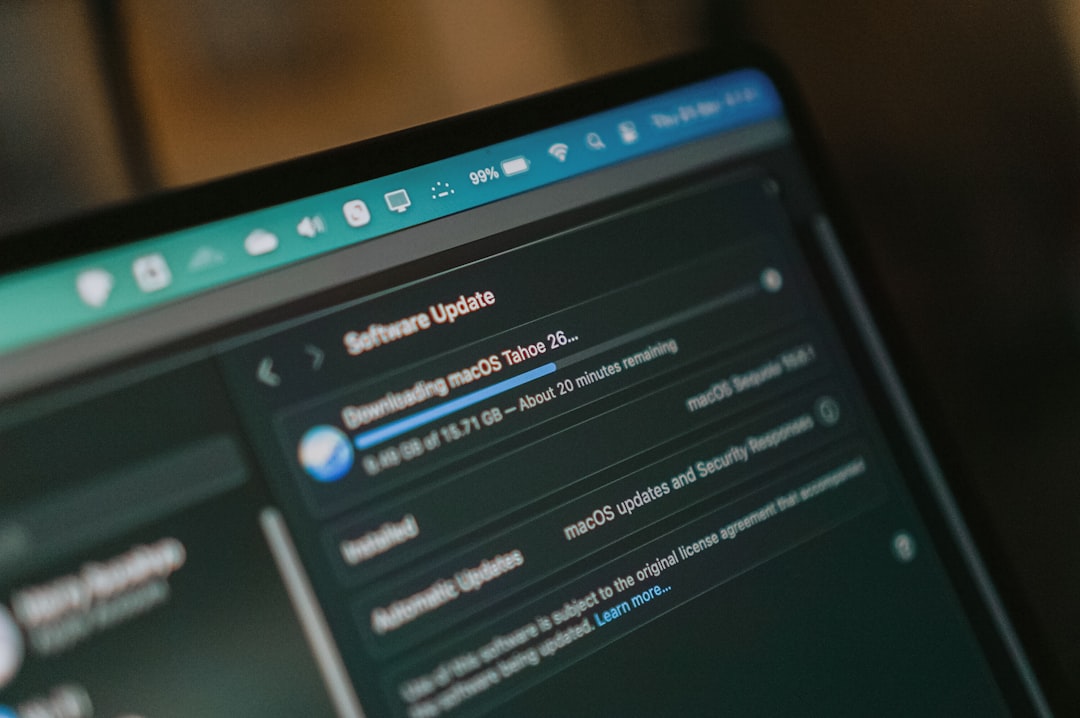
Update PowerSaves Software
Outdated versions of PowerSaves may fail to load newer backup formats or experience compatibility bugs. Developers occasionally release patches to fix recognition issues.
Steps to Update
- Visit the official PowerSaves website.
- Download the newest version.
- Uninstall the current version.
- Install the updated software.
- Restart the computer.
Restarting is crucial, as driver files often load during system boot.
Reinstall or Update Device Drivers
If Amiibo files still do not appear, the issue may not be file-related at all. Instead, the PowerSaves device driver might not be properly installed.
When the driver fails, the software cannot communicate with the attached hardware.
Reinstalling Drivers
- Disconnect the PowerSaves device.
- Open Device Manager.
- Locate the PowerSaves or unknown USB device.
- Right-click and select Uninstall Device.
- Reconnect the hardware to force driver reinstallation.
After reinstalling drivers, open PowerSaves again and check whether files now appear correctly.
Check Antivirus or Firewall Interference
Security software can sometimes block PowerSaves from accessing local files or communicating with its database.
If files are confirmed in the correct directory but remain hidden:
- Temporarily disable antivirus software.
- Add PowerSaves to firewall exceptions.
- Whitelist the backup folder.
After adjusting these settings, restart the software to refresh permissions.
Verify Hardware Connection
PowerSaves hardware must be properly connected to the computer via USB. A weak cable, USB hub, or faulty port can cause reading errors.
Troubleshooting Hardware
- Plug the device directly into a rear USB port.
- Avoid USB hubs.
- Try a different USB cable if possible.
- Test the device on another computer.
Hardware communication issues may prevent the software from loading backup data properly.
Image not found in postmetaCorrupted Backup Files
If only specific Amiibo backups fail to appear, those files may be corrupted. This often happens during incomplete downloads or improper file transfers.
Signs of Corrupted Files
- File size shows 0 KB
- File cannot be opened by backup tools
- Error message when attempting to load manually
Re-downloading or restoring the file from a previous backup often solves this problem.
Reinstall the Entire Application
If none of the above fixes work, a full reinstallation may be necessary. This ensures that all configuration files and registry entries are refreshed.
How to Perform a Clean Reinstall
- Uninstall PowerSaves from Control Panel.
- Delete leftover installation folders.
- Restart the computer.
- Download the latest version.
- Install as Administrator.
Running the installation as Administrator grants full file access permissions that may have been previously restricted.
Comparison of Common Fixes
| Issue | Symptoms | Fix Difficulty | Effectiveness |
|---|---|---|---|
| Wrong folder location | Files not listed in software | Easy | High |
| Incorrect file format | Files invisible or ignored | Easy | High |
| Outdated software | Glitches or missing backups | Medium | High |
| Driver issues | Device not detected | Medium | Very High |
| Antivirus interference | Software fails to load files | Medium | Moderate |
| Corrupted files | Specific files missing | Easy | Moderate |
Preventing Future File Visibility Problems
Once the issue is resolved, users can take preventive measures to avoid recurrence:
- Always store backups in the default directory.
- Keep software and drivers updated.
- Regularly back up Amiibo files to an external drive.
- Avoid renaming file extensions manually.
- Use stable internet when downloading backups.
Maintaining an organized file system significantly reduces the chances of files disappearing within PowerSaves.
When to Contact Support
If files still do not appear after all troubleshooting attempts, contacting official PowerSaves support may be necessary. Users should provide:
- Software version number
- Operating system details
- Driver version
- Description of steps already taken
This information speeds up diagnosis and increases the likelihood of a quick resolution.
Frequently Asked Questions (FAQ)
Why are my Amiibo .bin files not showing in PowerSaves?
The most common reason is incorrect folder placement. Files must be in the designated PowerSaves backup directory and extracted from compressed folders.
Does PowerSaves support formats other than .bin?
No. PowerSaves Amiibo primarily recognizes .bin files. Other formats or renamed files will not appear in the software.
Can antivirus software block Amiibo files?
Yes. Some security programs restrict applications from accessing local files. Whitelisting PowerSaves often resolves the issue.
How do I know if my file is corrupted?
If the file shows 0 KB in size, triggers an error when loading, or fails consistently while others work, it may be corrupted.
Should I reinstall PowerSaves if files don’t show?
Reinstallation is recommended only after checking file location, format, drivers, and antivirus settings. It is usually a last resort.
Why is my PowerSaves device not being detected?
This is typically a driver or USB connection issue. Reinstalling drivers or switching USB ports often solves the problem.
Can using a USB hub cause files not to appear?
Yes. USB hubs sometimes provide unstable connections, preventing the device from functioning properly.
When PowerSaves Amiibo files are not showing, the problem is rarely permanent. By systematically verifying file locations, formats, software updates, hardware connections, and security settings, users can typically restore visibility quickly. A structured troubleshooting approach eliminates guesswork and ensures Amiibo backups remain accessible when needed.