Changing your WiFi password is one of the simplest and most effective ways to protect your home or small office network. A strong, private password helps prevent unauthorized access, protects personal devices, and reduces the risk of someone misusing your internet connection. Whether you are updating your password for security reasons, removing access from old guests, or setting up a new router, the process is usually straightforward when handled carefully.
TLDR: To change your WiFi password, log in to your router’s administration page using a web browser, find the wireless or WiFi settings section, enter a new strong password, and save the changes. After the update, all connected devices will need to reconnect using the new password. Choose a password that is long, unique, and difficult to guess, and avoid reusing passwords from other accounts.
Why You Should Change Your WiFi Password
Your WiFi password is the main barrier between your private network and anyone nearby who might try to connect. If your password is weak, shared too often, or still set to the default value provided by your internet service provider, your network may be more exposed than you realize.
There are several good reasons to change it:
- You suspect someone else is using your network. Slower speeds, unknown devices, or unexpected data usage can indicate unauthorized access.
- You recently moved into a new home or office. Previous occupants, technicians, or guests may know the existing password.
- You gave the password to visitors. It is wise to update it periodically after sharing access.
- Your router still uses a default password. Default credentials may be printed on the router and are sometimes easier to guess.
- You want better security. A strong password is an important part of basic network protection.
Changing your WiFi password does not usually require advanced technical knowledge. However, it is important to follow the steps in the right order and keep a record of the new password somewhere safe.
Before You Begin
Before changing your WiFi password, gather the information you may need. This will make the process faster and reduce the chance of being locked out of your router settings.
- Your router’s IP address. Common addresses include 192.168.0.1, 192.168.1.1, or 10.0.0.1.
- The router admin username and password. These are different from your WiFi network name and WiFi password.
- A device connected to the network. You can use a computer, tablet, or smartphone.
- Your new WiFi password. Prepare a strong password before making changes.
If you do not know the router admin login details, check the label on the router, your internet provider’s setup paperwork, or the router manufacturer’s website. If the admin password was changed and you cannot recover it, you may need to reset the router to factory settings. Be careful: a factory reset can erase custom settings such as network names, parental controls, and port forwarding rules.

Step 1: Connect to Your Router
Start by connecting your device to the router. You can do this over WiFi or by using an Ethernet cable. A wired Ethernet connection is often more reliable because changing the WiFi password may disconnect wireless devices during the process.
If you are using a laptop or desktop computer, connect it directly to the router with an Ethernet cable if possible. If you are using a phone or tablet, make sure it is currently connected to the WiFi network you want to update.
Step 2: Open the Router Login Page
Open a web browser such as Chrome, Safari, Firefox, or Edge. In the address bar, type your router’s IP address. Do not type it into a search engine; enter it directly into the browser address bar.
Try one of these common addresses:
- 192.168.1.1
- 192.168.0.1
- 10.0.0.1
- 192.168.1.254
If none of these work, you can find the router address from your device settings. On Windows, open Command Prompt and type ipconfig, then look for Default Gateway. On macOS, go to System Settings, select your network connection, and look for Router. On many smartphones, the router address appears in the details section of the connected WiFi network.
Step 3: Log In to the Router Admin Panel
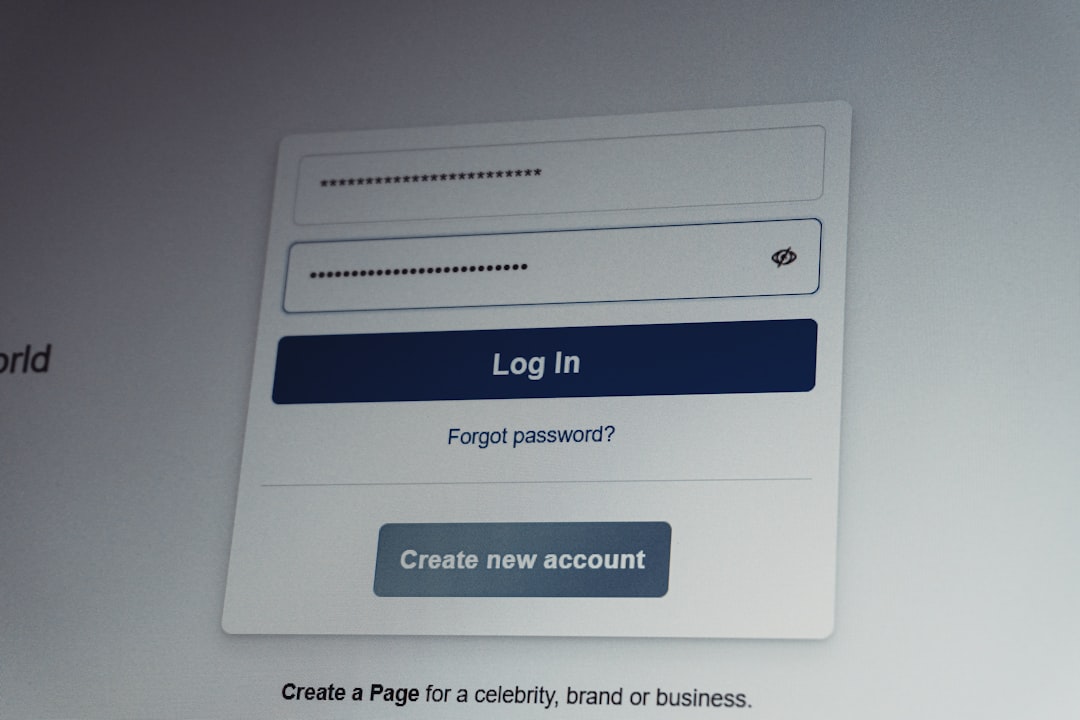
Once the router login page appears, enter the administrator username and password. This is not necessarily the same as your WiFi password. Many routers use default usernames such as admin, but modern routers often require a unique admin password printed on the device label or created during setup.
If you cannot log in, avoid repeated random attempts. Instead, check the router label, user manual, or your internet provider’s website. If your router is managed through an app, the app may be the only supported way to change settings.
Important: If your router still uses a default admin password, change that as well. The router admin password controls access to the device settings, while the WiFi password controls access to the wireless network. Both matter for security.
Step 4: Find the Wireless or WiFi Settings
After logging in, look for a section labeled Wireless, WiFi, WLAN, Network, or Wireless Security. The exact wording depends on the router brand and model. Some routers separate settings for the 2.4 GHz and 5 GHz bands, while newer models may combine them under a single network name.
You may see your current network name, also called the SSID. This is the name that appears when devices search for available WiFi networks. You do not have to change the network name when changing the password, although you can if you want a fresh start.
Step 5: Choose a Strong New WiFi Password
Your new WiFi password should be difficult for others to guess but practical for you to enter on your devices. A strong password is typically long, unique, and not based on obvious personal information.
Follow these guidelines:
- Use at least 12 to 16 characters, and longer is better.
- Include a mix of uppercase letters, lowercase letters, numbers, and symbols.
- Avoid names, birthdays, addresses, pet names, or phone numbers.
- Do not reuse passwords from email, banking, or social media accounts.
- Consider using a memorable passphrase made of several unrelated words.
For example, a passphrase such as River7!LampCloud92 is stronger than a short word with a number added at the end. You do not need to make the password impossible to type, but it should not be easily guessed by neighbors, visitors, or automated tools.
Step 6: Update the WiFi Password Field
In the wireless security settings, look for a field labeled Password, Passphrase, Pre Shared Key, Network Key, or WPA Key. Delete the old password and type the new one carefully.
While you are there, check the security mode. For most modern routers, the best available option is WPA3 Personal. If WPA3 is not available or some older devices cannot connect to it, use WPA2 Personal with AES encryption. Avoid outdated options such as WEP or WPA, which are no longer considered secure.
If your router has separate settings for the 2.4 GHz and 5 GHz networks, update the password for each band if necessary. You may use the same strong password for both, unless you intentionally want separate access rules.
Step 7: Save or Apply the Changes
After entering the new password, click Save, Apply, or Update. The router may take a few seconds or minutes to apply the change. During this time, your WiFi connection may drop. This is normal.
If you changed the password while connected wirelessly, your device will be disconnected because it is still trying to use the old password. Reconnect by selecting your WiFi network and entering the new password.
Some routers may restart automatically after saving settings. Do not unplug the router during this process unless instructed by the manufacturer or your provider.
Step 8: Reconnect Your Devices
Once the router has applied the new WiFi password, you must reconnect your devices. This includes phones, laptops, tablets, smart TVs, printers, security cameras, speakers, thermostats, and other smart home equipment.
On each device, open WiFi settings, select your network name, and enter the new password. If a device keeps trying to connect with the old password, choose the option to Forget This Network or Remove Network, then reconnect from the beginning.
What to Do If Something Goes Wrong
If you cannot connect after changing the password, first confirm that you entered it correctly. Passwords are case sensitive, so uppercase and lowercase letters matter. Also check that you updated the correct network, especially if your router has multiple WiFi bands or a guest network.
If the router login page is no longer accessible, restart the router by unplugging it for about 30 seconds and plugging it back in. Wait for the lights to stabilize before trying again. If you still cannot access the network, connect with an Ethernet cable and review the wireless settings.
As a last resort, you can perform a factory reset using the reset button on the router. This usually requires holding the button for 10 to 15 seconds. However, only do this if you are prepared to set up the router again from scratch or follow your internet provider’s instructions.
Should You Change the Network Name Too?
Changing the network name, or SSID, is optional. If unauthorized users may have saved your old network details, changing both the WiFi name and password can be helpful. It forces all devices to reconnect manually and makes it easier to identify your network.
Avoid using personal information in your network name. For example, do not include your full name, apartment number, or exact address. A neutral name is safer and more professional.
Do Not Forget the Guest Network
Many routers offer a guest network. This allows visitors to use the internet without accessing your main devices, such as computers, printers, and shared storage. If you frequently share WiFi access, enabling a guest network is a better practice than giving out your main password.
Set a separate password for the guest network and change it more often. If your router allows it, limit guest access to internet only and disable access to local network resources.
How Often Should You Change Your WiFi Password?
There is no single rule for every household or business, but changing your WiFi password every 6 to 12 months is a reasonable habit. You should also change it immediately if you suspect unauthorized access, after sharing it with many people, or when someone who previously had access should no longer connect.
For small businesses, it is better to have a formal process. Update passwords when employees leave, review connected devices regularly, and consider using separate networks for staff, guests, and equipment.
Final Security Tips
- Update router firmware. Firmware updates can fix security vulnerabilities and improve performance.
- Change the admin password. This protects the router settings from unauthorized changes.
- Disable WPS if not needed. WPS can be convenient, but it may reduce security on some routers.
- Review connected devices. Remove or block devices you do not recognize.
- Store the password securely. Use a trusted password manager or a secure physical location.
Changing your WiFi password is a practical security step that only takes a few minutes once you know where to look. By logging in to your router, updating the wireless password, choosing modern encryption, and reconnecting your devices carefully, you can significantly improve control over your network. Treat your WiFi password like any other important credential: keep it strong, private, and updated when circumstances change.