Online video splitters have become essential for creators, marketers, teachers, social media managers, and businesses that need to cut clips quickly without installing professional editing software. Instead of opening a complex desktop editor, a user can upload a video, mark the start and end points, split the file, and export a trimmed clip in minutes. The best tools combine speed, browser-based convenience, accurate timeline controls, and export options suitable for platforms such as TikTok, Instagram, YouTube, LinkedIn, and websites.
TLDR: The best online video splitters make it easy to cut, trim, and export clips directly from a browser. Tools such as Kapwing, VEED, Clideo, Adobe Express, Clipchamp, Flixier, and Online Video Cutter are popular because they work quickly and require little editing experience. The right choice depends on whether a user needs simple trimming, social media formatting, captions, collaboration, or advanced editing features.
Why Online Video Splitters Are So Popular
Modern video editing often requires speed more than complexity. A social media manager may need to extract a 15-second highlight from a webinar. A teacher may want to cut a lecture into shorter lessons. A small business may need to remove an awkward pause from a product video. In each case, an online video splitter provides a fast solution without forcing the user to learn professional editing software.
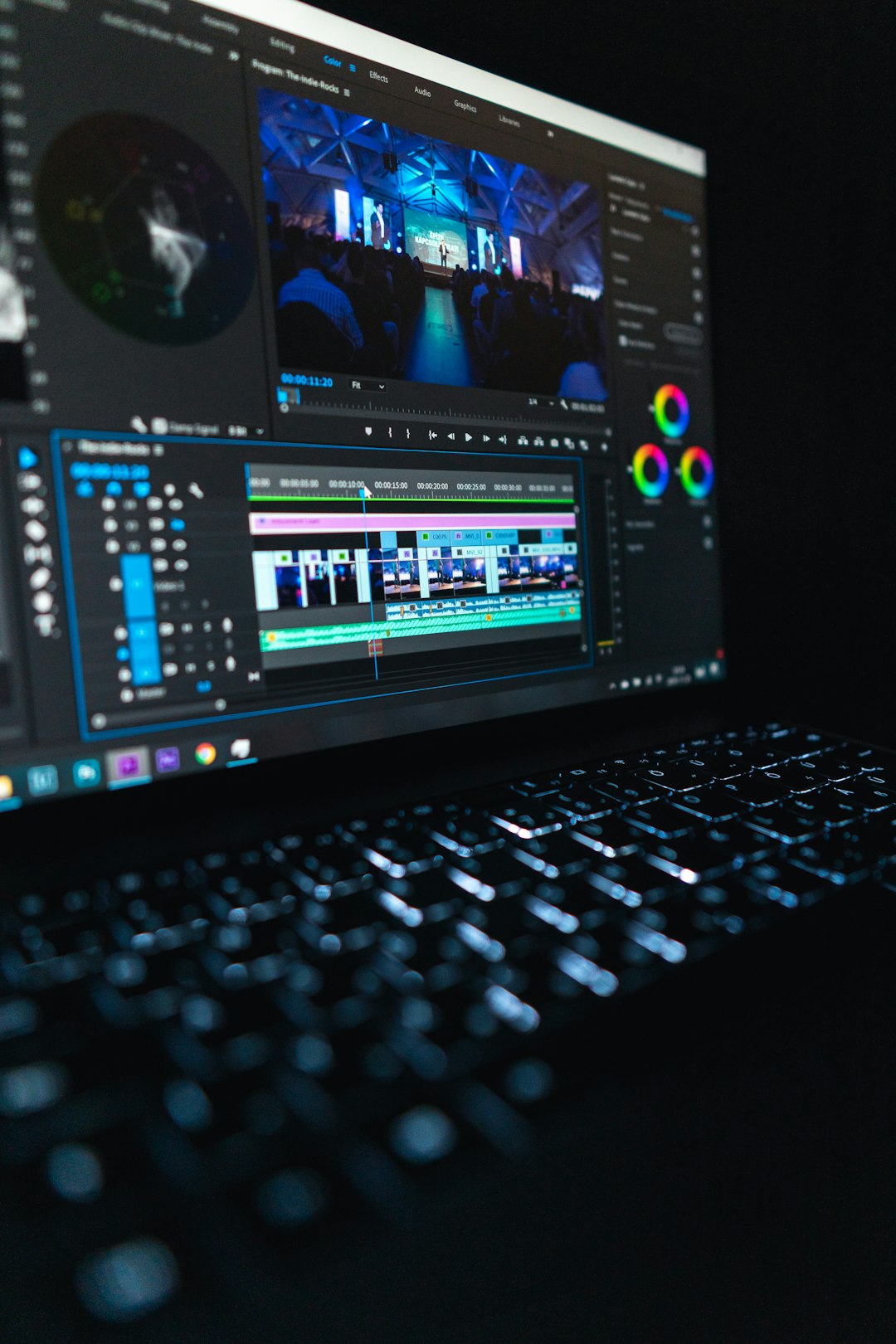
Most browser-based splitters work in a similar way. The user uploads a file, drags a playhead across the timeline, chooses where the video should be split, deletes unwanted sections, and exports the final version. Many platforms also include extra tools such as subtitles, crop presets, compression, background music, and format conversion.
The main advantage is convenience. Since these tools run online, they can often be accessed from a laptop, Chromebook, tablet, or shared workstation. For quick clip cutting, they remove many technical barriers and help teams publish content faster.
What Makes a Good Online Video Splitter?
Before choosing a tool, users should consider more than just whether it can cut a video. A strong online splitter should offer a smooth editing experience, reliable exports, and enough control to avoid rough cuts.
- Speed: Uploading, splitting, and exporting should be fast, especially for short social clips.
- Precise controls: A good timeline should allow accurate cuts by seconds or frames.
- Format support: Common formats such as MP4, MOV, AVI, and WebM should be supported.
- Export quality: The final clip should remain sharp, with minimal compression loss.
- Ease of use: The interface should be simple enough for beginners.
- Extra features: Captions, resizing, cropping, and transitions can be valuable for content creators.
- Privacy and file handling: Users working with confidential videos should check deletion policies and security options.
1. Kapwing
Kapwing is one of the most popular online video editing platforms for creators who need fast, flexible clip cutting. Its video splitter allows users to upload footage, move through a visual timeline, split clips into sections, remove unwanted parts, and rearrange segments with minimal effort.
The platform is especially useful for social media content. It includes preset canvas sizes for TikTok, YouTube Shorts, Instagram Reels, and other platforms. Users can also add subtitles, text overlays, audio, images, and brand elements. This makes Kapwing more than a simple splitter; it functions as a lightweight online editing studio.
Best for: creators, marketers, educators, and teams that need quick editing plus social media formatting.
2. VEED
VEED is another strong option for cutting clips in seconds. It offers a clean browser editor with an intuitive timeline, making it easy to split video files, delete sections, and export polished clips. VEED is particularly well known for its subtitle tools, including automatic caption generation.
For users who regularly repurpose long videos into short clips, VEED can be especially helpful. A podcast episode, webinar, or interview can be uploaded, divided into highlights, captioned, resized, and prepared for social platforms. The interface is designed for non technical users, which reduces the learning curve.
Best for: users who want video splitting combined with captioning, social media editing, and simple branding tools.
3. Clideo
Clideo is a straightforward online toolkit with a simple video cutter and splitter. It is ideal for users who do not want a complicated editor and only need to trim, cut, or split a video quickly. The tool supports many common file formats and works directly in the browser.
Clideo’s biggest strength is simplicity. The user uploads a video, selects the desired section, and saves the result. It does not overwhelm the editing process with too many features. This makes it useful for one time edits, casual users, and anyone who needs a clean, quick video cut.
Best for: simple trimming tasks, beginners, and users who want a fast, minimal interface.

4. Adobe Express
Adobe Express offers an accessible online video trimmer that fits well into a broader content creation workflow. While it is not as complex as professional Adobe desktop software, it provides a polished experience for quick edits, including trimming, resizing, and preparing clips for social media.
Adobe Express is a good choice for users who want professional-looking results without advanced editing complexity. Its interface is clean, and its design features are helpful for creating promotional clips, stories, ads, and short branded videos. Users can trim clips and then enhance them with layouts, text, and visual elements.
Best for: small businesses, social media teams, and users who want quick video cuts with polished design options.
5. Clipchamp
Clipchamp, owned by Microsoft, is a browser-based video editor that provides more advanced editing features while remaining user friendly. It includes timeline splitting, trimming, cropping, transitions, text, audio tools, templates, and stock media options.
Clipchamp works well for users who want a full editing environment without installing heavy software. Its splitter is easy to use: the editor places the video on a timeline, the user moves the playhead to the desired moment, and the split tool separates the footage into editable sections. From there, unwanted clips can be deleted or rearranged.
Best for: Windows users, business presentations, YouTube videos, and creators who need a fuller online editor.
6. Flixier
Flixier is designed for fast cloud-based editing and collaboration. It allows users to split videos online, add text, insert transitions, adjust audio, and export quickly. One of its main selling points is performance, especially for users who want a more responsive editing experience in the browser.
Flixier can be useful for teams because it supports collaborative workflows. Multiple contributors can work on video projects, provide feedback, and prepare content for publication. For businesses, agencies, and distributed teams, this can be more efficient than sending large video files back and forth.
Best for: teams, agencies, remote collaborators, and users who need fast exports with cloud editing features.
7. Online Video Cutter
Online Video Cutter is a simple browser tool focused on cutting and trimming video files. It is not designed to compete with full editors, but it works well for quick tasks. Users can upload a video, choose a section to keep, rotate or crop if needed, and export the finished clip.
This type of tool is useful when the job is small and direct. For example, a user may need to remove the first few seconds of a screen recording or cut a long video down to a shorter shareable segment. In those cases, a lightweight cutter can save time.
Best for: quick edits, basic trimming, and users who do not need advanced creative controls.
8. Ezgif Video Cutter
Ezgif is widely known for GIF creation, but it also includes basic video cutting tools. Its interface is plain compared with modern video editors, yet it is practical for simple browser-based edits. Users can upload a file, enter start and end times, and cut the selected section.
Ezgif is especially useful for short files, memes, GIF conversions, and lightweight edits. It may not be the best option for polished marketing videos, but it is reliable for fast, functional trimming.
Best for: GIF makers, meme creators, and users who need very basic cutting controls.
How to Choose the Right Video Splitter
The best online video splitter depends on the user’s workflow. A creator making daily short-form content may prefer Kapwing or VEED because they include captions and social layouts. A business user preparing simple branded clips may like Adobe Express. A team collaborating on client videos may benefit from Flixier. Someone who only needs one quick cut may choose Clideo or Online Video Cutter.
Users should also consider file size limits, watermark policies, export resolution, and whether an account is required. Free plans are useful for testing, but they may include restrictions such as lower resolution, watermarks, or limited export minutes. Paid plans may be worthwhile for frequent publishing, professional work, or team collaboration.

Tips for Cutting Clips Faster
Even a simple splitter becomes more effective when users follow a clear process. The following tips can help speed up editing and improve final results:
- Review the footage first: Watching the video once helps identify the best cut points.
- Use timestamps: Noting important moments before editing makes splitting faster.
- Cut on natural pauses: Splitting during silence or between sentences creates smoother clips.
- Keep platform length in mind: Short clips often perform better on social platforms, but each channel has different expectations.
- Add captions when needed: Many viewers watch videos without sound, so captions can improve engagement.
- Export in the right format: MP4 is often the safest choice for broad compatibility.
Common Use Cases for Online Video Splitters
Online video splitters are useful across many industries and content types. A podcaster may cut a long interview into highlight clips. A coach may divide a training session into short modules. A retailer may trim product demonstrations for ads. A recruiter may shorten an employer branding video for LinkedIn.
They are also helpful for internal communication. Companies can cut long meeting recordings into brief updates, onboarding lessons, or announcement clips. Schools and universities can divide lectures into shorter sections that are easier for students to review. In every case, shorter clips make video content easier to consume and share.
Final Thoughts
Online video splitters make video editing faster, simpler, and more accessible. Instead of relying on heavy desktop software, users can cut clips directly in a browser and export them for immediate use. The best choice depends on the desired balance between simplicity and creative control.
Kapwing and VEED stand out for social media workflows, captions, and content repurposing. Clideo, Online Video Cutter, and Ezgif are better suited for quick, basic edits. Adobe Express, Clipchamp, and Flixier offer broader editing features for users who want more than simple splitting. With the right tool, cutting clips can take seconds rather than hours.
FAQ
What is an online video splitter?
An online video splitter is a browser-based tool that allows users to divide a video into sections, remove unwanted parts, and export the edited clip without installing software.
Which online video splitter is best for beginners?
Clideo and Online Video Cutter are strong beginner-friendly options because they offer simple interfaces and focus on basic trimming tasks.
Which tool is best for social media clips?
Kapwing and VEED are excellent for social media because they include resizing presets, captions, text tools, and quick export options.
Can online video splitters cut large files?
Many can, but file size limits vary by platform and plan. Users working with long or high-resolution videos should check upload limits before choosing a tool.
Do online video splitters reduce video quality?
Some compression may occur during export, especially on free plans. Choosing higher export settings and using MP4 format can help preserve quality.
Are online video splitters safe to use?
Most reputable tools are safe, but users should review privacy policies before uploading sensitive, private, or confidential videos.
Can a video be split without a watermark?
Some platforms allow watermark-free exports on free plans, while others require a paid subscription. Users should check export terms before editing important projects.