So, you’ve been using Optimum email and now you’re ready to make the move to Gmail. Great choice! Gmail is packed with useful tools, easy to organize, and works smoothly on just about any device.
TL;DR (Too long, didn’t read)
If you’re switching from Optimum to Gmail, you can bring all your old emails with you! This guide walks you through connecting your Gmail to your Optimum account, importing everything, and making Gmail your new home base. It’s easier than you think — just follow the steps and you’ll be good to go. It’s like moving houses, but for emails!
Why transfer your email?
Let’s be real — Gmail rocks! It connects with Google Drive, Calendar, Docs, and more. Here’s why making the switch makes sense:
- Gmail is faster
- Better spam control
- Access from anywhere, on any device
- It’s more secure
What you need before starting
You’ll need a few things ready:
- Your Optimum email address and password
- An active Gmail account
- A stable internet connection
Step 1: Log in to your Gmail account
Let’s kick things off super easy.
- Go to mail.google.com
- Sign in using your Gmail email and password
If you don’t already have a Gmail account, you can create one at this link.
Step 2: Get details from your Optimum account
Before Gmail can pull your emails from Optimum, you need the server details. Here they are:
- Incoming mail server (POP3): mail.optimum.net
- Port: 110
- SSL: No (but Gmail will use secure connection)
Also, double-check that your Optimum email password is correct! If you’re unsure, try logging in at optimum.net and make sure you have access.
Step 3: Add Optimum account to Gmail
Okay, now let’s merge your accounts!
- Go back to your Gmail inbox.
- Click the gear icon in the top right and choose “See all settings.”
- Click on the “Accounts and Import” tab.
- Find the section titled “Check mail from other accounts” and click “Add a mail account.”

Step 4: Enter your Optimum email info
A pop-up window will open. Here’s what you do:
- Enter your full Optimum email (like johndoe@optimum.net)
- Click Next
- Choose “Import emails from my other account (POP3)” and click Next
Now fill in the POP settings:
- Username: Your Optimum email (ex: johndoe@optimum.net)
- Password: Your Optimum email password
- POP Server: mail.optimum.net
- Port: 110
- Check: “Leave a copy of retrieved message on the server” (optional)
- Do NOT check: “Always use a secure connection” (Optimum doesn’t support SSL on port 110)
Click “Add Account”. If all went well, you’ll get a success message. Yay!
Step 5: Decide if you want to send emails as your Optimum address
Gmail will now ask: “Would you also like to be able to send mail as johndoe@optimum.net?”
If you still want to use your Optimum email address, choose Yes. This lets you send emails from Gmail using your old address. If you’re ready to fully move to Gmail, just click No.
Step 6: Watch the magic happen
Now Gmail is importing your emails! Depending on how many emails you have, it could take a few minutes or a few hours. Relax while Gmail does the heavy lifting.
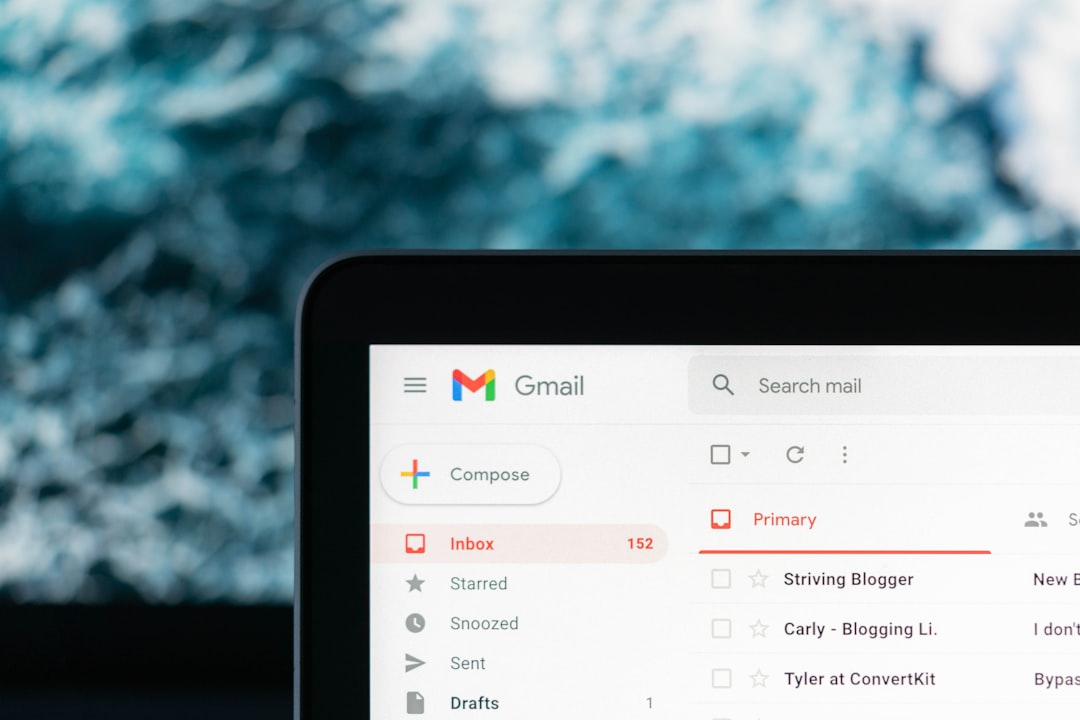
When it’s done, you’ll see your old Optimum emails in your Gmail inbox. They might even be sorted under a label like “Optimum” to find them easier.
Bonus: Forward new Optimum emails automatically
If you want to make sure you’re not missing any new messages that go to your old address, you can forward them!
Here’s how to set auto-forwarding from Optimum to Gmail:
- Log into your Optimum email at webmail.optimum.net
- Go to Settings
- Look for Email Forwarding
- Enter your Gmail address
- Click Save
Now, all your future emails will head to your Gmail. Score!
Optional: Update your contacts
Tell your family, friends, and boss that you’ve switched email addresses.
You don’t need a megaphone—just send a quick message:
“Hey! Just a heads up, I’ve moved my email to Gmail. Please update your address book to reach me at johndoe@gmail.com. Cheers!”
If you have address books saved in Optimum, you might also be able to export your contacts and import them into Gmail. Most use CSV files.
Troubleshooting Tips
Uh-oh! Hit a bump? Try these:
- Email/password incorrect? Double-check spelling and capitalization.
- POP server not working? Make sure you used: mail.optimum.net on port 110.
- Getting errors? Try removing the account and repeating the steps slowly.
Final Thoughts
Switching email accounts might feel like a huge task, but Gmail makes it pretty simple. Once you’re set up, you’ll wonder why you didn’t do it sooner. It’s faster, smoother, and full of cool features that Optimum just doesn’t offer.
Now go enjoy your new digital digs in Gmail 📨!