Noticing a red tint on your monitor can be frustrating, especially when you’re unsure of its cause or how to fix it. Whether it’s sudden or progressively worsening, a red hue affecting your entire screen can point to hardware or software issues, or even incorrect display settings.
TL;DR: If your monitor has a red tint, start by checking the cable connections and trying another monitor or PC to isolate the issue. Consider adjusting your color settings, updating or reinstalling display drivers, and checking for hardware faults such as damaged cables or faulty display panels. Simple fixes often resolve the issue, but hardware defects might require professional repair or replacement.
Common Causes of a Red Tint on Your Monitor
Identifying the root cause is the first step toward fixing the problem. Here are the most common reasons your monitor may appear red-tinted:
- Loose or damaged cables
- Faulty monitor or graphics card
- Miscalibrated color settings
- Outdated or corrupted graphics drivers
- Operating system or display profile issues
Step-by-Step Troubleshooting Guide
1. Check Cable Connections
Begin with the basics. Loose or faulty cables are among the most frequent culprits behind abnormal color tints.
- Ensure the monitor cable is securely connected at both ends—monitor and PC.
- If using an adapter (e.g., HDMI to VGA), check that the adapter is functioning properly.
- Inspect the cable for visible signs of damage, such as bends, frays, or exposed wires.
Try This: Swap out the cable with another known good one. If the red tint disappears, the original cable was likely the issue.
2. Test With Another Monitor or PC
The next step is isolating whether the problem lies with your PC or the monitor itself.
- Connect your monitor to a different computer or device. If the red tint remains, the monitor is likely the issue.
- Connect a different, functional monitor to your current PC. If this second monitor works fine, the original monitor is likely defective.
Doing this helps narrow the issue to hardware from either the monitor or the computer’s internal components.
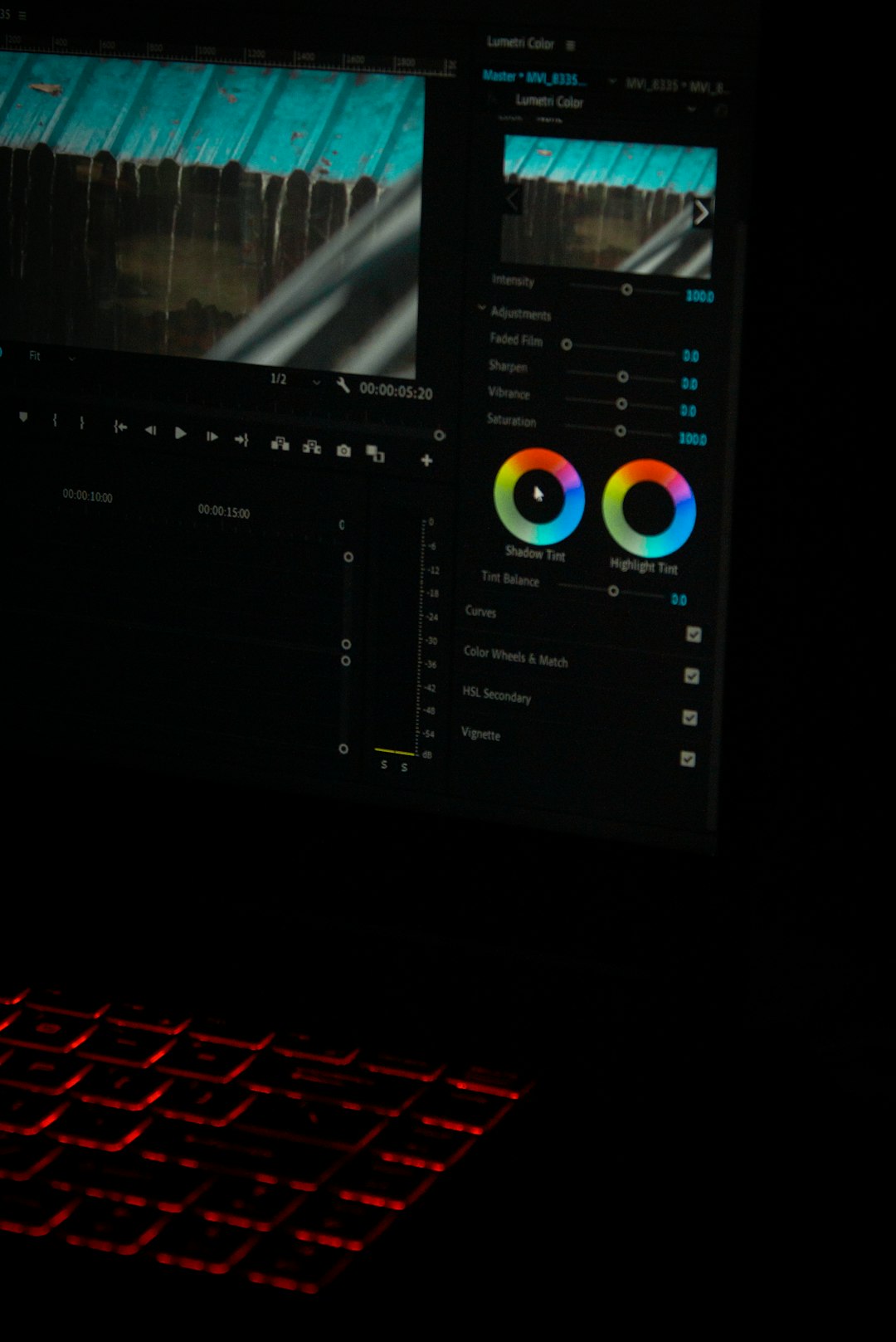
3. Adjust Display and Color Settings
Sometimes, the red tint is simply the result of incorrect system settings — especially after updates or driver installations.
On Windows:
- Go to Settings > System > Display.
- Click on Advanced display settings > Display adapter properties.
- In the new window, go to the Color Management tab and select Color Management…
- Check the assigned ICC profile or try removing a custom one to return to default settings.
On macOS:
- Go to System Preferences > Displays.
- Open the Color tab and try different color profiles.
Resetting color profiles to system defaults often resolves display tint problems.
4. Update or Reinstall Graphics Drivers
Your display might appear red if the graphics driver is outdated or corrupted. Here’s how to update or reinstall it:
Windows Users:
- Press Windows + X and click Device Manager.
- Expand Display adapters, right-click your GPU, and select Update driver.
- Alternatively, go to the manufacturer’s website (NVIDIA, AMD, Intel) to manually download and install the latest driver.
If updating doesn’t help, try uninstalling the driver and rebooting your PC. Windows will attempt to reinstall a fresh version automatically.
macOS Users:
- macOS handles GPU driver updates through system updates, so make sure your system is up to date via System Preferences > Software Update.
5. Check for Night Light or Blue Light Filters
Both Windows and third-party software offer blue light filtering options. Ironically, some of these filters can oversaturate the screen with red hues, especially if turned up high.
For Windows:
- Go to Settings > System > Display.
- Look for the Night light option and ensure it’s turned off.
For macOS:
- Go to System Preferences > Displays > Night Shift.
- Ensure Night Shift is off or adjust the color temperature slider.
Disabling blue light filters or f.lux can quickly fix a red-tinted screen if they were the cause.
6. Inspect the Monitor’s On-Screen Menu
Most monitors have built-in controls and menu settings. Access the monitor’s on-screen display (OSD) menu using its physical buttons:
- Look for any custom picture mode or color settings actively enabled (e.g., Gaming mode, Warm filter, etc.).
- Restore factory settings via the menu to remove any misconfiguration.
Some users solve the red tint problem by simply reverting the OSD settings to default.
7. Physical or Internal Hardware Failure
If none of the above steps resolve the issue, your monitor may have a failing internal component.
- Backlight issues: A faulty LED backlight may cause uneven color, including a red hue.
- Panel damage: Physical damage or age-related deterioration of the LCD panel can cause discoloration.
- Graphics card issue: A malfunctioning GPU might produce incorrect color output.
To test your graphics card, try using an external monitor or open your PC and reseat the GPU. If it doesn’t help, professional diagnostics may be required.
8. External Software and Color Calibration Tools
Third-party applications such as f.lux, DisplayCAL, or GPU control panels (like NVIDIA Control Panel or AMD Radeon Settings) can alter display colors.
- Try disabling or uninstalling these programs temporarily.
- Open your GPU’s control panel and reset any adjustments under the color, contrast, or hue options.
If you’re working in graphic design or photography, also check apps like Adobe Photoshop or Lightroom in case they override global color profiles.
When to Replace Your Monitor
If you’ve followed all the above steps and the problem persists, it might be time to consider replacing your monitor. Here’s when to make that call:
- The red tint remains across multiple devices and cables.
- Your monitor shows additional signs of failure — flickering, dead pixels, or physical damage.
- Professional repair costs outweigh the value of a replacement unit.
Monitor lifespan varies, but most models last between 5 to 10 years under normal use. A persistent red tint on an aging display may signal it’s nearing end-of-life.
Preventive Tips to Avoid Future Issues
- Use high-quality HDMI or DisplayPort cables. Cheap or worn-out cables are prone to interference and damage.
- Update graphics drivers regularly. Keep your system software current to support optimal display performance.
- Handle monitor connections gently. Avoid continuously plugging/unplugging cables unless necessary.
- Use a surge protector to guard against voltage fluctuations that might damage internal components.
Conclusion
A red-tinted screen might appear alarming at first, but in most cases, it’s a fixable issue. From simple cable checks and display settings to more complex driver updates or hardware diagnostics, taking a methodical approach will usually reveal the cause. If all else fails, you may need professional help or replacement parts, but investing time in